Action ‘Update_a_record’ failed: An error has occurred. No resources were found when selecting for update – Fixing Cross-Company Update Issues in Finance & Operations Using Dataverse Virtual Entities (Power Automate)


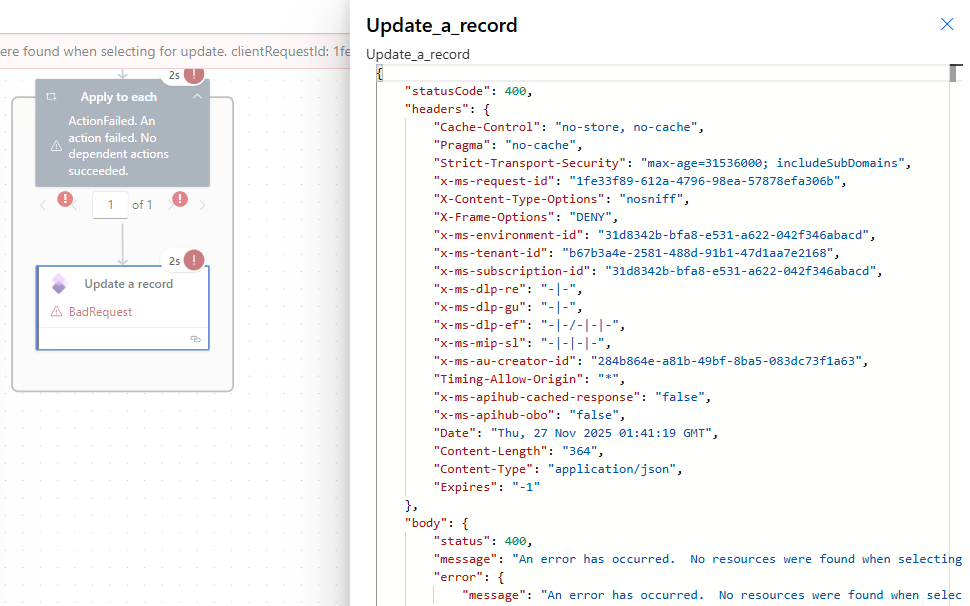
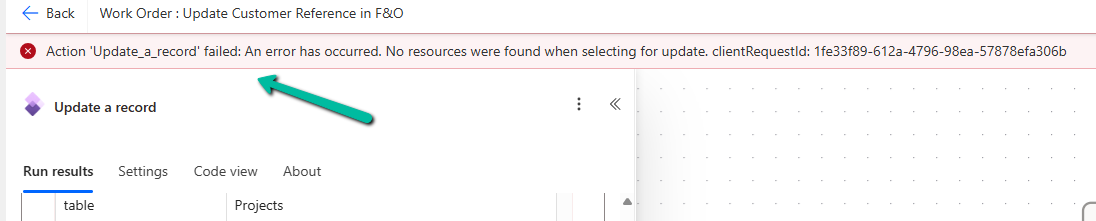
Recently, while trying to update the Projects table in Finance & Operations using the Fin & Ops Apps actions in Power Automate, we ran into below error:

An error has occurred. No resources were found when selecting for update.
A screenshot of a computer

AI-generated content may be incorrect.

A screenshot of a computer

AI-generated content may be incorrect.

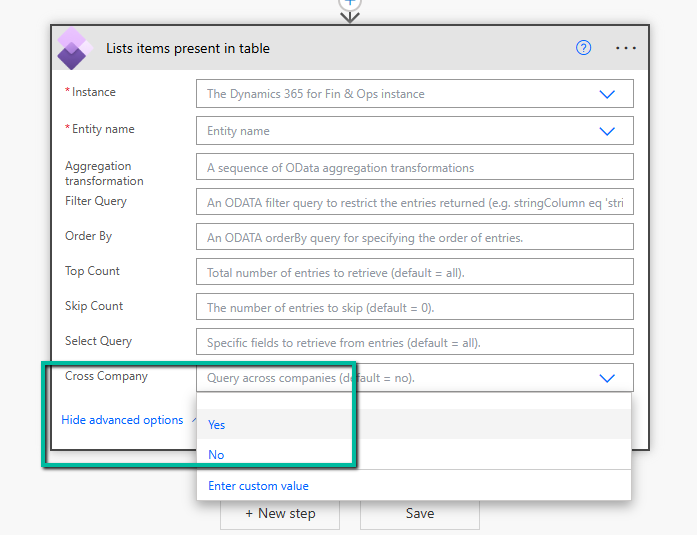
After digging deeper, we realised the issue had nothing to do with the payload or field mappings. The root cause was that the default company of the connection user in Finance & Operations was different from the company of the record we were trying to update. The Fin & Ops connector always operates in the context of the user’s default legal entity, and unlike the “List items present in table” action, it does not offer any “Cross Company” option for update operations. The result is that Power Automate looks for the record in the wrong company and, naturally, F&O returns a “record not found” error.
A screenshot of a computer

AI-generated content may be incorrect.

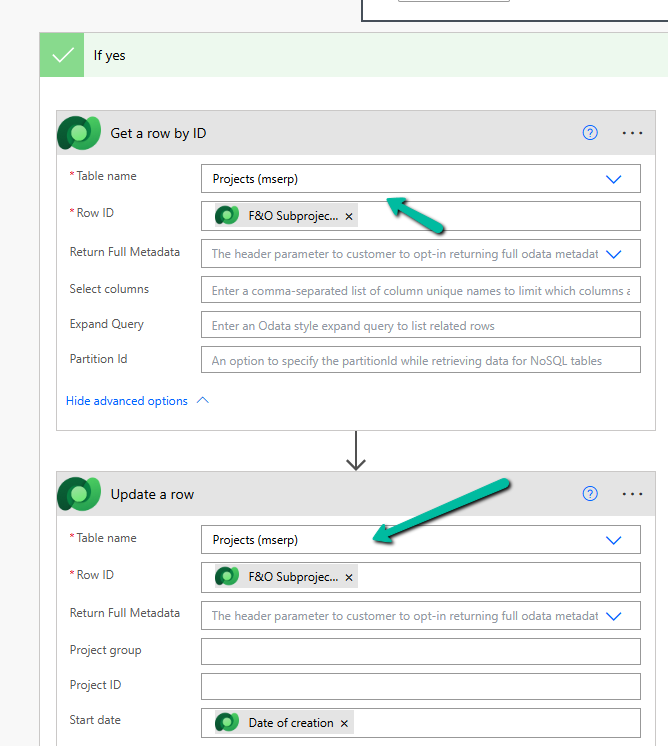
In our scenario, we had dual-write and virtual entities enabled. When this is the case, Finance & Operations exposes many of its data entities as Dataverse Virtual Tables. These tables are essentially real-time proxies: Dataverse reads and writes directly into F&O while automatically handling the underlying company and key structure. So instead of updating the F&O Projects table directly, we switched our Power Automate logic to update the corresponding virtual entity in Dataverse. That simple change immediately resolved the issue. The update worked flawlessly across companies, and we didn’t have to worry about the user’s default company or any cross-company flags.
A screenshot of a computer

AI-generated content may be incorrect.

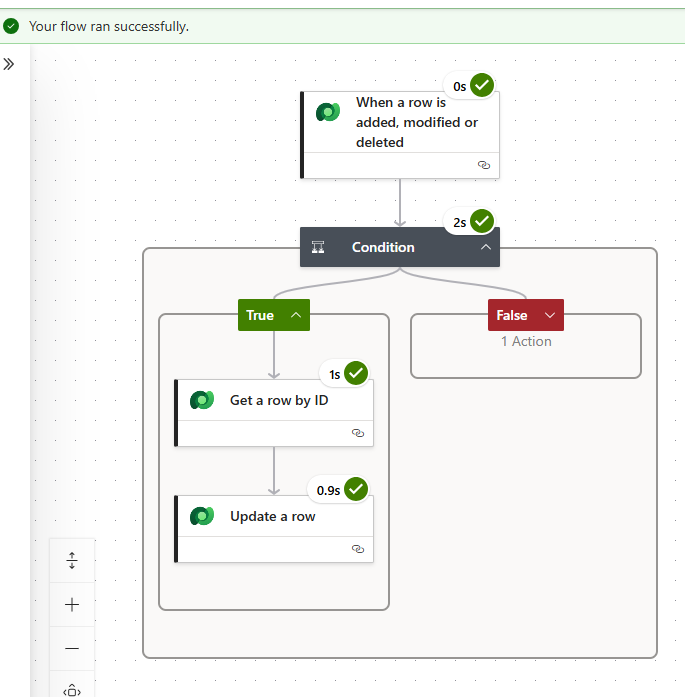
This completed without errors, even for multi-company data.
A screenshot of a computer

AI-generated content may be incorrect.

There are other approaches as well, depending on how your environment is set up. We could bypass the connector entirely and make raw OData PATCH calls to F&O, as long as we manually specify the full composite keys, including the DataAreaId. Another option is to build a small custom API or X++ service that accepts a legal entity parameter, executes a changeCompany call in F&O, and safely performs the update on the server side. Both approaches work, but they require more configuration, authentication handling, and careful error management. For most day-to-day automation scenarios, the virtual entity route remains the simplest and most reliable.

In our case, switching to the Dataverse Projects (mserp) virtual table solved the issue immediately. The update completed without errors, even for multi-company data, and the flow became much cleaner.

A detailed explanation of this limitation can be found here, and was very helpful in troubleshooting:

Multiple legal entities issue with the Fin & Ops Apps connector in Power Automate

Hope it helps..

Advertisements

Fixing the “Only 1 of 2 keys provided for lookup, provide keys for dataAreaId, ProjectID / Not found” Error in Power Automate (Fin & Ops Apps)


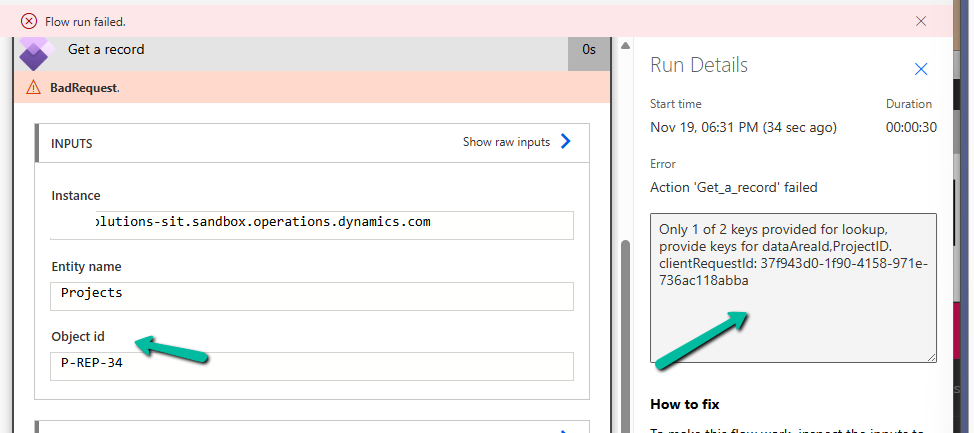
Recently, while working with the Projects table from a Finance & Operations (F&O) environment, we ran into an error while using the Get a record action in Power Automate. (BTW this was the first we were using the Fin & Ops connector)

The flow kept failing with the following message:

Only 1 of 2 keys provided for lookup, provide keys for dataAreaId, ProjectID.

This error appears when we try to fetch a record from an F&O using only the ProjectID. But unlike normal Dataverse tables, F&O tables often come with composite keys.

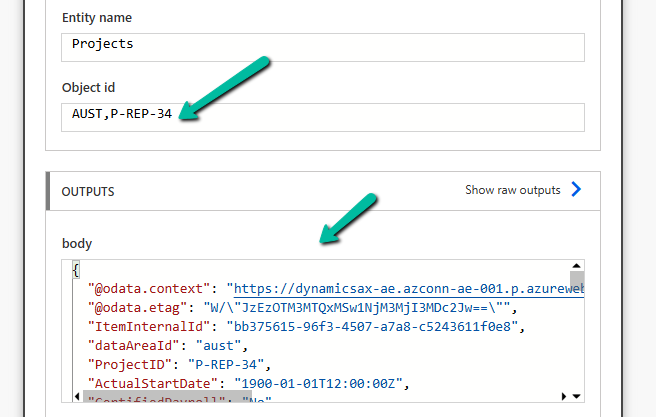
Instead of passing just the ProjectID, we must pass the full composite key in the format:

dataAreaId,ProjectID

In our case, the correct value was:

AUST P-REP-34

Below, we can see it working properly

A screenshot of a computer

AI-generated content may be incorrect.

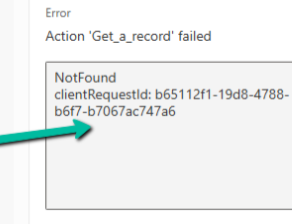
At one point, even after passing the correct composite key, we started getting a NotFound error:

Action ‘Get_a_record’ failed – NotFound

A screen shot of a computer error

AI-generated content may be incorrect.

Nothing had changed in the inputs — it was just not working. The fix was surprisingly simple..

We deleted the Get a record step, re-added it, provided the same inputs again, and the error disappeared. It could be related to the connection reference not being updated properly in the background.

Hope it helps..
Advertisements

How to Identify and Update Power Automate HTTP Request Trigger Flows Before November 2025


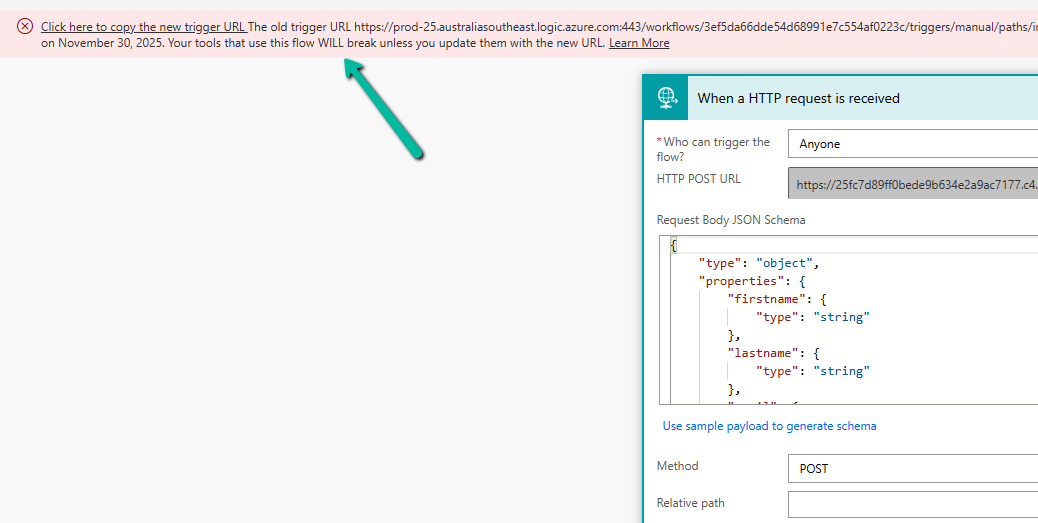
Few weeks back, while working on one of our Power Automate flows, we noticed a banner warning on the HTTP Request trigger step. Microsoft has announced that starting August 2025, all flows using HTTP or Teams Webhook triggers with logic.azure.com URLs will move to a new endpoint under environment.api.powerplatform.com. The old URLs will stop working after November 30, 2025.

The screenshot below shows the banner that appears when the flow is opened in the designer.

A screenshot of a computer

AI-generated content may be incorrect.

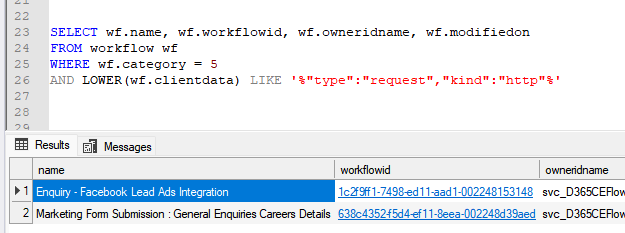
When we saw this, we wanted to make sure no other flow across environments was using the old logic.azure.com–based URLs. Instead of checking each flow manually, we used SQL4CDS to quickly identify all such flows.

We ran the following query in SQL4CDS:

SELECT wf.name, wf.workflowid, wf.owneridname, wf.modifiedon
FROM workflow wf
WHERE wf.category = 5
AND LOWER(wf.clientdata) LIKE '%"type":"request","kind":"http"%'
A screenshot of a computer

AI-generated content may be incorrect.

This query returns all flows that have an HTTP Request trigger. It checks the clientdata column in the workflow table where the flow definition is stored as JSON and looks for the trigger type “Request” and kind “Http”.

This helped us identify every flow that exposes an HTTP endpoint — typically used for integrations, webhooks, or form submissions from external systems. Once we had this list, we opened each flow and copied the new trigger URL from the message banner.

The same can be achieved using PowerShell with the command: This lists all flows in a given environment that are part of Microsoft’s trigger URL migration.

Get-AdminFlowWithMigratingTriggerUrl -EnvironmentName

A screen shot of a computer

AI-generated content may be incorrect.

After copying the new URL, we updated our calling applications (for example, the website forms and marketing integrations) to replace the old endpoint with the new one. The new URLs are hosted under the Power Platform domain environment.api.powerplatform.com, replacing the older logic.azure.com endpoints.

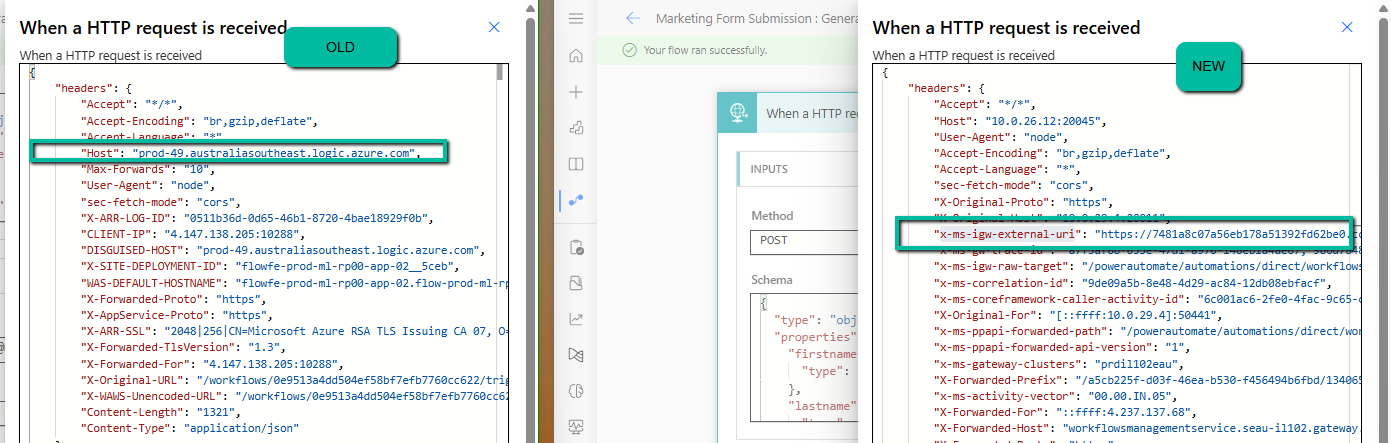
To confirm that the requests were now reaching the new infrastructure, we captured the request headers after updating the URL.

This header (x-ms-igw-external-uri) is the easiest and most reliable way to confirm that your flow is now routed through the new Power Platform ingress gateway.

A screenshot of a computer

AI-generated content may be incorrect.

If this header is present and points to environment.api.powerplatform.com, the flow has been successfully migrated. If you still see logic.azure.com under the Host or DISGUISED-HOST headers, that flow or calling application still needs to be updated.

In our case, after replacing the URLs and testing, all flows were confirmed to be running on the new platform, and the integrations worked as expected.

So if we see this warning in your environment, you can either use the SQL4CDS query or the PowerShell command to locate such flows, update the calling systems with the new URL, and then verify by checking for the x-ms-igw-external-uri header in the request. That’s all you need to ensure your integrations continue to work smoothly past November 2025.

Hope it helps..

Advertisements

Flows getting triggered multiple times / missing callbackregistration record – Power Automate / Dataverse


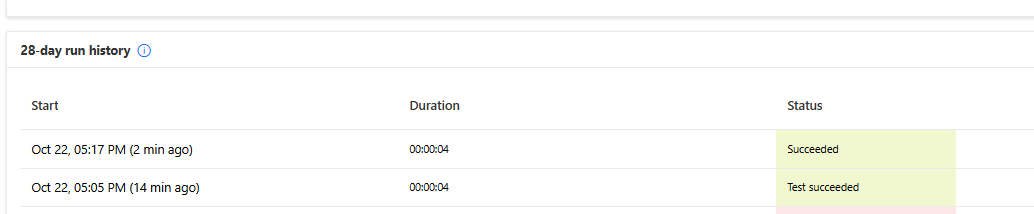
Recently, we observed that one of our flows was getting triggered multiple times in our UAT environment; however, the flow was working properly in our Development environment.

A screenshot of a computer

AI-generated content may be incorrect.

On comparing the flows trigger, we didn’t find any differences.

A screenshot of a computer

AI-generated content may be incorrect.

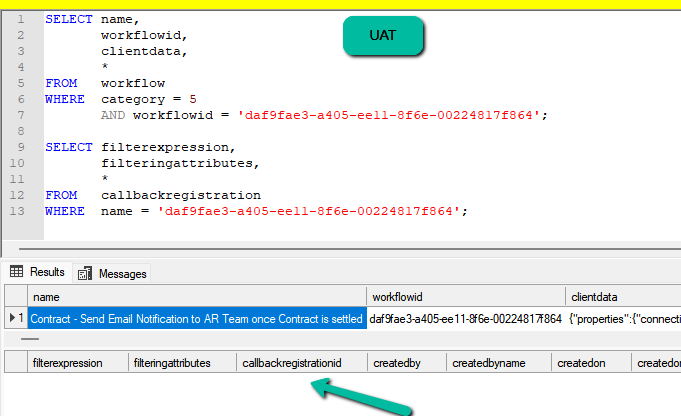
However, when checking for the callbackregistration record, we observed that for the Dev env, we had the callbackregistration record available.

A screenshot of a computer

AI-generated content may be incorrect.

However, it was missing for our UAT environment.

A screenshot of a computer

AI-generated content may be incorrect.

Turning the flow on and off didn’t create the corresponding callbackregistration record.

https://nishantrana.me/2025/09/02/fixed-flow-not-getting-triggered-incorrect-callback-registration-record-power-automate-dataverse/

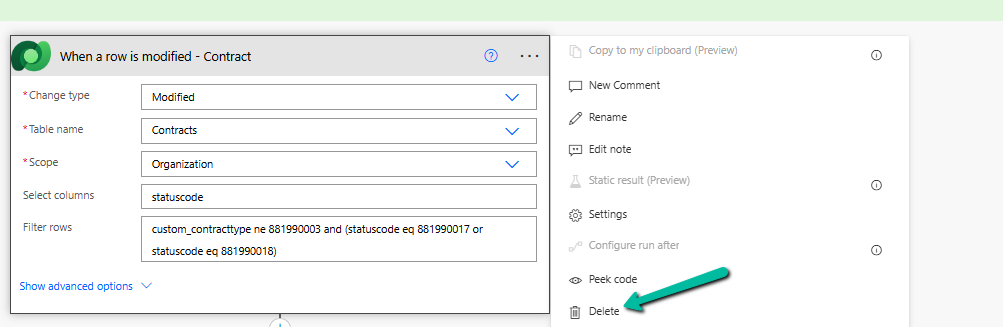
Eventually, we deleted the trigger and recreated it in the UAT.

A screenshot of a computer

AI-generated content may be incorrect.

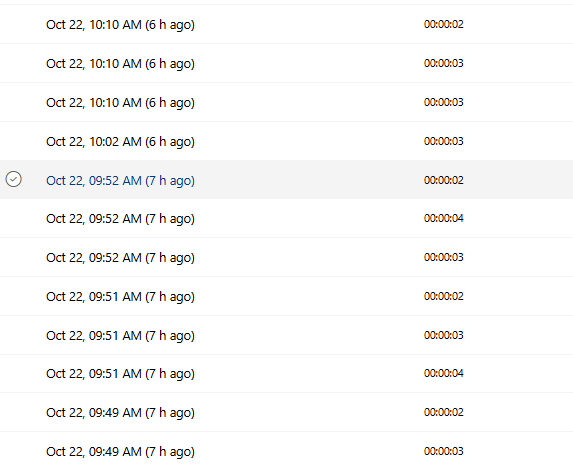
After recreating the trigger, we could see our flow getting triggered only once as expected.

A screenshot of a computer

AI-generated content may be incorrect.

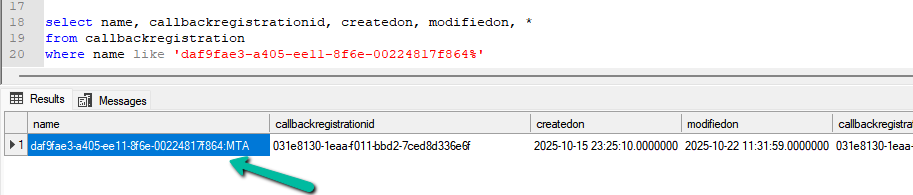
However, we also noticed that the name of the callbackregistration record was not just the GUID, but it also had MTA suffixed to it in our UAT.

daf9fae3-a405-ee11-8f6e-00224817f864:MTA

A screenshot of a computer

AI-generated content may be incorrect.

So may this record was already existing and had an incorrect filter expression, which got fixed when we deleted and created a new trigger.

We also deleted this callbackregistration record, and turned our flow on and off. This created a new callbackregistration record with the same MTA suffixed to it.

A screenshot of a computer

AI-generated content may be incorrect.

So the solution here could be to find the callbackregistration record either with a GUID or with MTA suffixed to it, delete the record found, and turn the flow on and off.

Hope it helps..
Advertisements

Fixed – Flow not getting triggered / incorrect callback registration record (Power Automate / Dataverse)


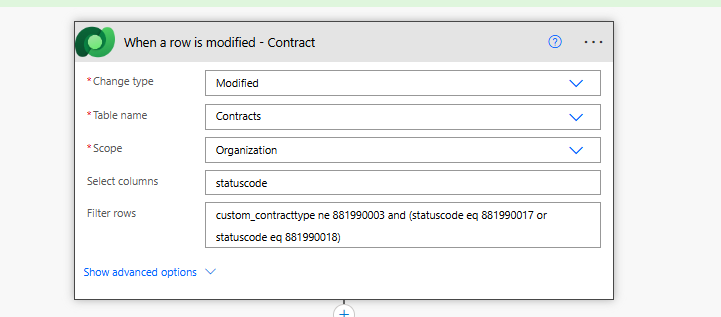
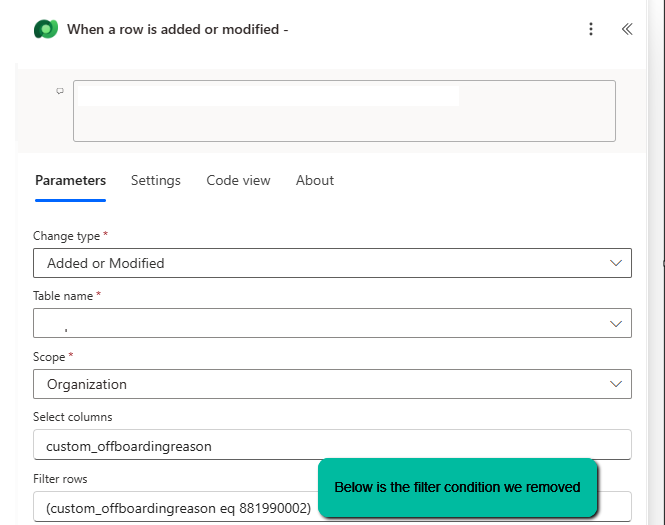
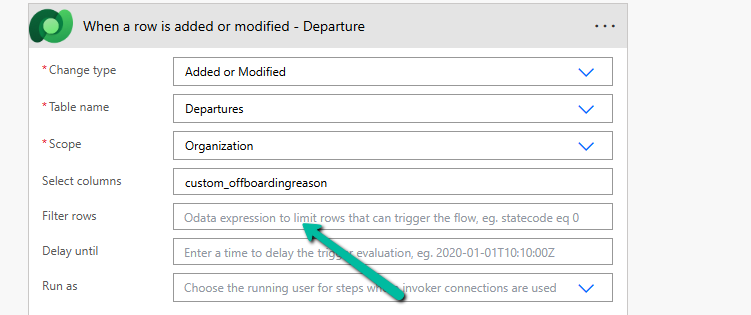
Recently, we faced an interesting issue, where we updated an existing flow in our Dev, basically we removed the Filter Rows condition and deployed it to UAT.

Before

Now

In our Dev, it was working fine, getting triggered on the update of the field specified in the Select Columns; however, after deployment to UAT, it was still getting triggered only on the old filter condition, which we had already removed.

Turning off and on the Cloud Flow didn’t help.

The client data did not have the Filter rows condition.

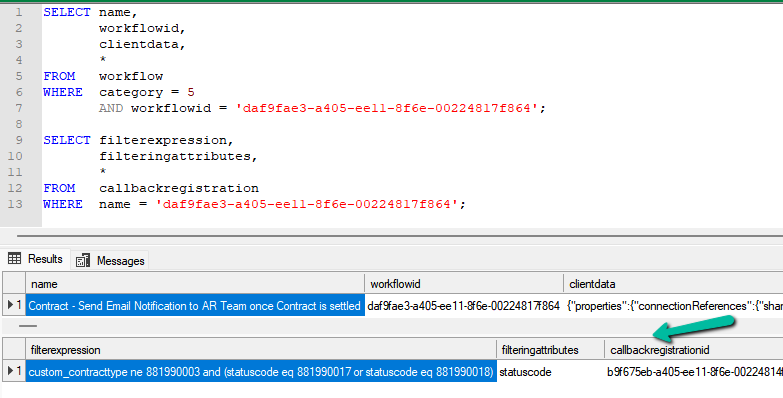
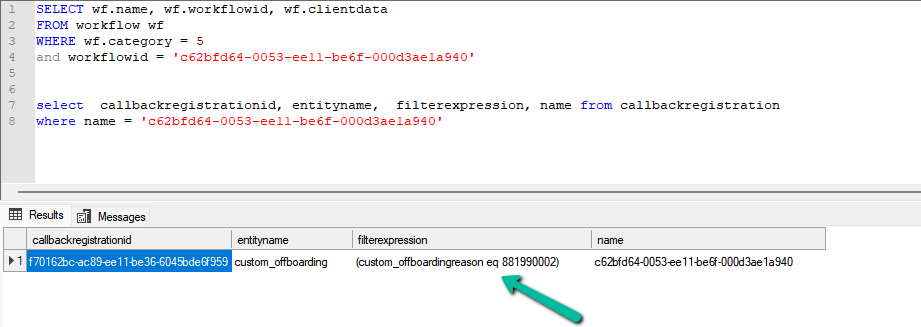
Interestingly, we can still see the filter expression existing for the callback registration record of that flow in our UAT.

A screenshot of a computer

AI-generated content may be incorrect.

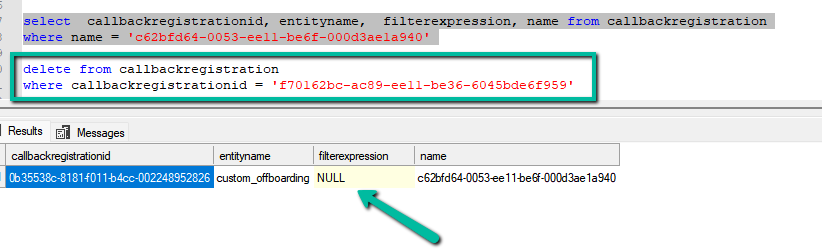
Eventually, we deleted the Callback registration record, turned the flow off and on, and it created the correct Callback Registration record with filter expression as null this time.

A computer screen shot of a computer

AI-generated content may be incorrect.

This fixed the issue, and our flow got triggered correctly.

More on Callback Registration

Fixed- Flow not getting triggered (Callback Registration)– Power Automate / Dataverse

Hope it helps.

Advertisements

When Do We Use the ActivityParty.AddressUsed Property for Emails in Power Automate (Dataverse)


When we automate emails in Dataverse using Power Automate, we deal with something called Activity Party. It manages the participants of an email—whether they are To, CC, BCC, or the Sender. Normally, we use the partyid field to point to a Dataverse record like a Contact, Lead, User, or Queue.

Every participant in an email is stored as a row in the Activity Party table.

Key fields include:

partyid → Reference to the actual record (Contact, Account, User, Queue, etc.)

participationtypemask → Role (1 = Sender, 2 = To, 3 = CC, 4 = BCC)

addressused → The raw email address used

Normally, if a Contact or User is referenced in partyid, Dataverse automatically pulls their primary email.

But there are situations where this is not enough. That’s where addressused becomes important.

Multiple Email Addresses on a Record – A Contact, Lead, or User might have more than one email (work, personal, secondary). By default, Dataverse always uses the primary email field. But if we need to send an email to a specific alternate address, we can set it directly in addressused.

Unresolved Recipients – There are times when we need to send an email to someone who doesn’t exist in Dataverse at all—for example, an external consultant, new partner, or temporary vendor.

Recenlty we had to send email to particular email address not stored as actual record in CRM, below is how we specified the email address in the Add a new Row (Email) action of Power Automate.

"to": [
  { "partyid@odata.bind": "/contacts(11111111-2222-3333-4444-555555555555)" },
  { "addressused": "external.partner@example.com" }
],
"cc": [
  { "addressused": "manager@example.com" }
]

More on activity party

Also check – https://nishantrana.me/2021/02/02/sending-an-email-using-addressused-attribute-of-activityparty-entity-in-dynamics-365/

Hope it helps..
Advertisements