Using CRM_URL Report Parameter


Hi,

Just posting a very simple example on how to use the CRM_URL report parameter for drill down.

Create a new report, create a new dataset pointing to ORG_MSCRM database and add the following query string

select opportunityid,name from filteredopportunity.

Add a hidden report parameter named CRM_URL to the report.

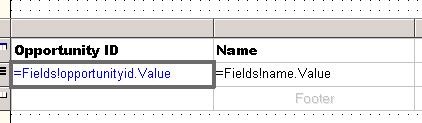
Add table to report layout.

g1

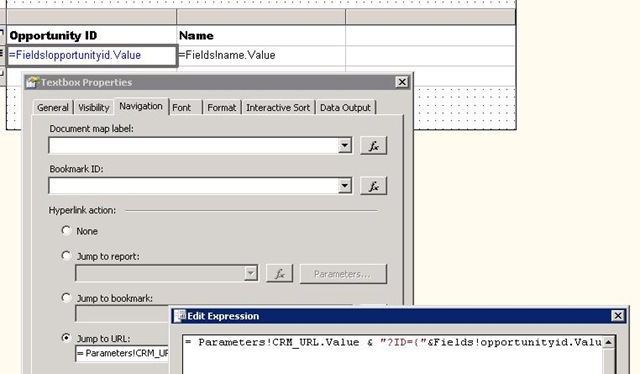
Right click the Opportunity ID text field, select Properties, Go to Navigation tab, select Jump to URL

g2

Put the following value over there

= Parameters!CRM_URL.Value
& "?ID={"&Fields!Opportunityid.Value.ToString()&"}&OTC=3"

i.e.

= Parameters!CRM_URL.Value & "?ID={"& GUID &"}&OTC=otc"
or
better use LogicalName parameter instead of OTC as OTC code might we change when we import it to
some other organization.

=Parameters!CRM_URL.Value & "?ID={"&Fields!guidFieldName.Value.ToString()&"}&LogicalName=entitySchemaName"

Upload the report in CRM and run it.

The value for CRM_URL would be filled by CRM.

CRM_URL would have the following value passed to it from CRM

http://servername:%5BPort%5D/orgname/CRMReports/viewer/drillopen.aspx

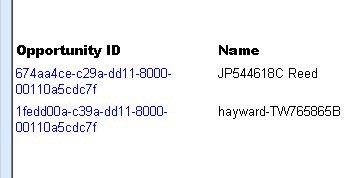
Clicking on Opportunity ID value would take us to the actual record within CRM.

g3

Bye…

Understanding permissions in Microsoft Dynamics CRM


Hi,

Found this wonderful article on how to set the permissions within Microsoft Dynamics CRM

http://www.orbitone.com/en/blog/archive/2009/10/06/minimum-dynamics-crm-permissions.aspx

Bye..

Updating a Picklist Attribute from within a Plugin


Hi,

Just a sample code for updating a picklist attribute for an entity instance.

  public void  Execute(IPluginExecutionContext context)
{
DynamicEntity entity = (DynamicEntity)context.InputParameters.Properties["Target"];
if (entity.Name == "new_test")
{
// Post Create event so get the guid from Output Parameters
Guid testId = (Guid)context.OutputParameters.Properties["id"];

ICrmService crmService = context.CreateCrmService(true);
DynamicEntity myTest = new DynamicEntity();
myTest.Name = "EntityName";

// Set the key property
KeyProperty myTestGuid = new KeyProperty();
myTestGuid.Name = "EntityPrimaryKeyID";
Key myTestKey=new Key();
myTestKey.Value = testId;
myTestGuid.Value = myTestKey;
myTest.Properties.Add(myTestGuid);

// Picklist property to be updated
PicklistProperty myPP = new PicklistProperty();
myPP.Name = "new_picklist";
myPP.Value = new Picklist();
myPP.Value.name = "nameOfThePicklistValue";
// picklist value
myPP.Value.Value = 2;
myTest.Properties.Add(myPP);
try
{
    crmService.Update(myTest);
}
catch (SoapException ex)
{

    TextWriter log1 = TextWriter.Synchronized(File.AppendText(@"C:\g.txt"));
    log1.WriteLine("MyMessage exception :-" + ex.Detail.InnerXml );
    log1.Close();
}
}
}
}


Bye…

Changing default filter for Contracts Associated View for Account.


For an account record, the associated view of Contract would have default filter set as Draft. So if we want to change it to some other status for example “Active” we can make use of the following JavaScript for that.

This JavaScript is based on the popular JavaScript code used for hiding “add existing button”

Please check this wonderful article

http://blog.davehawes.com/post/2008/04/23/MSCRM-4-Remove-Add-Existing-xxxxx-button.aspx

The JavaScript code for changing default option

var navElement = document.getElementById('navContracts');
 if (navElement != null) {
  navElement.onclick = function LoadAreaOverride()  {
   loadArea('areaContracts');
   SetDefaultOption(document.getElementById('areaContractsFrame'));
  }
 }

function SetDefaultOption(Iframe) {
 if (Iframe != null ) {
  Iframe.onreadystatechange = function SetOption() {
   if (Iframe.readyState == 'complete') {
    var iFrame = frames[window.event.srcElement.id];
    var selectBox=iFrame.document.getElementById('statecode');
     selectBox.options[2].selected=true;
   }
  }
 }

http://social.microsoft.com/Forums/en-US/crmdevelopment/thread/85615ccd-b8e9-48d3-a906-4fd7b301dac0

Bye..

Understanding PrimaryEntityImage, PrimaryEntityPreImage and PrimaryEntityPostImage for Custom Workfow Activity in CRM 4.


Suppose we have written a simple workflow activity that references values for the above Images and have registered it on create of lead record.

The attributes included within the images would be following

Record is created Lead
   
PrimaryEntityImage fullname
  leadid
  owningbusinessunit
   
PrimaryEntityPreImage null
   
PrimaryEntityPostImage leadid
  owningbusinessunit
  ownerid


Now suppose we register it on Record attribute change and select city and description for lead.

Now suppose we specify value for those fields and save the record. Here the values for the images would be

Record attributes change Lead
   
PrimaryEntityImage fullname
  leadid
  owningbusinessunit
   
PrimaryEntityPreImage fullname
  leadid
  owningbusinessunit
  ownerid
   
PrimaryEntityPostImage leadid
  owningbusinessunit
  ownerid


Except for values in PrimaryEntityPreImage there is hardly any change in the Images.

Now lets modify the workflow and add a check condition step that would check if both the city and description field contains data for lead.

Now after modifying the values for city and description field for a lead ,these are the values we get in the images.

Record attributes change (after check condition) Lead
   
PrimaryEntityImage fullname
  leadid
  owningbusinessunit
  address1_city
description
   
PrimaryEntityPreImage fullname
  leadid
  owningbusinessunit
  ownerid
  address1_city
description
   
PrimaryEntityPostImage leadid
  owningbusinessunit
  ownerid


Address1_city and Description field has got added for PrimaryEntityImage and PrimaryEntityPreImage.

Now if we remove check condition for city field for lead,

Record attributes change (after check condition) Lead
   
PrimaryEntityImage fullname
  leadid
  owningbusinessunit
  description
   
PrimaryEntityPreImage fullname
  leadid
  owningbusinessunit
  ownerid
  description
   
PrimaryEntityPostImage leadid
  owningbusinessunit
  ownerid


We could see that address1_city is not there in the images.

Now lets further modify our workflow, remove the check condition and add a step to create an account record and set dynamic values for fields in account using the industrycode and emailaddress1 field of the lead record.

Record attributes change (Step for Creating Record) Lead
   
PrimaryEntityImage fullname
  leadid
  owningbusinessunit
  industrycode
emailaddress1
   
PrimaryEntityPreImage fullname
  leadid
  owningbusinessunit
  ownerid
  industrycode
emailaddress1
   
PrimaryEntityPostImage leadid
  owningbusinessunit
  ownerid


We can see that both these fields are added to images.

And here PrimaryEntityPreImage would contain the values for the field before they were modified and and PrimaryEntityImages would contain the modified values for those field. The PrimaryEntityPostImage would not have these attributes inside it.

So it proves that an attribute would be included in the entity images if we are referencing that property in our Check Condition or as a dynamic value within the workflow.

Bye.

IPluginExecutionContext and IWorkflowContext properties.


Hi,

Check out this link

Context Properties

Bye..