Microsoft adds two more Dynamics 365 AI apps to its roadmap


Techie.Buzz's avatarTechie.Buzz

Microsoft is adding more AI-infused Dynamics 365 applications to its line-up. In addition toe the previously announced Dynamics 365 AI for Sales app, Microsoft also is introducing a Dynamics 365 AI for Customer Service app and a Dynamics 365 AI for Market Insights app this fall, officials said on September 18.

Link: Microsoft adds two more Dynamics 365 AI apps to its roadmap
via http://www.zdnet.com

View original post

Vote on Dynamics 365 ideas


Kurt Hatlevik's avatarKurt Hatlevik - Dynamics 365 Blog

Do you know that you can influence the direction of Dynamics 365? But you may be unsure as to whether it really will make a difference. Microsoft have a site where the community can add ideas and vote on them. Go to https://experience.dynamics.com/ideas/ and create your ideas. If the idea is valid and they get enough votes, Microsoft will act and include them in their product backlog. But equally important is the ability to vote on other’s ideas.

  • Voting is the most important way to make the community voice heard on the issues that concerns the roadmap for Dynamics 365.
  • Voting gives you an opportunity to be part of the priority that affects Dynamics 365.
  • If YOU don’t Vote Others will make the decisions for YOU!

As we speak, there are 1673 ideas for Microsoft Dynamics 365 for Finance and Operations and 212 ideas for Microsoft Dynamics 365 for Retail

View original post 159 more words

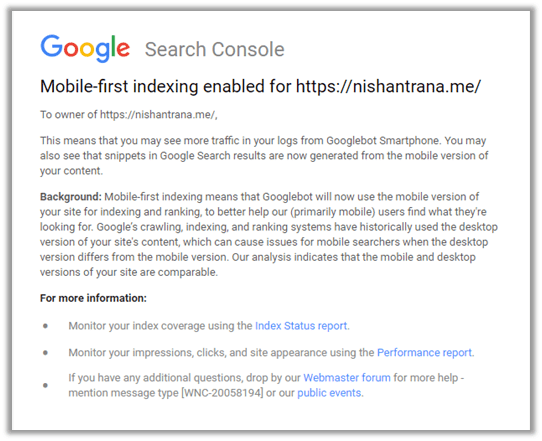
Mobile-first indexing enabled for the blog


Today I saw this message in my inbox

Below is the official announcement from Google from March 26, 2018.

https://webmasters.googleblog.com/2018/03/rolling-out-mobile-first-indexing.html

The below article nicely explains Mobile First Indexing

https://moz.com/blog/mobile-first-indexing-seo

Let us see how it impacts the number of views \ visitors in the blog.

Hope it helps..

How to – Easily map OptionSet using CRM OptionSet Mapping Editor in SSIS


Just want to share my experience of using KingswaySoft’s OptionSet Mapping Editor and how easy and efficient it makes to migrate data in Microsoft Dynamics 365 CE.

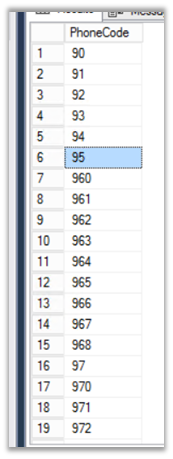
Here our SQL (OLE DB Source) was having following values for Phone Code field. Here we are doing upsert for the Contact entity.

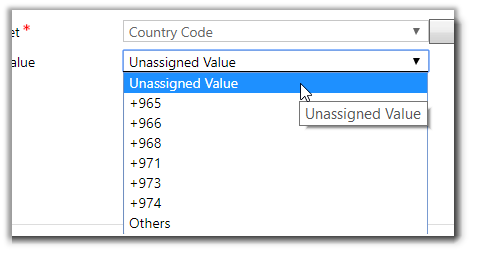
However inside CRM, we were only maintaining or dealing with few of the values as shown below for the corresponding field.

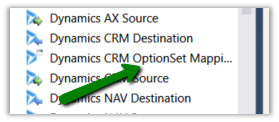
To deal with this situation, inside SSIS Package, drag the Dynamics CRM OptionSet Mapping component.

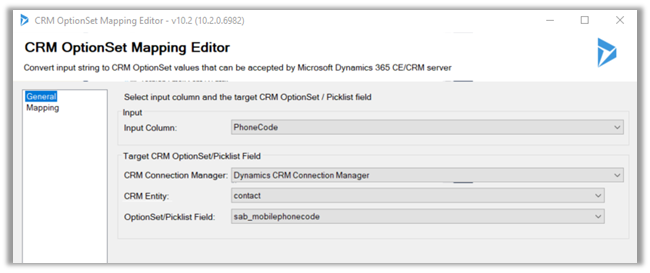
In General page, specify the input column of the table and for target properties, specify the CRM Connection Manager, Entity and the field to which we are mapping the input to.

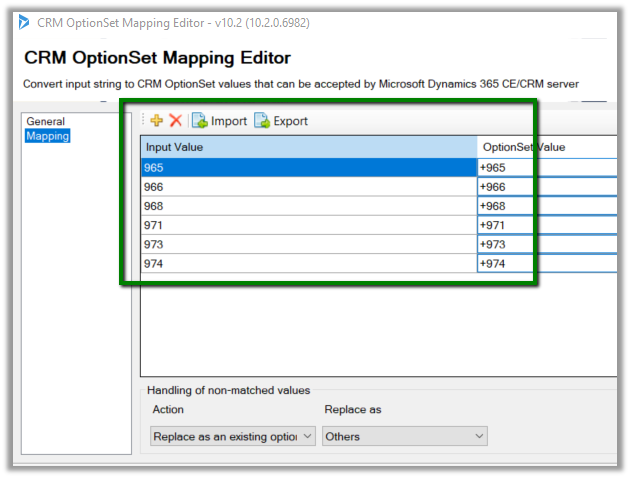
Here we need to explicitly define input value and option set value mapping, for each of the option set values for the field inside CRM, because the source doesn’t have the “+” appended to it i.e. unmatched values only.

Here we have defined the mapping

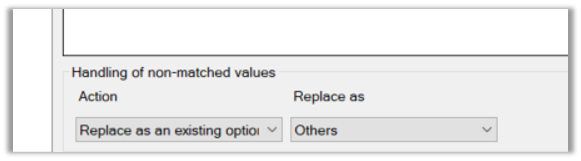
Now for the extra values that source have, we want it to map it to Others option set value inside CRM.

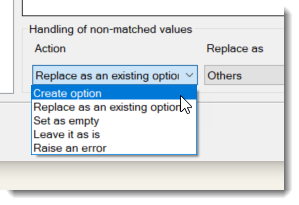
For this in Action Drop-Down select “Replace as an existing option” and in “Replace as” select the Others option set value.

If we want to create the missing input value as an option set value we can use Create Option Action

  • Set as empty will simply ignore the unmatched input values and would pass blank for them.
  • Leave it as is will not do any manipulation and will pass the input values as it is.
  • Raise an error as the name suggests will throw an exception.

Get all the details here

https://www.kingswaysoft.com/products/ssis-integration-toolkit-for-microsoft-dynamics-365/help-manual/crm/optionset-mapping

Hope it helps..

Advertisements

Fixed – “The application requires one of the following versions of the .NET Framework” or “.NET Framework 4.7.1 or later is already installed this computer” error while running application


While trying to run an application we were getting the below message

It was taking us to Microsoft Download site for downloading the framework.

We downloaded the 4.7.1 Framework but while trying to install it we got the below message that said the framework or a later update is already installed on this computer.

Tried uninstalling all the .NET Framework version installed including 4.7.

That also didn’t work.

Few of the forums talk about making changes in the registry, that also didn’t help.

Eventually we commented the supportedRuntime element in the configuration file of the application to get through this issue.

https://docs.microsoft.com/en-us/dotnet/framework/configure-apps/file-schema/startup/supportedruntime-element

https://stackoverflow.com/questions/21566528/what-happens-if-i-remove-the-auto-added-supportedruntime-element

Hope it helps..

Advertisements

Using Diff Detector component for working with incremental data in SSIS (Dynamics 365 CE)


Diff Detector component of KingswaySoft’s SSIS Productivity Pack makes it extremely easy \ efficient to work with incremental data.

Let us take a simple example to understand its usage

Suppose, we have the following data in our SQL Table (source) that we have already moved to our Dynamics 365 Instance.
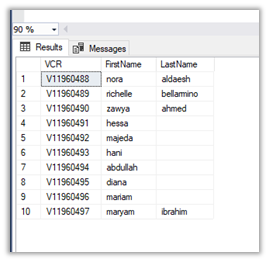
Inside CRM à
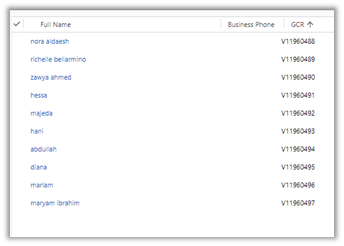
Now let us delete few records say for e.g. 5 from CRM and now we want only those 5 deleted records to be considered for Create by the SSIS Package from the source.

To begin with, first, download the SSIS Productivity Pack

https://www.kingswaysoft.com/products/ssis-productivity-pack

Create the corresponding OLE DB and Dynamics CRM Connection and add the source component for the respective connection, pulling the records from respective sources.

Then drag the Diff Detector component to the Data Flow
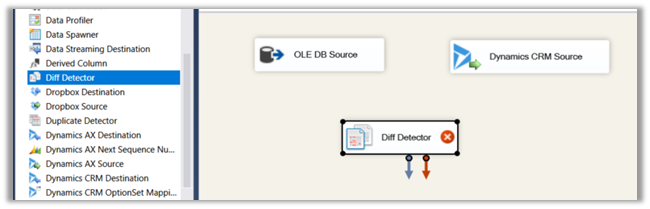
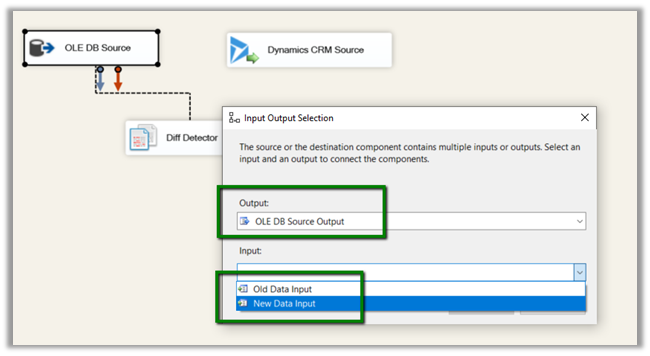
Connect the OLE DB Source to Diff Detector and specify the input as the New Data Input as this is the new data that is being entered, the other option is Old Data. Here the Dynamics CRM Source will be used and set as Old Data that is already existing against which the new data needs to be compared.
Once both the source components are connected to Diff Detector, click on Diff Detector component to edit its properties.

Here we need to define the Key Property, which would be used to compare the data.

Here we have specified one of our alternate keys to be used as Key for comparison with match type Exact Match.

Advanced Settings allows us to define a few more properties
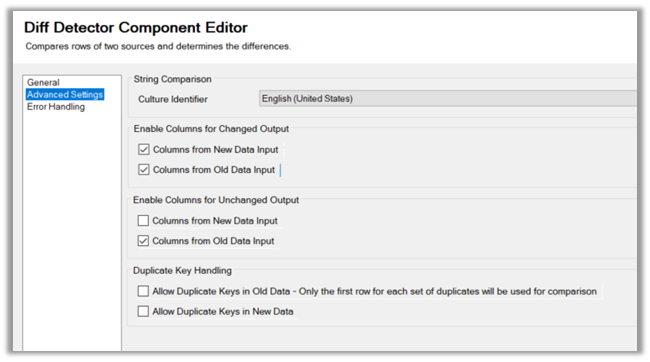
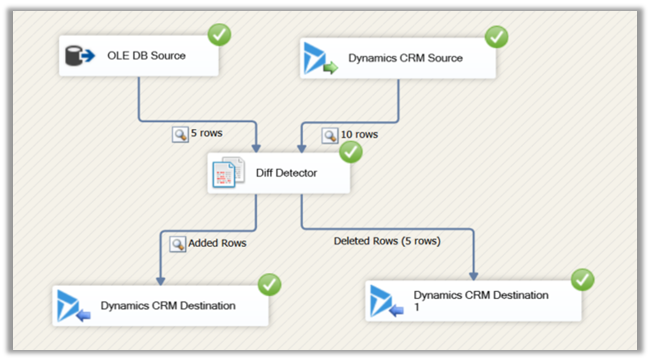
In the end, we have added the CRM Destination Component that will be creating the new records in Dynamics CRM.

Here we have selected Added Rows i.e. new rows that weren’t found matching with the old existing data inside CRM will be entered or created in CRM. Similarly, we can get the information \ rows that were changed, deleted or are unchanged and use them as per our need.

This is the current state of our source and destination
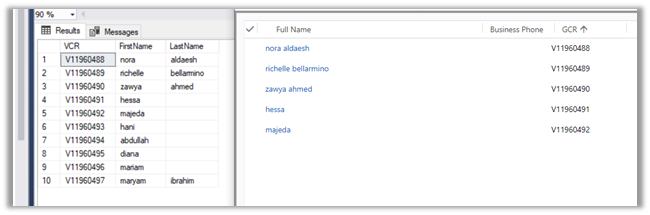
Now let us run our package which should detect 5 new rows to be inserted and create the corresponding records in Dynamics CRM.

Similarly, if we have deleted few records (say 5) from our source and want them to be deleted in the destination we can add one more destination component that takes as input the deleted rows and deletes them.
Get all the details here

https://www.kingswaysoft.com/products/ssis-productivity-pack/help-manual/data-quality-and-comparison/diff-detector

Hope it helps..