Publishing the bot– Power Virtual agent


In the last post, we saw how to create a simple bot, now let us see how we can publish it.

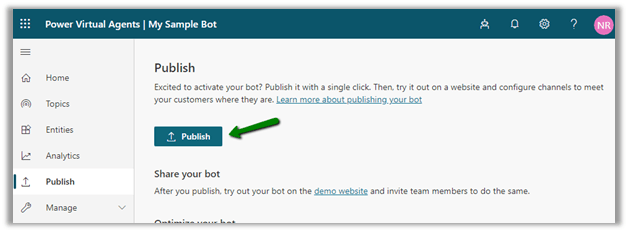
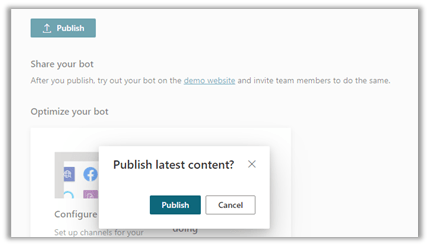
Navigate to the Publish tab in the side navigation pane and click on Publish.

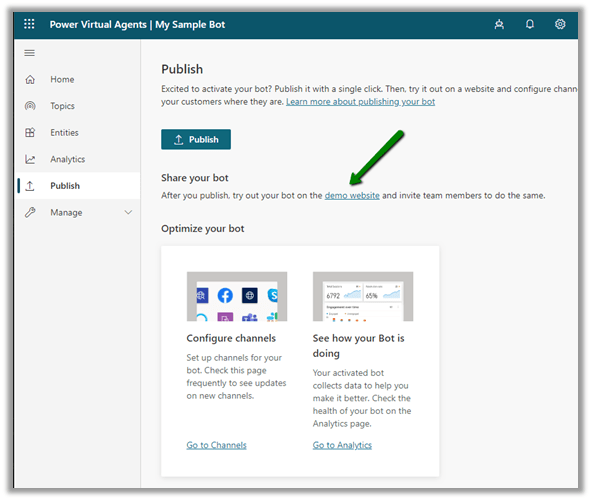
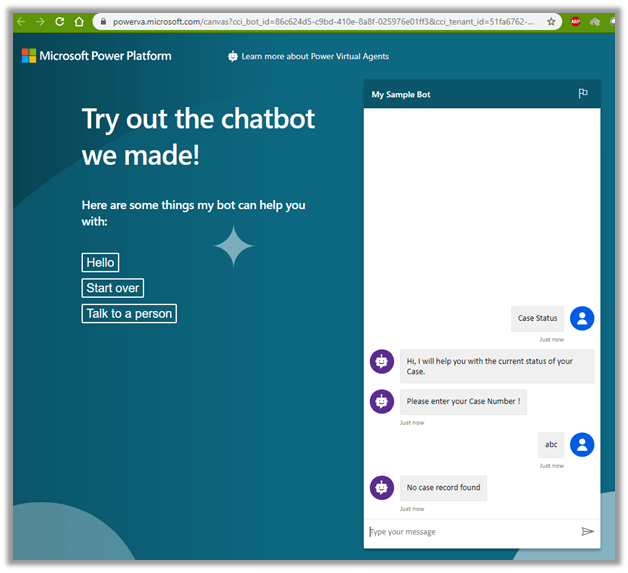
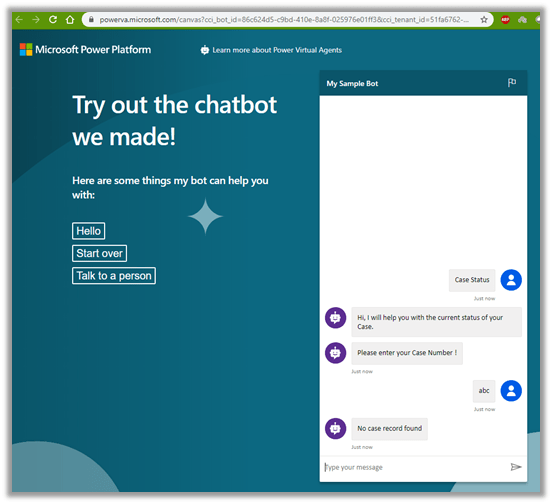
After a successful publish click on the demo website to test the bot

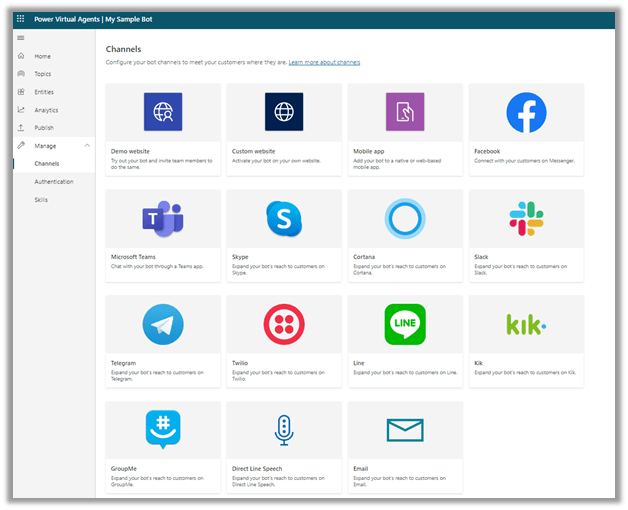
Navigate to Manage à Channels to configure it for various channels.

Below are all the channels that the bot can be configured for.

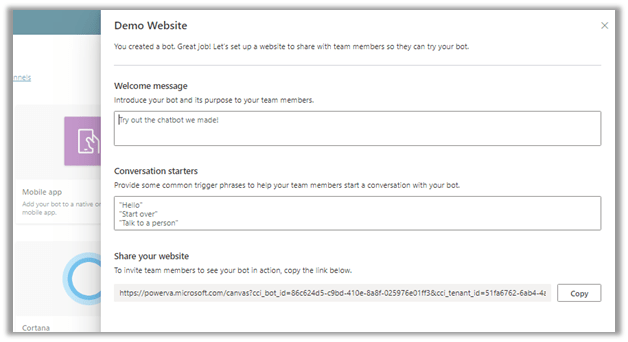
Demo Website à

We can specify the Welcome Message as well as the Conversation starters

Custom Website à

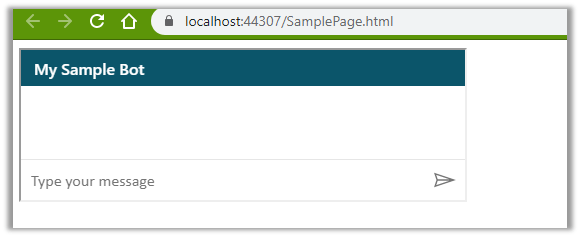
It can be added as Iframe to the existing web sites.

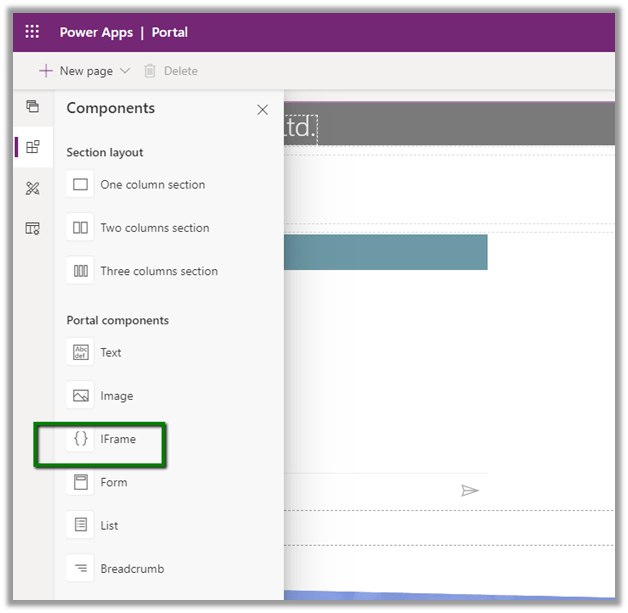
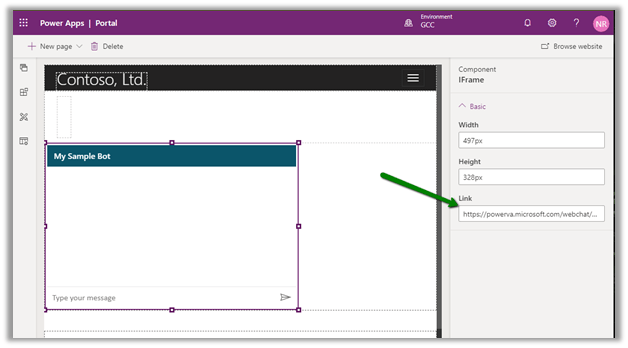
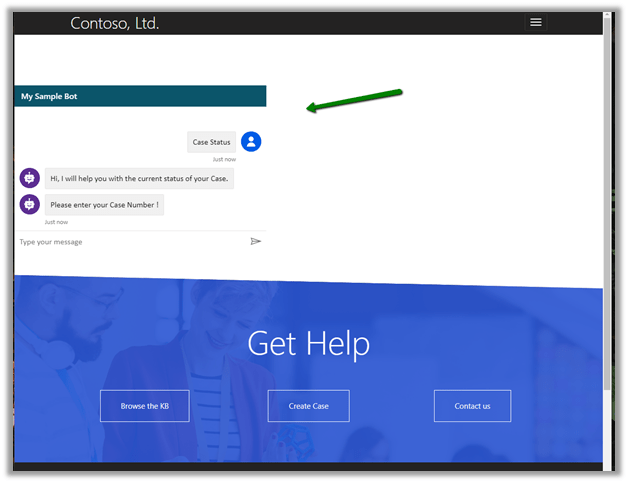
Within Power Apps Portal, we can add the bot to the Iframe Component as shown below

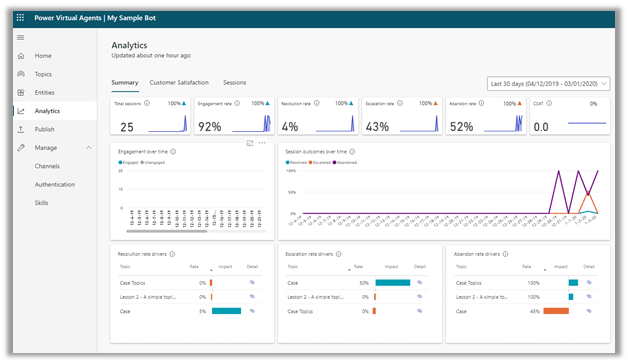
Power Virtual Agent also comes with analytics to show key performance indicators for different topics.

Get all the details here

https://docs.microsoft.com/en-in/power-virtual-agents/analytics-summary

Helpful posts –

https://readyxrm.blog/2019/11/06/adding-a-power-virtual-agent-to-a-power-apps-portal/

https://joegill.com/powerapps-portal-virtual-agent-bot/

Hope it helps..

Using Power Virtual Agent and Power Automate (Flow) to create a simple bot for Cases in Dynamics 365 for Customer Service


Here we will take a very simple example to see how Power Virtual Agent be used along with Power Automate to interact with Dynamics 365 model-driven App

Basically, the user enters the case number (ticketnumber) in the chatbot to get the current status of the Case.

To begin with,

  • Sign in / Sign up to create an account for Power Virtual Agents

https://powervirtualagents.microsoft.com/en-us/

  • Sign in with your work email address.
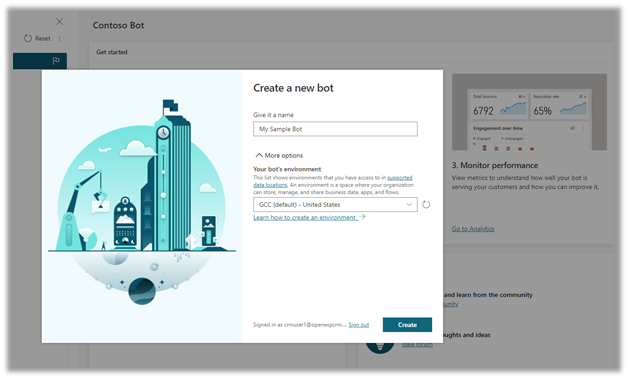
  • Name your bot and click on create.

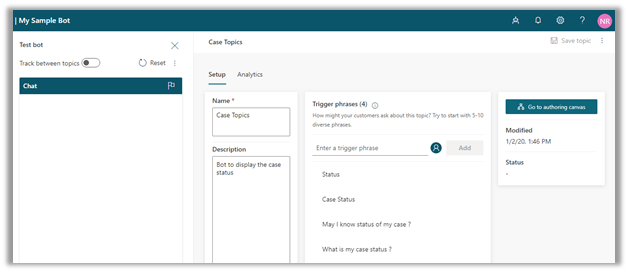
Create a new Topic with Name as Case Topic and Trigger phrases as shown below and save it.
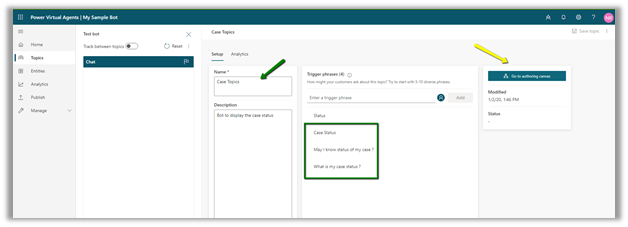
Click on Go
to authoring canvas

Add node Show a message
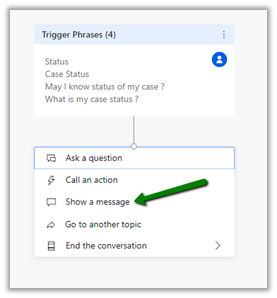


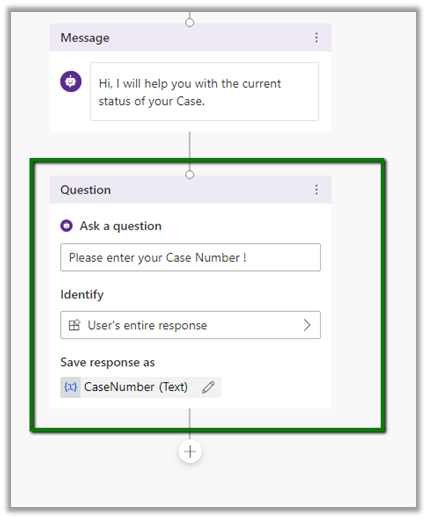
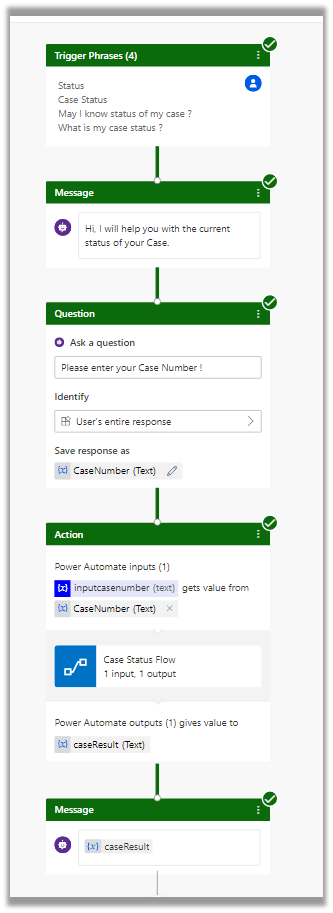
Next, add new “Ask a question” node, the bot will ask the user to enter the case number

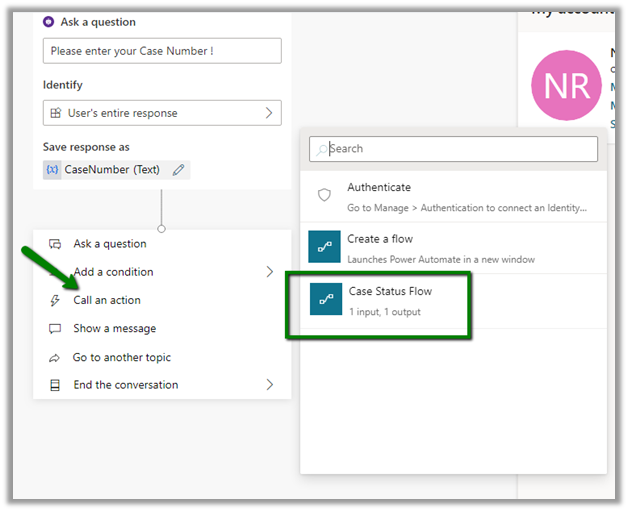
Next, add a node “Call an action” to call the PowerAutomate (Flow)
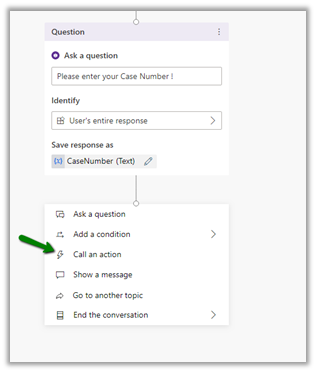
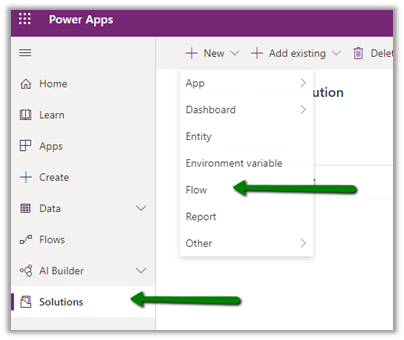
Let us pause here and first author the Flow which we would be calling from this particular node.

To create the Flow, login to PowerApps portal https://web.powerapps.com/, select the Virtual Agent environment, here we have created a new Solution and created a new Flow inside that solution.
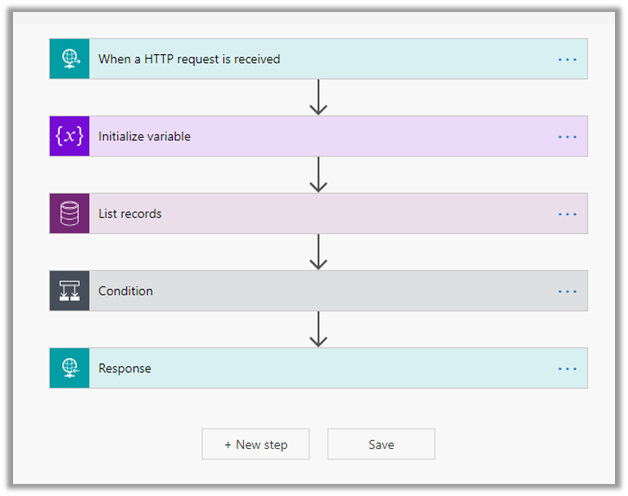
First add the trigger “When an HTTP Request is received” with the below request body, to take case number input from the user.
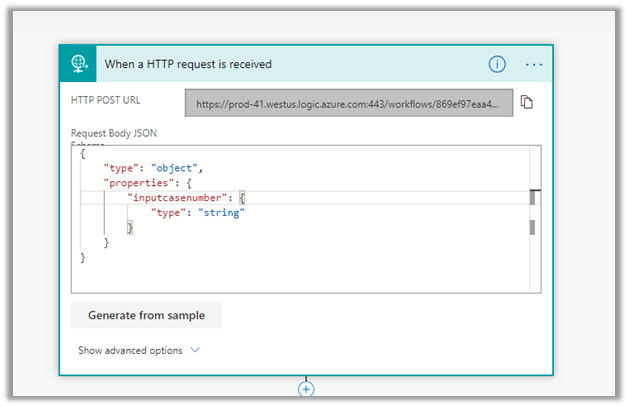
Then add Initialize Variable step, which will hold the output for the response.

Next, add the List records step to get the case’s status based on the case number.
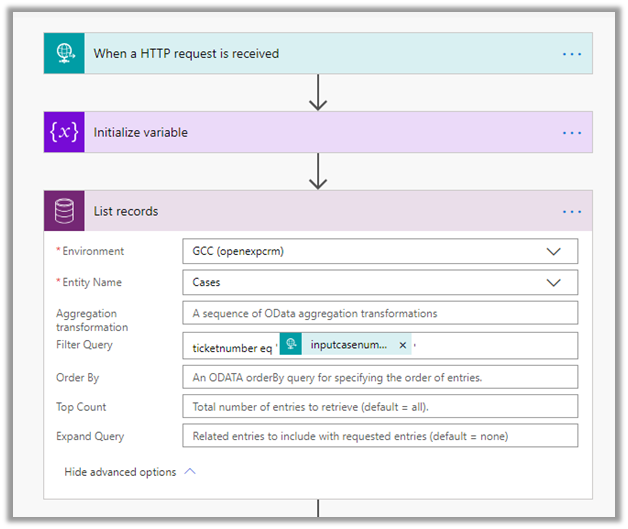
Next add the condition step, for handling the scenario when the user enters the wrong case number.
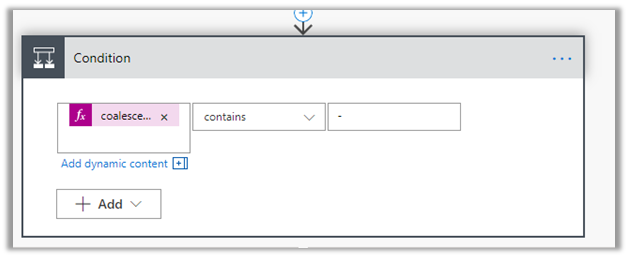
The expression used for the Condition step.

coalesce(body(‘List_records’)?[‘value’]?[0]?[‘ItemInternalId’],’NULL’)

The helpful posts

Next set the variable
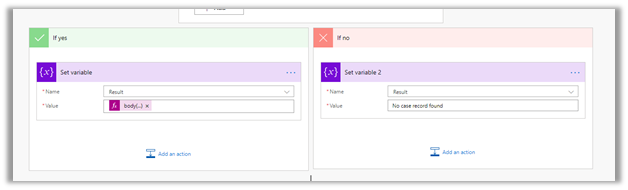
For If Yes à

Expression
à

body(‘List_records’)[‘value’]?[0]?[‘_statuscode_label’]

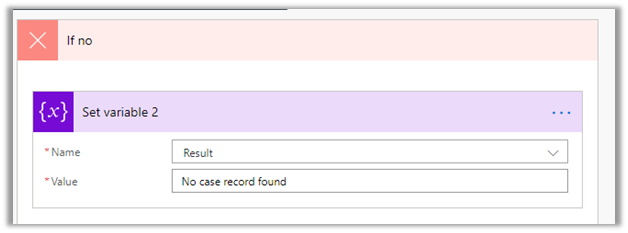
For If no, we are simple setting the value as “No case record found”
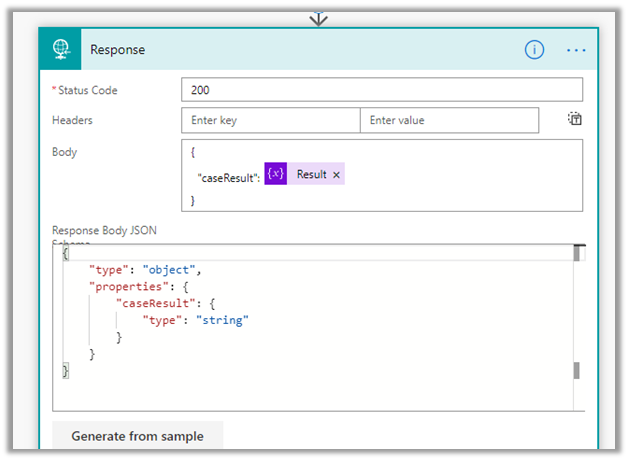
Lastly add the Response step, which returns the output through the variable.
The flow à
Save the Flow, and go back to authoring canvas of the Topic in the Power Virtual Agent.

Select the flow created in the Call an action node
Specify CaseNumber as the input

Select Show a message as the next node

Specify caseResult output as the value to be used inside the Message

Save the dialog and now let us test it.
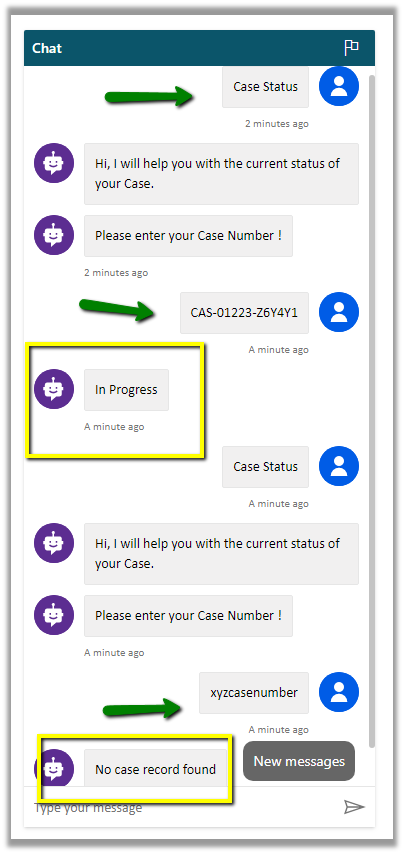
This is how the entire conversation logic looks like for our case topic.
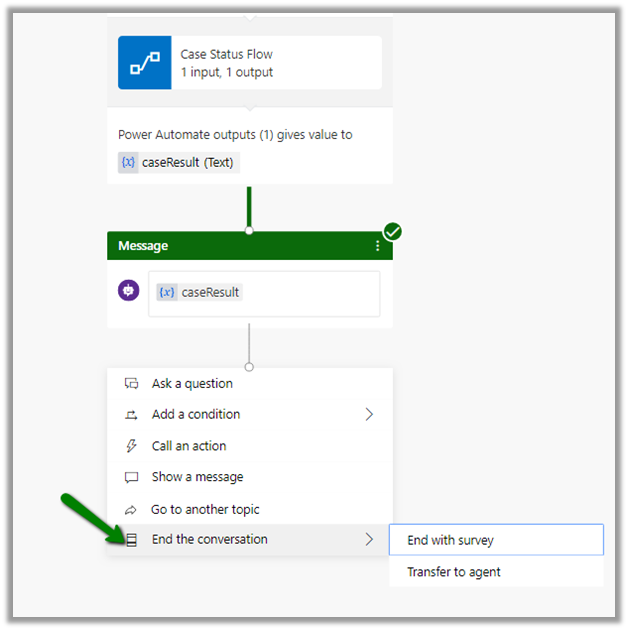
We can also add End the conversation node to it.
Next, we will see how to publish and deploy this bot.


Hope it helps..

Advertisements

Dynamics 365 2019 release wave 2 blog posts


  • Customize Opportunity Close Dialog box

https://nishantrana.me/2019/11/22/customize-opportunity-close-dialog-box-dynamics-365-for-sales/

  • Lead related enhancements

https://nishantrana.me/2019/11/22/lead-enhancements-in-dynamics-365-for-sales-2019-release-wave-2/

  • Contextual Email Communication

https://nishantrana.me/2019/11/23/contextual-email-communication-in-dynamics-365-for-sales-2019-release-wave-2-unified-client/

  • Save and New button in Quick Create Form

https://nishantrana.me/2019/11/25/save-and-new-button-in-quick-create-form-2019-release-wave-2-unified-interface/

  • High Density Headers

https://nishantrana.me/2019/11/26/high-density-headers-in-dynamics-365-2019-release-wave-2-unified-interface/

  • Using Xrm.Navigation.navigateTo to open Web resources Modal or Inline.

https://nishantrana.me/2019/11/28/open-webresources-modal-or-inline-using-xrm-naviagtion-naviagteto-in-dynamics-365-unified-interface/

  • Business Card Scanner

https://nishantrana.me/2019/12/23/scan-business-cards-in-dynamics-365-for-sales-2019-release-wave-2-unified-interface/

  • Timeline and Grid control Enhancements

https://nishantrana.me/2019/12/24/timeline-and-grid-control-enhancement-in-dynamics-365-customer-service-2019-release-wave-2-unified-interface/

  • Lookup Filter, Error Notifications and Territory entity enhancements

https://nishantrana.me/2019/12/25/lookup-filter-error-notifications-territory-entity-enhancements-in-dynamics-365-for-sales-customer-service-2019-release-wave-2-unified-interface/

  • Knowledge management enhancements

https://nishantrana.me/2019/12/27/knowledge-management-enhancements-in-dynamics-365-for-customer-service-2019-release-wave-2/

  • Product related enhancements

https://nishantrana.me/2019/12/28/opportunity-quote-order-invoice-product-related-enhancements-in-dynamics-365-for-sales/

  • The helpful resources: –

https://www.youtube.com/playlist?list=PLcakwueIHoT8-FSLxr5-3pprKWFHFMv3N

https://docs.microsoft.com/en-us/dynamics365-release-plan/2019wave2/


Using embedded Canvas Apps to display external data in Model-Driven Apps


carinamclaesson's avatarCarina M. Claesson

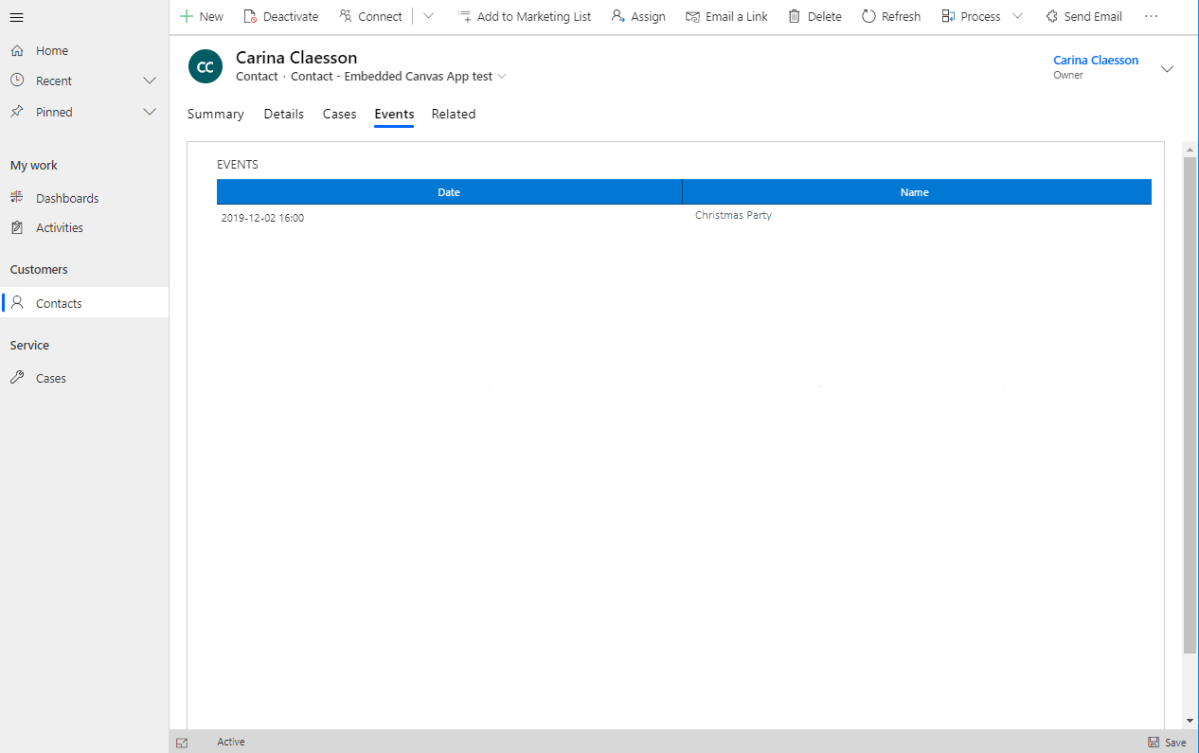
This is the second blog post in a series of two about embedded Canvas Apps. My previous blog post was all about the concept of embedded Canvas Apps. If you want to know the difference between Canvas Apps and Model-Driven Apps (both together being the building blocks of Power Apps) and find out when you can combine those and utilize an embedded Canvas App on a form in a Model-Driven App, go back to my previous blog post and you will find out more about that. In this blog post we will look at a specific use case and how to set that up.


View original post 1,867 more words

Reference Panel section for Forms in Dynamics 365


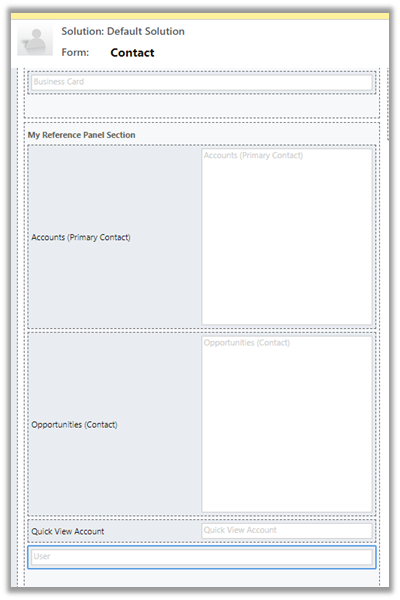
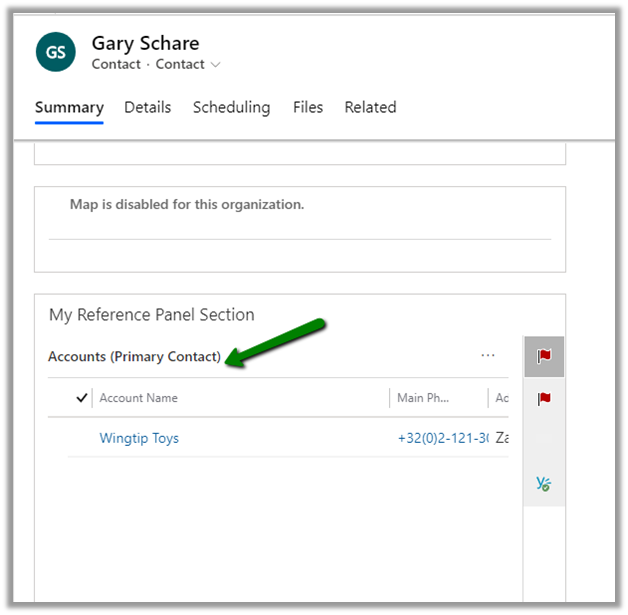
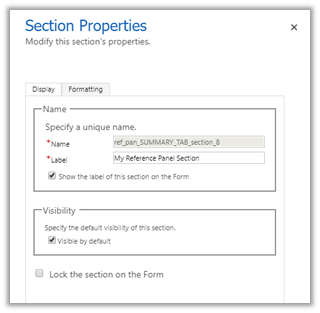
With the reference panel section, users can move across the different grid and quick view control that are part of it at a single place instead of scrolling.

  • Reference Panel is a new type of section that can be added on form.

  • Only one reference panel can be added per form.

  • It is a single column section.

  • Multiple Sub-grid and Quick View control can be added to it.

Make sure to apply the appropriate icon.

  • The default tab will be the first control added.

  • The other tab will follow the same order in which they are added.

More on sections

https://bit.ly/2MCPL3E

https://www.youtube.com/watch?v=ubEIAgKFzLo

Hope it helps..
Advertisements

Opportunity/Quote/Order/Invoice Product-related enhancements in Dynamics 365 for Sales


Below are some of the features added in the Opportunity/Quote/Order/Invoice products for the users to improve their experience.

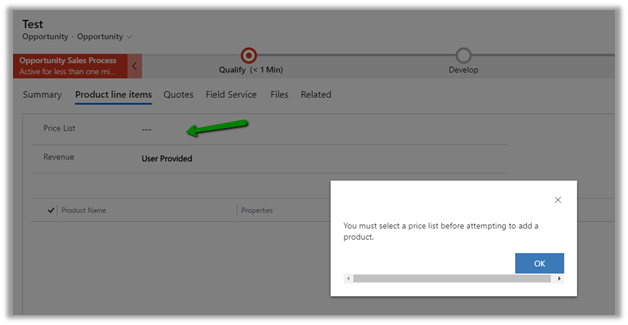
If we try adding a new product line item without specifying the price list we will get the pop-up message box that asks us to specify the price list.

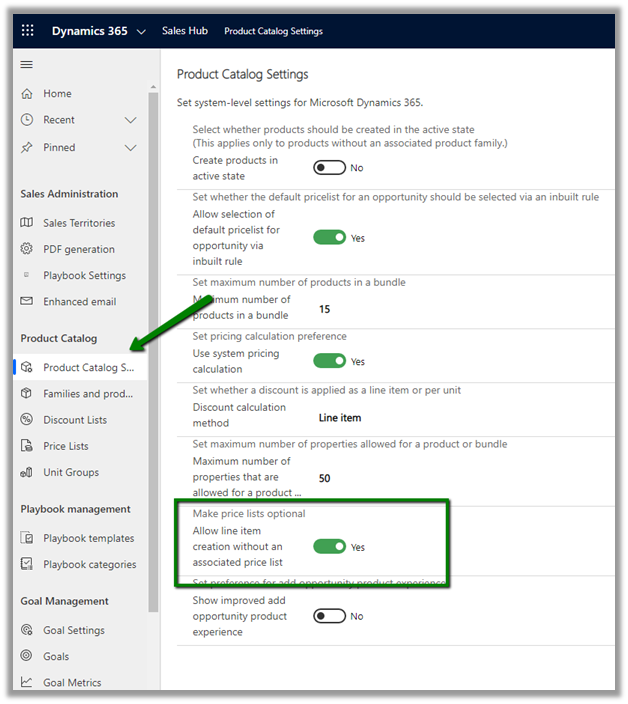
To override this behavior,

Go to Product Catalog Settings and set Price list optional and click on Apply as below.

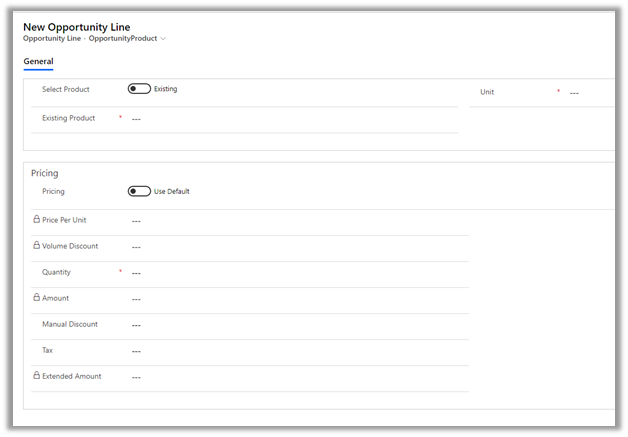
This time it opens the opportunity line form on click of Add Product Line Item.

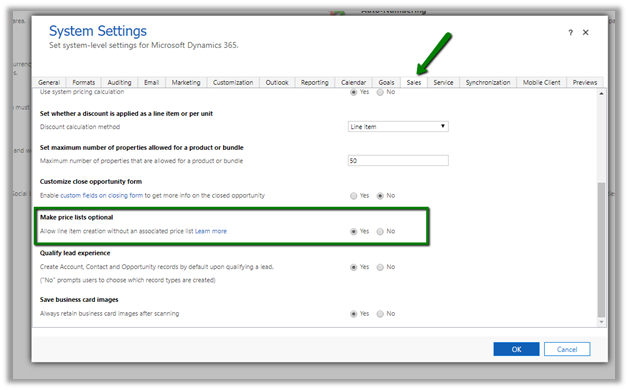
For legacy web client, the same setting can be defined at Sales tab of System Settings dialog box à

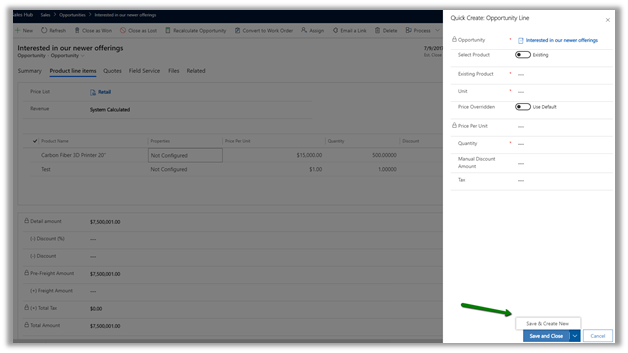
We can also “Save and Create New” option on the Quick Create form of the product line item to quickly add the multiple product line items.

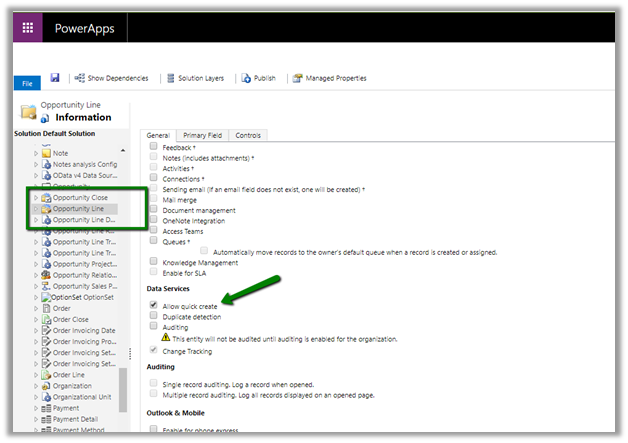
Make sure to enable “Allow Quick Create”.

Save & Create New à

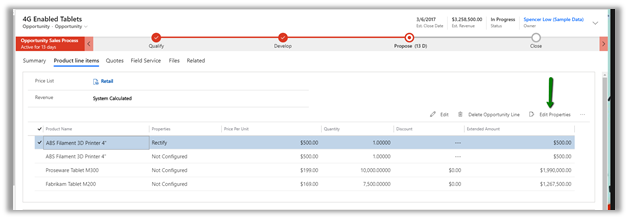
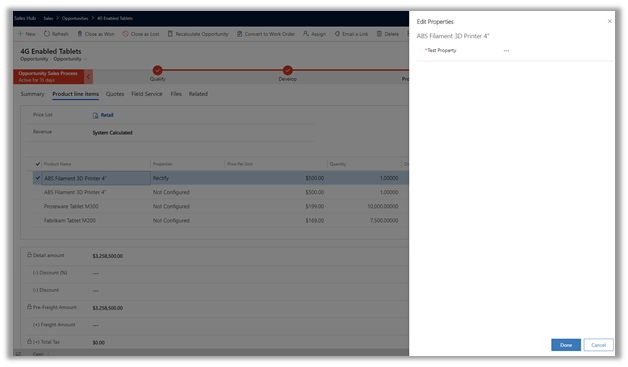
Users can now quickly view and edit properties for a product as shown below.

Edit Properties à

Get all the details here

http://tiny.cc/j0n3hz

http://tiny.cc/z0n3hz

Hope it helps..