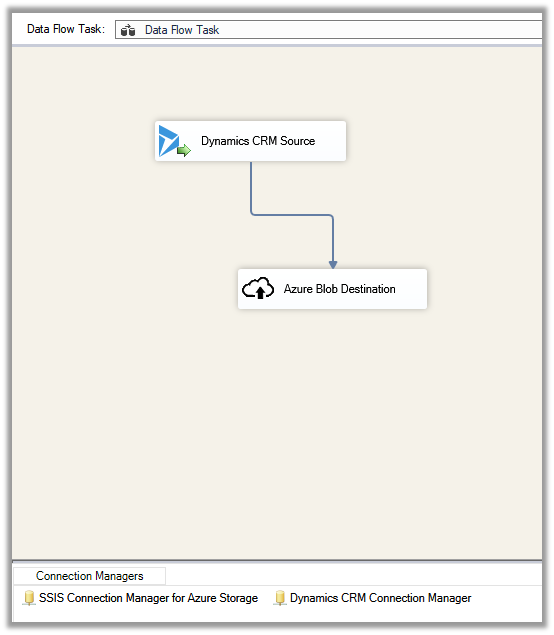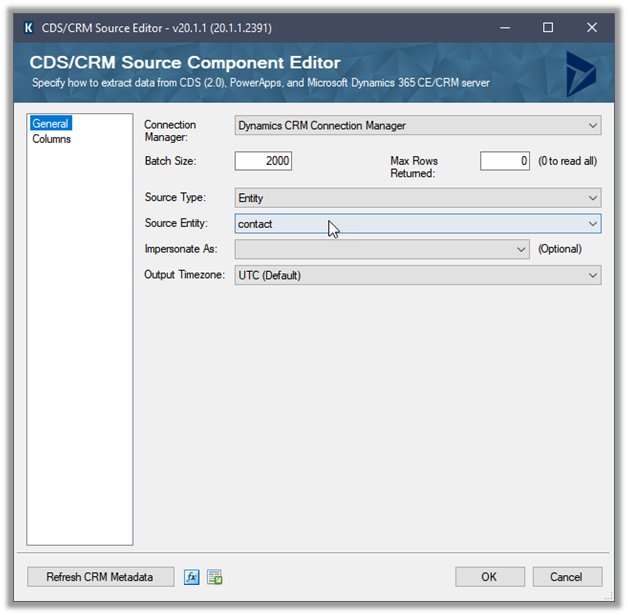
SSIS (KingswaySoft) and Dynamics 365


Fixed – CRM service call returned an error: An error has occurred when retrieving metadata for CRM entity ‘table’: The source argument contains duplicate keys – Dataverse/ Dynamics 365 / SSIS

Recently while trying to retrieve OptionSet Metadata using our favorite KingswaySoft SSIS Toolkit we got the below error. Same error for prod also – [CDS Source [2]] Error: An error occurred with the following error message: “KingswaySoft.IntegrationToolkit.DynamicsCrm.CrmServiceException: CRM service call returned an error: An error has occurred when retrieving metadata for CRM entity ‘copilotexamplequestion’: The…

Using xMultiple along with User Multiplexing for improved performance – KingswaySoft SSIS Integration Toolkit (Dataverse / Dynamics 365)

Let us continue our previous post, where we observed performance improvements by using User Multiplexing Now let us try making use of the xMultiple feature (CreateMultiple, UpdateMultiple, and CreateMultiple messages) of the CRM / CDS Destination Component. We have updated the Batch Size to 100 to trigger the xMultiple However this time we got the…

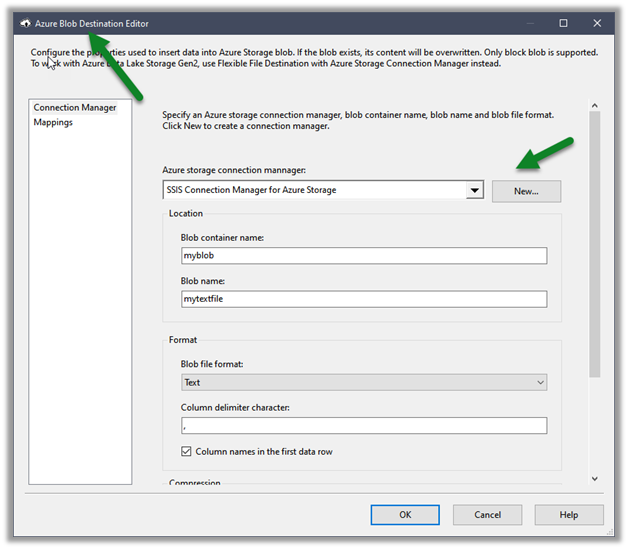
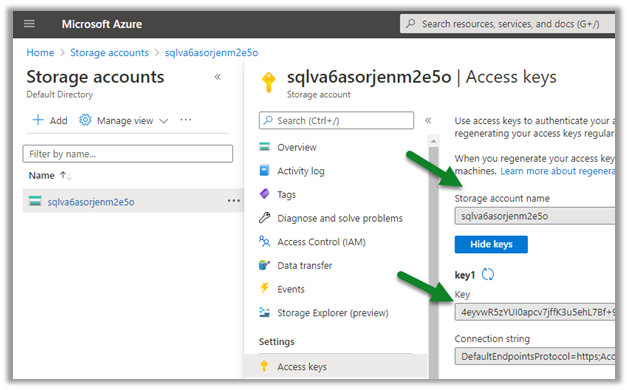
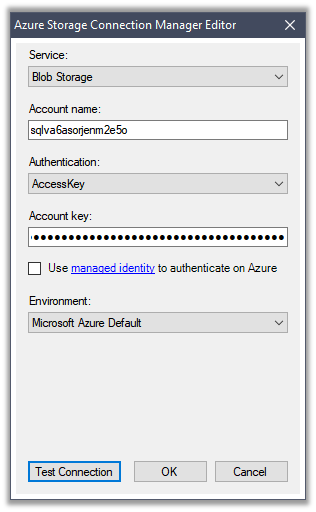
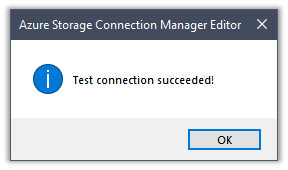
How to –Upload files to File Column / Attribute in SSIS from Azure Blog Storage – KingswaySoft (Dynamics 365 / CRM)

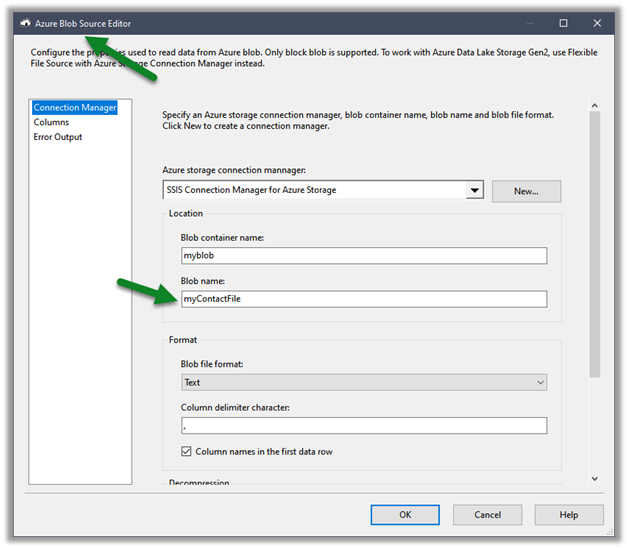
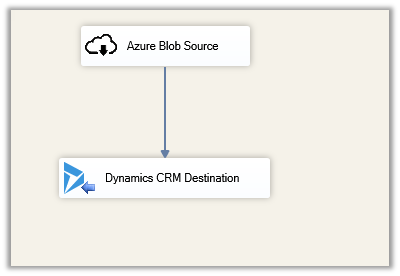
Below are a few ways we can upload files to the File Column type field using KingswaySoft’ s Integration Toolkit and Premium Flat File Source and Premium Derived column which are part of the SSIS Productivity Pack of KingswaySoft https://nishantrana.me/2022/03/17/how-to-upload-files-from-file-column-attribute-using-ssis-kingswaysoft-dynamics-365-crm/ Using the Import column – https://nishantrana.me/2022/08/10/how-to-upload-files-to-file-column-attribute-using-ssis-kingswaysoft-and-import-column-dynamics-365-crm/ Using the Script Component – https://nishantrana.me/2022/08/09/how-to-use-script-component-to-upload-files-to-file-column-attribute-in-ssis-kingswaysoft-dynamics-365-crm/ Here instead of…

How to – Use Import Column to Upload files to File Column / Attribute in SSIS KingswaySoft(Dynamics 365 / CRM)

A few weeks back had posted on how to upload files to the File Column type field using KingswaySoft’ s Integration Toolkit and Premium Flat File Source and Premium Derived column which are part of the SSIS Productivity Pack of KingswaySoft https://nishantrana.me/2022/03/17/how-to-upload-files-from-file-column-attribute-using-ssis-kingswaysoft-dynamics-365-crm/ Here we will see an example of achieving the same without using the…

How to – Use Script Component to Upload files to File Column / Attribute in SSIS – KingswaySoft (Dynamics 365 / CRM)

A few weeks back had posted on how to upload files to the File Column type field using KingswaySoft’ s Integration Toolkit and Premium Flat File Source and Premium Derived column which are part of the SSIS Productivity Pack of KingswaySoft https://nishantrana.me/2022/03/17/how-to-upload-files-from-file-column-attribute-using-ssis-kingswaysoft-dynamics-365-crm/ Here we will see an example of achieving the same without using the…

Something went wrong. Please refresh the page and/or try again.

Fixed – Unable to Login to Dynamics CRM or An unsecured or incorrectly secured fault was received from the other party. See the inner FaultException for the fault code and detail


We might get below error while trying to consume Organization Service through the client application

  • Unable to Login to Dynamics CRM

  • An unsecured or incorrectly secured fault was received from the other party. See the inner FaultException for the fault code and detail.

Chances are the Security Defaults are enabled on the account you are using.

https://docs.microsoft.com/en-us/azure/active-directory/fundamentals/concept-fundamentals-security-defaults

If not required, login to

https://portal.azure.com/

Select Azure Active Directory > Properties > Manage Security Roles

And disable it

This time the connection will be successful.

Try below as well –

SecurityProtocolType.TLS12 –

https://nishantrana.me/2018/10/20/unable-to-login-to-dynamics-crmorganizationwebproxyclient-is-nullorganizationwebproxyclient-is-null-error-while-using-crmserviceclient/

https://nishantrana.me/2018/04/24/unable-to-login-to-dynamics-crmorganizationserviceproxy-is-null-error-while-using-crmserviceclient/

Server Clock out of sync –

https://nishantrana.me/2011/12/13/an-unsecured-or-incorrectly-secured-fault-was-received-from-the-other-party-see-the-inner-faultexception-for-the-fault-code-and-detail/

MFA –

https://nishantrana.me/2020/05/07/an-unsecured-or-incorrectly-secured-fault-was-received-from-the-other-party-see-the-inner-faultexception-for-the-fault-code-and-detail-while-trying-to-connect-using-xrmtoolbox/

Hope it helps..

Advertisements

How to create Measures using Dynamics 365 Customer Insights


Virendra Agrawal's avatarVirendra Agrawal's Blog

In my previous post, we talked about ingesting the data from various sources with the help of different Dynamics Power Query Connectors and use this data to perform unification in Customer Insights and build a unique customer profile (Part 1 and Part 2).

In continuation of the previous posts, let’s see how we can ingest the purchase (eCommerce or POS) data associated with these unique customer profiles to build various measures in Customer Insights.

Before we begin, let’s understand what measures are and how these are useful.

Measures represent as the “Key Performance Indicators” (KPI’s) that we can define to keep a track of our Customer or Business performance. By setting these KPI’s or measures, we can set goals that we would want to achieve, monitor the actual outcomes from the unified customer profile within Customer Insights and act whenever needed to ensure we meet the goals.

Prerequisites:

View original post 1,205 more words

Fixed – There was an error calculating dependency for this component. Missing component id error while trying to import a solution in Dynamics 365


We got the below error while trying to import the solution.

The error indicates that either the component with the specified GUID in the error message is either missing in the solution or is missing in the target environment.

Search for the GUID either in the customization.xml or solutions.xml to find the component.

Add the missing component in the solution and try the import again.

Or remove the dependency to that component from the source solution.

In our case, it was the Quick View Form referred to in one of the entity’s form but not included in the solution. We added the Quick View Form in our solution and tried the import which worked.

We could have also removed the quick view form from the entity’s form (if the component was not needed) and tried the import.

Hope it helps..

Fixed – Object reference not set to an instance of an object error while calling an Action in Dynamics 365


Recently in one of our JavaScripts which was calling an action (with a plugin registered to it) was giving us the below error.

We had a plugin registered on the call of that action, which in turn was calling an external service.

We figured out the probable cause of this error (related to certificates) and updated the plugin code accordingly on the server.

Unfortunately, this didn’t fix the issue for us, we also tried different possible solutions but to no avail.

As a last resort, we thought of giving this a try – deactivate and activate the Action, and to our surprise that did the trick.

Our thought is maybe Action was somehow still referring to the old plugin code, and the step of deactivating/activating the Action kind of cleared the cache or something, making action to refer to the latest plugin code deployed.

Hope it helps..

Advertisements

Fixed – Column names in each table must be unique. Column name ‘x’ in table ‘y’ is specified more than once while importing solution in Dynamics 365


Recently while trying to import the solution we got the below error.

Below was the outcome of our analysis

  • The column or the field referred to in the error message was not available in the CRM application i.e. customizations – default solution was not having this attribute.
  • The column was only available in the base table of the entity.
  • The column was not available in the filtered view of that entity.
  • The column was not available in the MetadataSchema.Attribute table.
  • We had around 50 such columns in the base table of the entity.

In short, the field was only available in the base table and wasn’t available anywhere else, which could have been the result of the solution being deleted at some point in time, followed by the wrong restoration of the table (i.e. unsupported change to the database).

We raised the Microsoft Support for the same, and the way we resolved the issue was by dropping/deleting those columns from the base table, followed by running the solution import which went successful this time. (fortunately the fields were all blank – null or default value)

ALTER TABLE “table_name” DROP “column_name”;

We can also get this error if we have a field with same schema name as source field created in the target environment (created manually / directly there). In this case also either we can remove the field from the source environment’s solution file or we can delete the field from the target environment.

Hope it helps..