

Using the new features – Create a formula (preview) and Explain this formula we can now easily write, edit, and understand formulas in Power Apps.
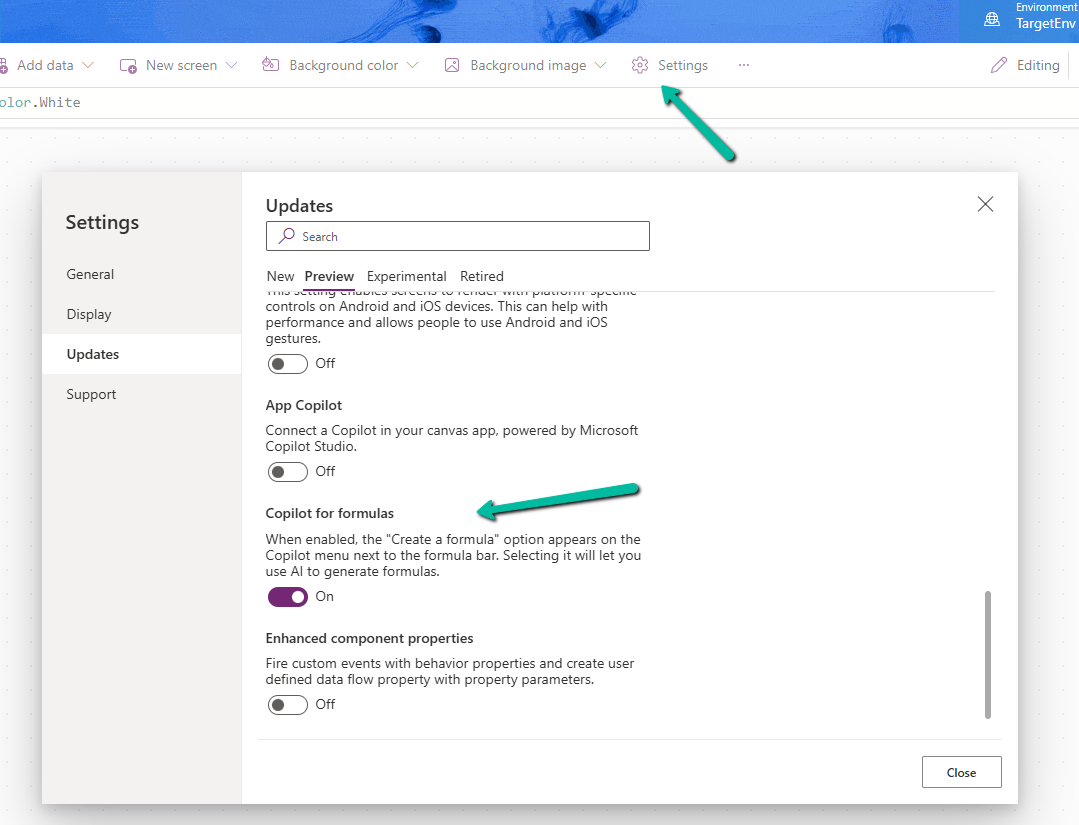
To enable it, navigate to switch on – Settings >> Updates >> Preview >> Copilot for formulas
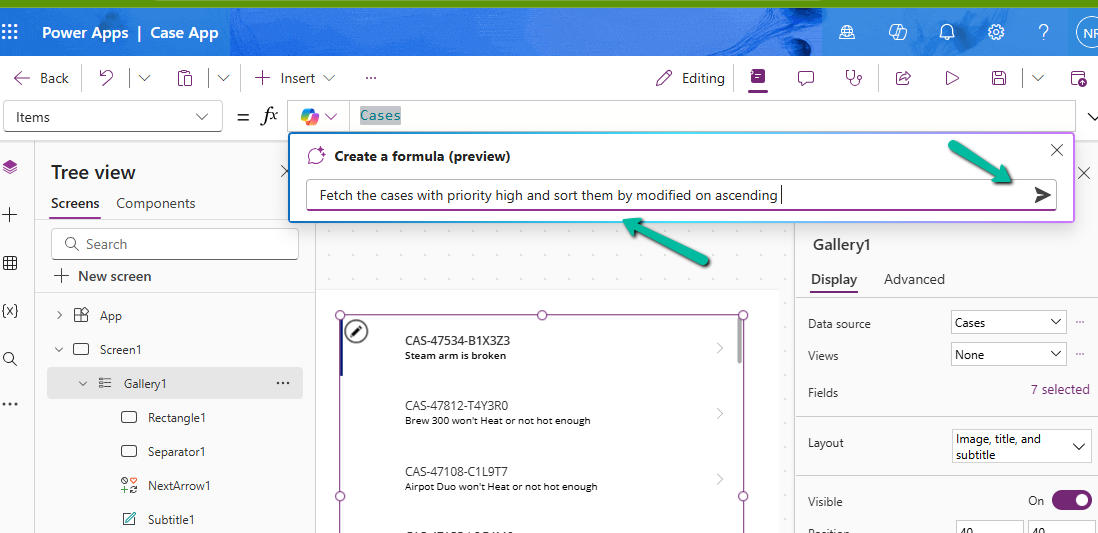
Here in the sample app below, we are trying to set the Items property of the Gallery using Create a formula. Here our gallery control is bound to Cases as the data source.

We can describe what formula we need in plain language.
We can see it generating the formula for us. We have the option to Apply, Discard, and Copy it.

Here we have applied the generated formula.

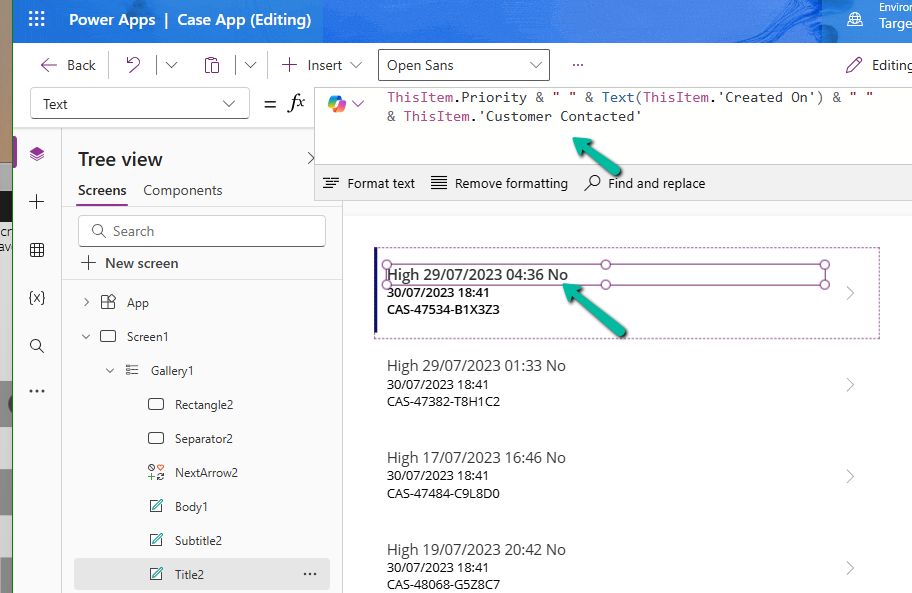
Another example is where we are setting the Text property.

Here instead of the customer name it considered the Customer Contacted field. So basically we need to review the formula generated.
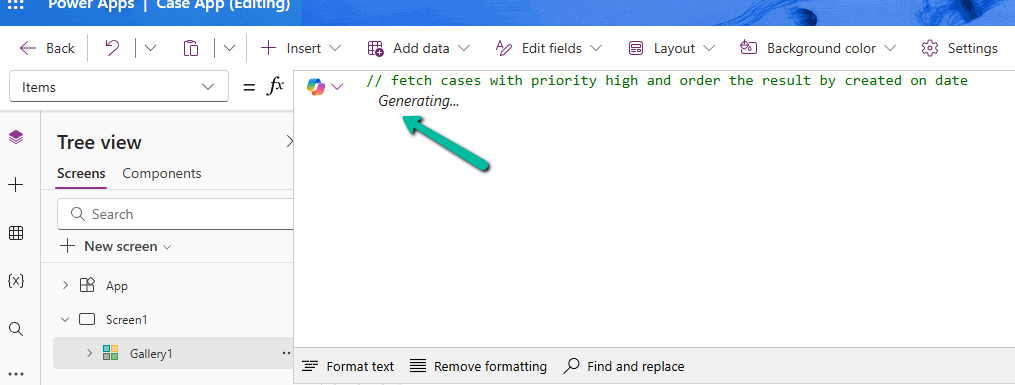
We can also generate formula from code comments as show below. Simply type the comment and wait for formula to be generated or otherwise press Enter.
The result

Next using Explain this formula we can use the copilot’s ability to explain the formula in plain language.
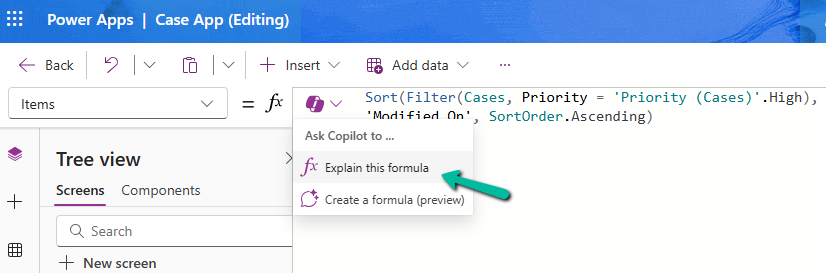
The result

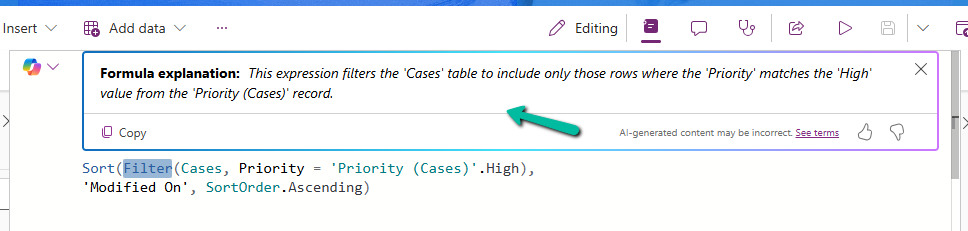
We can also select specific parts of the formula for explanation.
Below we have selected the Filter keyword and Explain this selection option.

The result
Similarly, on selecting SortOrder

The result

Get all the details here
Hope it helps..
Discover more from Nishant Rana's Weblog
Subscribe to get the latest posts sent to your email.
Share It -


 Nishant Rana's Weblog
One thought on “Using Copilot to Create and Explain Formulas – Power Apps”