

To enable this feature navigate to Power Platform Admin Center > Environment > Features > Enable smart paste (preview)

With the smart paste feature, we can copy the text to the clipboard that has the details we want to fill in for our form and click the smart paste button or use our normal CTRL + V. Copilot will analyze the pasted text and will provide suggestions for the different fields on the form.
Suppose we have copied the below text from an email received–

Below we have selected the Smart paste button.
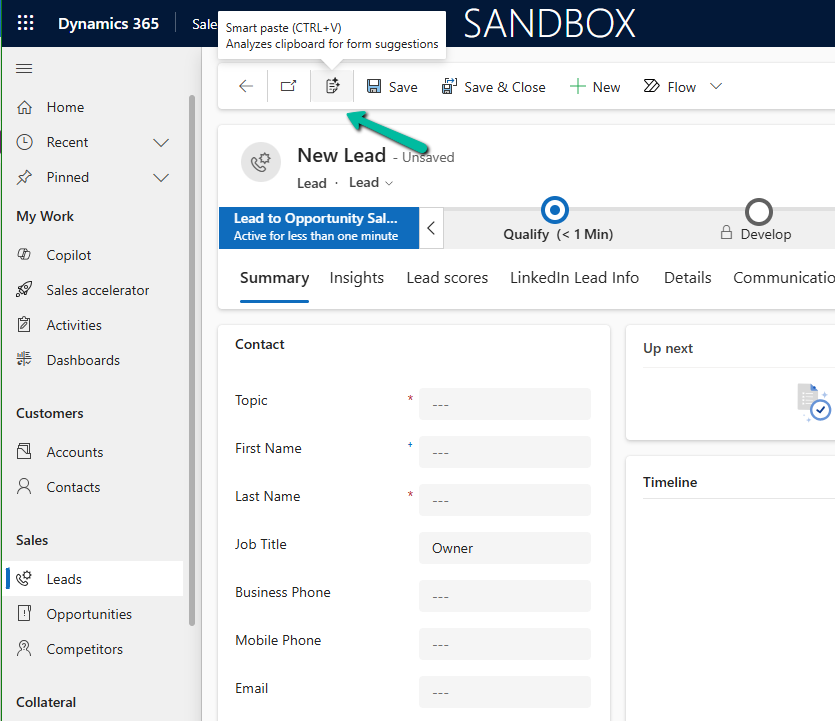
We can see the notification that the Smart Paste is analyzing the clipboard data.

And can see it populating the suggestions for most of the fields from the text we had copied.
We can click on Accept all suggestions or select it for the individual fields.
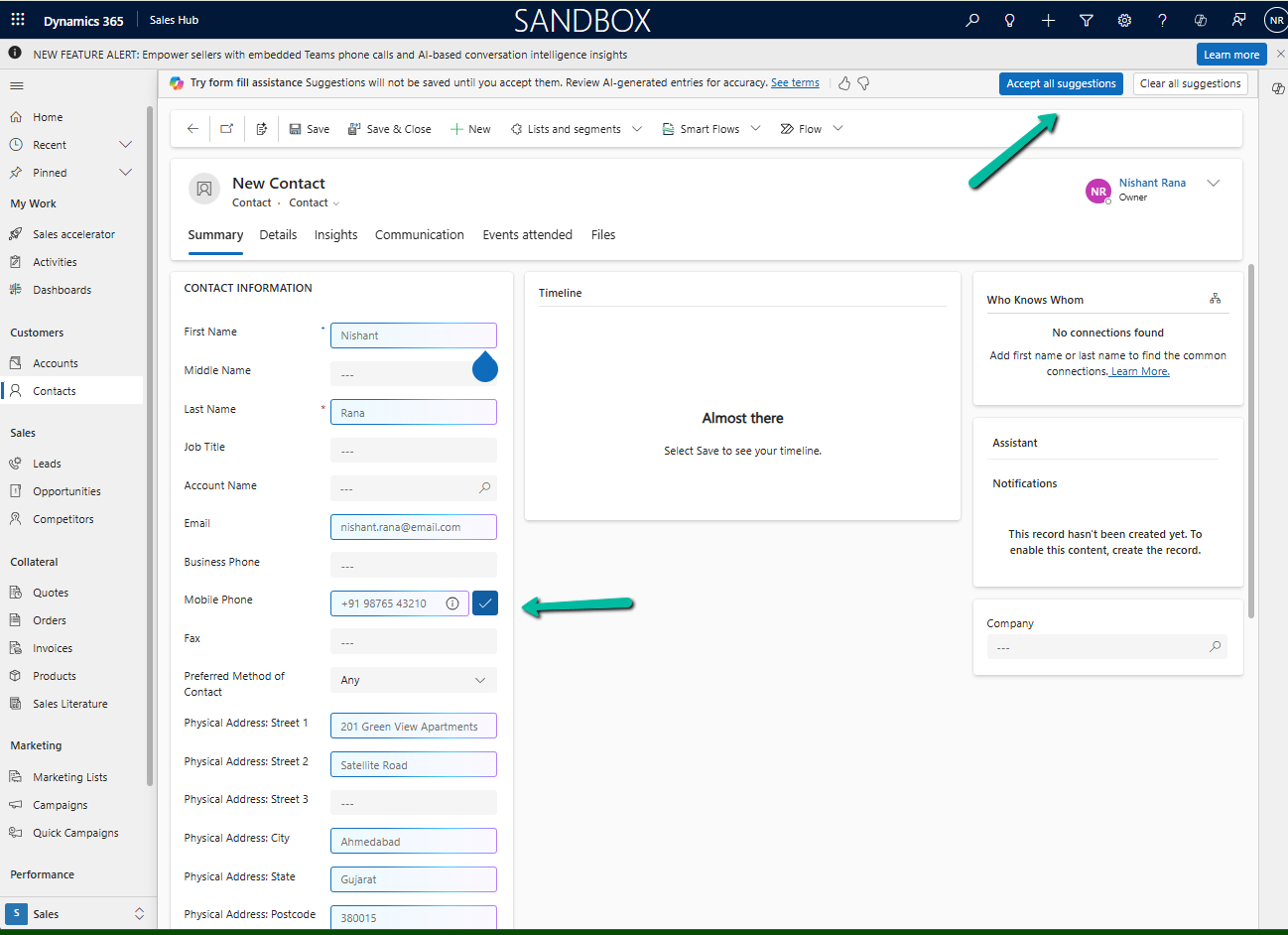
On Accept all suggestions we can see the values auto-filled from the copied text in clipboard –

Get more details
Hope it helps..
Discover more from Nishant Rana's Weblog
Subscribe to get the latest posts sent to your email.
Share It -


 Nishant Rana's Weblog
One thought on “Using the Smart Paste (Preview) feature to fill the form fast in Dataverse / Dynamics 365”