

Recently we found that in one of the environments, the Date Window Start / End Dates was not showing up on the Work Order Forms, unlike the other environments.
Check the forms below
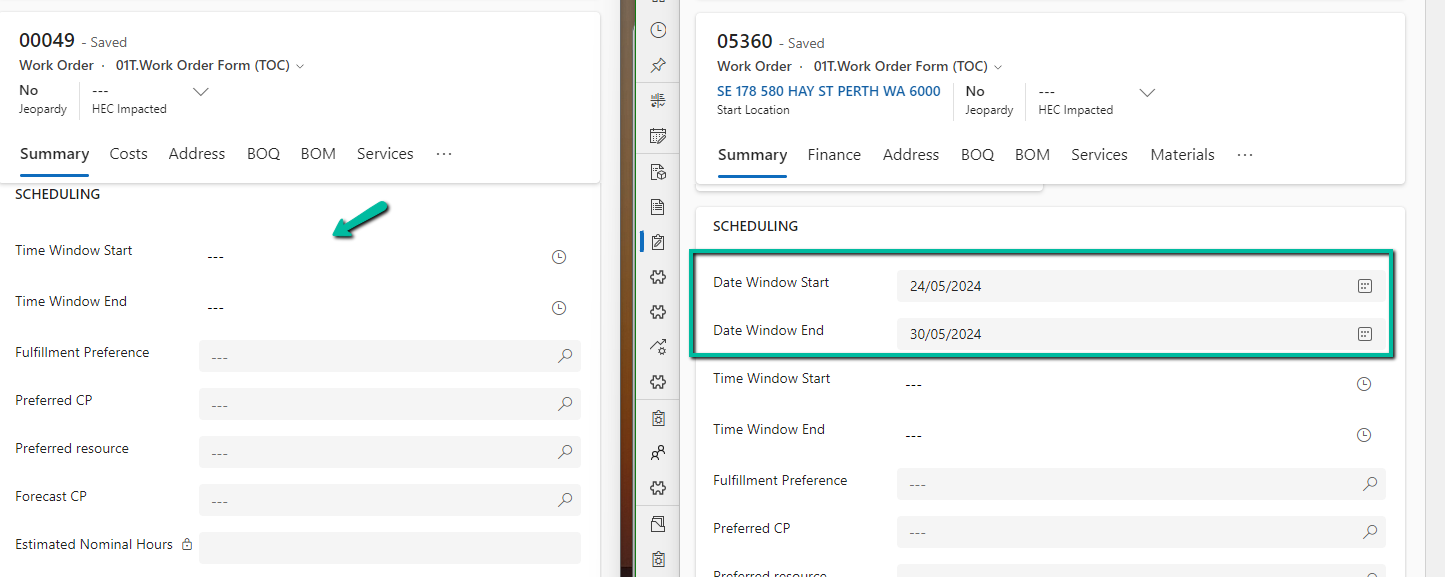
Well, the show and hide of the Date Window Start / End Date is controlled from Field Service Settings >> Fields Service >> Agreement
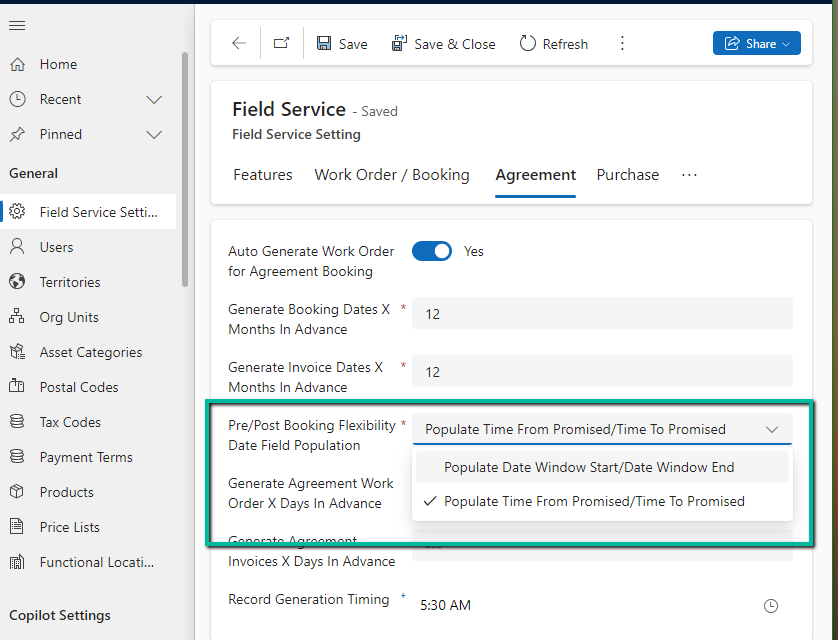
Setting Pre/Post Booking Flexibility Date Field Population to Populate Date Window Start / Date Window End will unhide the fields on the form.
Below is the corresponding out-of-the-box script that shows/hides the fields.
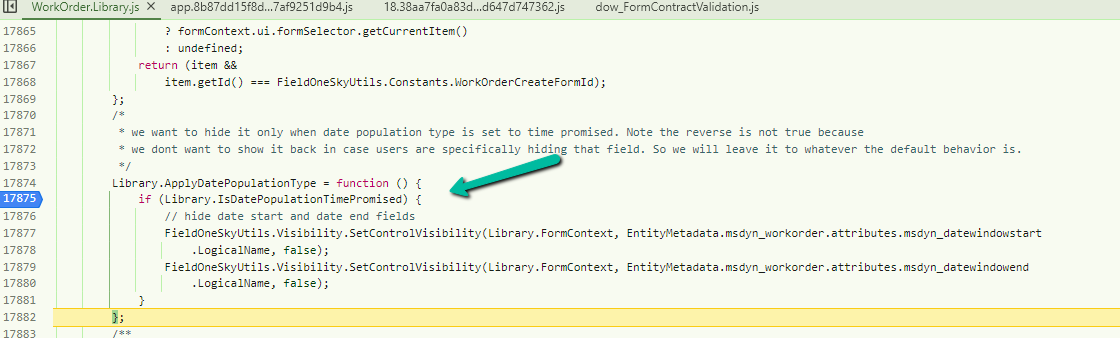
Also worth noting is that these fields are deprecated, as Microsoft recommends using Time From Promised and Time To Promised fields instead to define the date window in which a job is performed.
When setting up an agreement, you can control how work order scheduling works with pre-booking and post-booking flexibility. These fields define a window of time for scheduling each work order.
There are two options for how this window is used:
- Date Window Start/End: The agreement populates these fields with the scheduling window. This makes the “Date Window Start/End” section visible on the work order itself.
- Time From/To Promised: The agreement doesn’t directly affect these fields, but the scheduling window is considered during the scheduling process. “Date Window Start/End” will be hidden in this case.
This setting essentially determines where the scheduling window information is stored and displayed for work orders generated from this agreement.
Get the details
Hope it helps..
Discover more from Nishant Rana's Weblog
Subscribe to get the latest posts sent to your email.
Share It -


 Nishant Rana's Weblog
One thought on “Date Window Start and Date Window End fields missing on the Work Order form – Dynamics 365 Field Service”