It mostly happens when IIS is installed after .NET is installed. So in this case we need to make use of aspnet_regiis.exe utility.
1) Go to command prompt
2) Go to the following path
“C:WINDOWSMicrosoft.NETFrameworkv2.0.50727”
depending on the version.
3) Enter “aspnet_regiis.exe -i”
4) It will display the message finished installing
5) Open your IIS
6) Select web service extensions
7) Click on Allow for ASP.NET v2.0.50727
That’s it . Now the IIS has been configured properly
But if you haven’t installed the management studio than in that case you need to make following change in the registry
HKEY_LOCAL_MACHINE / SOFTWARE / Microsoft / Microsoft SQL server / MSSQL.1/ MSSQLSERVER/ LoginMode
Click on it change it’s value from 1 to 2.
Then Restart your sql server service !!!
After you have done this you need to enable you sa account for sql server authentication for this follow these steps
1) Open SQL Server Management Studio Express and Login
2) In Object Explorer, click Security followed by Logins
3) Right click sa user and select Properties.
4) Uncheck Enforce password policy
5) Select Status. Click the Grant and Enabled radio buttons. Click OK
6) Restart your database server and select restart.
The ability to catch certain user actions in code and respond programmmatically. These are theclasses which we can inherit and write event handlers or receivers against them.
Get the values for assembly tag by right clicking the assembly and selecting properties within the GAC.
If we have multiple eventhandler attached to a same event we can specify which handler should be executed first through SequenceNumber tag. It’s value should start from 20000
In case when we need to add controls to our web part we need to override the CreateChildControls method of the base WebPart class along with Render method.
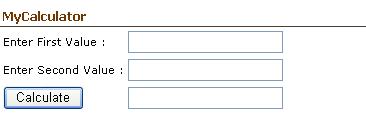
Let’s take a simple example for it, a kind of sample calculator which shows sum of two numbers ]
For this we have added 2 labels, 3 textboxes and 1 button.
On Click of the button the sum of the values entered in textbox1 and textbox2 would be displayed in the textbox3.
The name of the assembly,it’s version, culture and public key token information can be found by right clicking the assembly within gac and selecting properties.
For adding custom properties to our web part we need to do the following
1) Create property.
2) Decorate the property with the following attributes
WebBrowsable – To allow your property to be visible within SharePoint.
WebDisplayName– To provide display name to the property.
WebDescription– To provide description for that property.
Personalizable – To define the scope of it i.e either User or Shared through PersonalizationScope enumeration.
Let’s take a simple example wherein we have 2 properties defined, user will enter value for them and finally when the web part is rendered, we would be displaying their sum within the web part.
namespace AdditionWebPart
{
publicclassSumWebPart : WebPart{
privateint firstVariable;
[WebBrowsable(true),
WebDisplayName(“First Value”),
WebDescription(“Enter value for first variable”),
Personalizable(PersonalizationScope.User)]
publicint FirstVariable
{
get { return firstVariable; }
set { firstVariable = value; }
}
privateint secondVariable;
[WebBrowsable(true),
WebDisplayName(“Second Value”),
WebDescription(“Enter value for second variable”),
The name of the assembly,it’s version, culture and public key token information can be found by right clicking the assembly within gac and selecting properties.
The name of the assembly,it’s version, culture and public key token information can be found by right clicking the assembly within gac and selecting properties.
Or to get the public key token you can open the .NET Framework command prompt and type the following command sn -t “assemblyname.dll”
We can deploy assembly in the bin directory of the web application also, but in this case it would be partially trusted and could result in security exception which could have been unhandled, so we need to make the following change in the web.config of the application
<trust level=”WSS_Minimal” originUrl=”” />
to
<trust level=”WSS_Medium” originUrl=”” />
Go to webparts gallery within your site, click on new, select your webpart and populate the gallery.