Using Script Component to specify input value to OLE DB Source Component in SSIS


Recently we had a requirement to write an SSIS package that will fetch the data from SQL Server and will insert it (or create records) into Dynamics 365 CE.

For connecting and fetching data from SQL Server, we were using OLE DB Source Component with data access mode as SQL Command which had one parameter, whose value we had to fetch from Dynamics 365 CE.

For passing the value to this parameter we had defined a variable within our Package named LastUpdateFromCRM.

Now as we wanted to set the variable value from one of the records in Dynamics 365 CE, we used KingswaySoft’s CDS/CRM Source Component Editor, that will return us one row using fetch xml + max rows returned property.

Then we added a script component to the output of the CDS/CRM Source Component.

Here double-clicking the Script Component and selecting Input Columns inside the editor, we can select the input columns that we want to use within the Script Editor.

Next, we selected Script section inside the editor, there we selected the user variable as Read Write variable (as we are setting its value inside our script) and clicked on Edit Script button to open the VSTA Project.

Within VSTA project, inside main.cs we defined a date time variable to hold value coming from the CRM Source Component i.e. the value of last update field.

Inside ProcessInputRow method, we then set the value of that variable and finally within Post Execute method we use it to set the value of our user-defined variable.

Now as we have specified the value to our LastUpdateFromCRM variable, its value was passed to the SQL Command of OLE DB Source component as intended.

Hope it helps..

Using Output Timezone property of CDS/CRM Source Component in SSIS


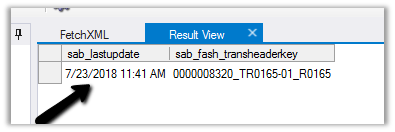
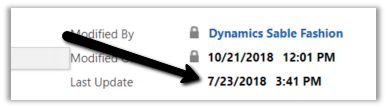
In Dynamics 365 CE, the data time field’s value will always be returned in UTC time when retrieved through the Organization Service.

Just go through this insightful article to learn more about CRM Date Time.

https://www.powerobjects.com/2012/06/07/crm-2011-truths-about-datetime/

For e.g.

Within application à

Inside CRM

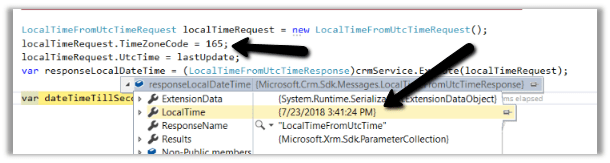
Now to get it in Local Time of the User we can use LocalTimeFromUTCTimeRequest class.

https://www.inogic.com/blog/2013/06/how-to-convert-the-datetime-in-local-and-utc-date-time-format/

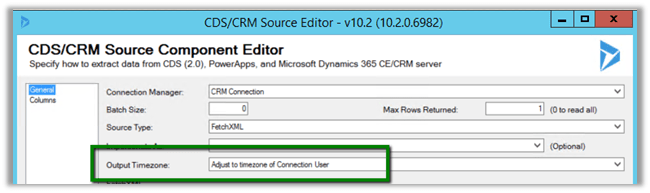
Now the good thing is if we are using CDS/CRM Source Component of KingswaySoft’s SSIS Integration Toolkit, it has the Output Timezone property.

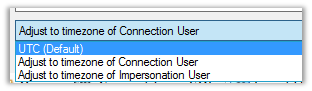
It has following 3 values.

Here UTC (Default) will return the value in UTC and Adjust to the time zone of connection user or the impersonation user will return values based on the user’s time zone. This property makes it extremely intuitive and easy to work with DateTime field within Dynamics 365 CE.

Hope it helps..
The collection of variables locked for read and write access is not available outside of PostExecute error in SSIS


We might get this error while trying to access a ReadWrite variable within Script Component outside Post Execute.

Here we were using it within ProcessInputRow method

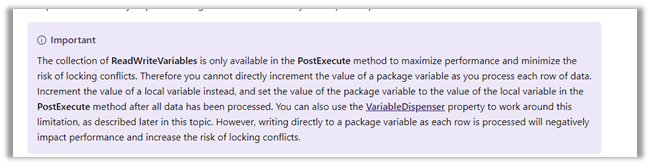
As per the official documentation – the reason for this error is because ReadWriteVariables are only available inside PostExecute method for improved performance and minimizing locking.

https://docs.microsoft.com/en-us/sql/integration-services/extending-packages-scripting/data-flow-script-component/using-variables-in-the-script-component?view=sql-server-2017

Updating the code to use PostExecute method fixed the issue for us.

Hope it helps..
How to – Use OverriddenCreatedOn or Record Created On field to update Created On field in Dynamics 365


While working in data migration project, when creating records in the target system, we would want the “created on” field to hold the original value instead of it being set to the actual value when it was created in the target system, which is set by the system or the platform itself.

Suppose we are having the “created on” field in our source SQL Server Table and we are creating the lead records in our target Dynamics 365 organization using KingswaySoft’s CRM Destination Component.

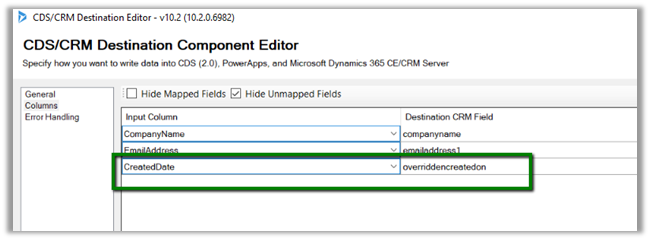
Here we have mapped the CreatedDate of our source table to overrriddecnreatedon field of Lead entity.

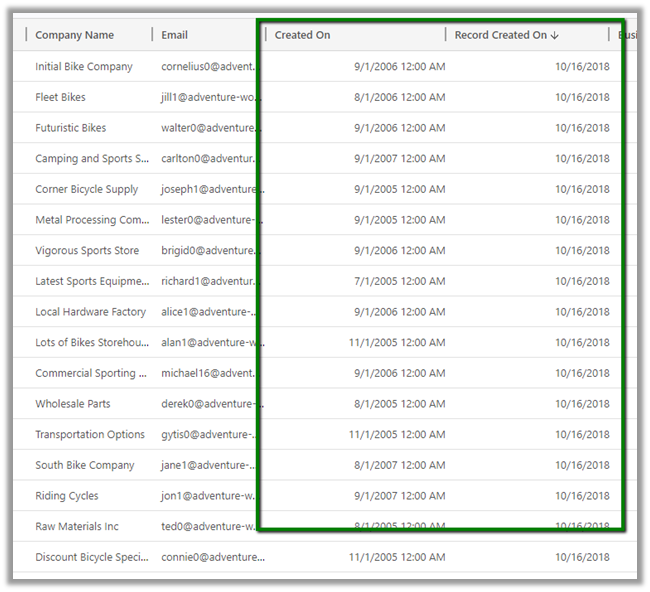
On executing the package, back inside Dynamics 365, we can see the following values for Created On and Record Created On (overrriddecnreatedon) field for the lead records.

Record created on will have the time when the record was created in Dynamics 365 and Created On field will have the values that we passed from our source SQL Table.

Get all the details here

https://blogs.msdn.microsoft.com/emeadcrmsupport/2012/08/01/the-truth-about-override-created-on-or-created-by-for-records-during-data-import/

Hope it helps..

Advertisements

Data Flow Transformations in SSIS


SSIS has various data flow transformation components that make it easy to manipulate the source data before it can be sent to the destination for processing.

Below are some of the most frequently used one

  • Data Conversion

For changing the data type of the source column.

Simply select the input column and then specify the data type for it.

For e.g., if our source has one of the date columns as a string, we can apply Data Conversion transformation to convert its data type to Date.

  • Derived Column

Can be used if we want to apply the expression to the source column and create a new column or update the existing column.

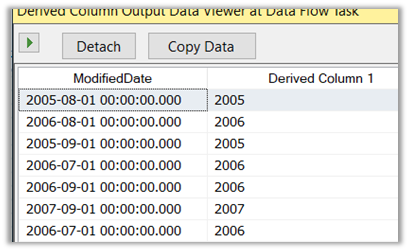
For e.g. we are interested in the Year part of the Modified Date column. For this we can use the Year Date/Time function, get the year part and add it as a new column.

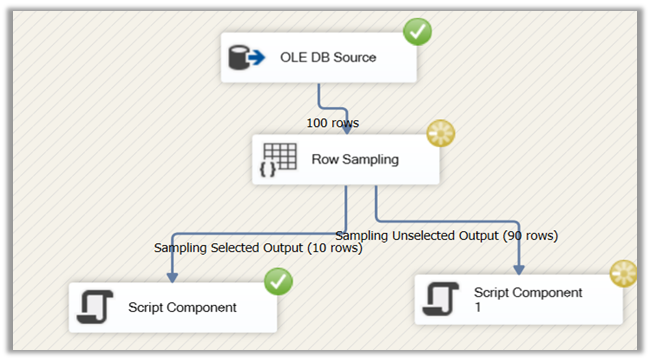
  • Percentage Sampling and Row Sampling

To reduce the number of rows in the pipeline.

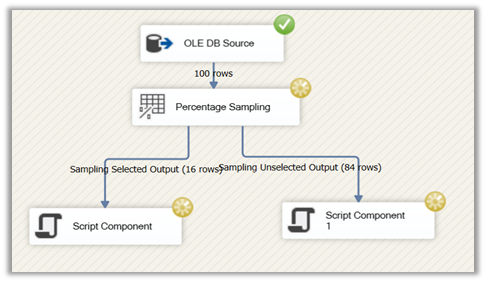
Percentage Sampling allows us to define the percentage of rows for sampling. It generates two output, one output for the rows that are selected and the other for the unselected.

Similarly, Rows Sampling allows us to specify the number of rows directly instead of a percentage. It also gives the option to select the columns.

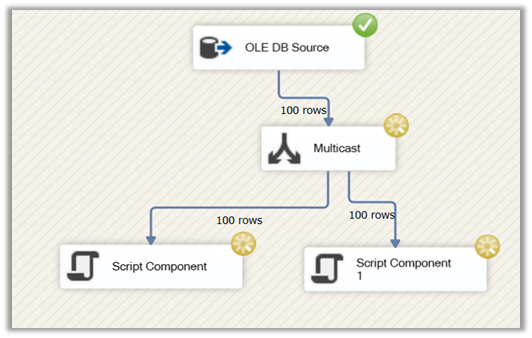
  • Multicast

Multicast can be used to pass the same data to multiple destination as shown below.

Sort transformation can be used to specify sorting for the data. In the case of SQL, we can specify sort in the query itself however in case of working with flat files, this function can be handy.

To perform aggregation on the source data we can use Aggregation transformation.

  • Union All

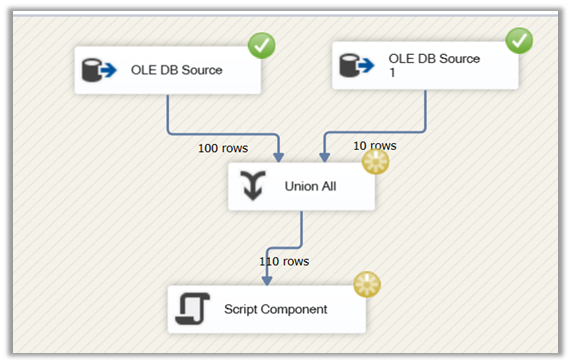
Union All allows us to combine data from multiple sources. Here the column structure should be identical of the sources. The data from the first source is passed to the destination, followed by the data from the second.

We’d covered some of the common transformation components in this post, in the next post we’d try to cover the remaining frequently used transformation.

Hope it helps..

How to – Stop SSIS Package Execution in SSISDB


Suppose a package has been running for quite a long time or has been mistakenly run and we would like to stop its execution.

To do so

  • Right Click on SSISDB
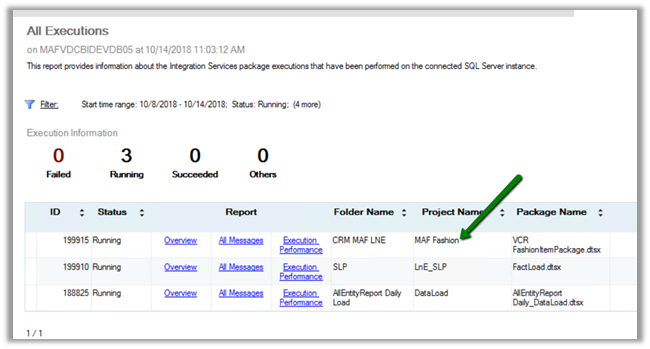
  • Select All Execution Reports

  • Filter it to see all the Running packages

  • We can see our all the running packages there.

  • Now to stop any specific package, right click SSISDB and select Active Operations

  • From the Active Operation window, select the running job and click on Stop button to stop its execution.

  • Another option is to use the stored procedure à get the operation id of the running package and execute the stored procedure

Exec catalog.stop_operation  @operation_id = 199915


Hope it helps..