Creating a simple web part with controls in SharePoint


In case when we need to add controls to our web part we need to override the CreateChildControls method of the base WebPart class along with Render method.

Let’s take a simple example for it,  a kind of sample calculator which shows sum of two numbers ]

For this we have added 2 labels, 3 textboxes and 1 button.

On Click of the button the sum of the values entered in textbox1 and textbox2 would be displayed in the textbox3.
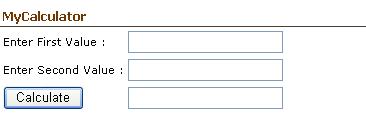
SampleCalculatorWebPart

Following is the code for the above web part.

namespace SampleCalculator

{

public class MyCalculator :WebPart

{

protected Label lblFirstValue;

protected Label lblSecondValue;

protected TextBox txtFirstValue;

protected TextBox txtSecondValue;

protected Button btnCalculate;

protected TextBox txtTotal;

// controls would be initialized and added here

protected override void CreateChildControls(){

lblFirstValue = new Label();

lblSecondValue = new Label();

txtFirstValue = new TextBox();

txtSecondValue = new TextBox();

btnCalculate = new Button();

txtTotal = new TextBox();

lblFirstValue.Text = “Enter First Value :”;

lblSecondValue.Text = “Enter Second Value :”;

btnCalculate.Text = “Calculate”;

// adding eventhandler for click of btnCalculate

btnCalculate.Click += new EventHandler(btnCalculate_Click);

this.Controls.Add(lblFirstValue);

this.Controls.Add(txtFirstValue);

this.Controls.Add(lblSecondValue);

this.Controls.Add(txtSecondValue);

this.Controls.Add(btnCalculate);

this.Controls.Add(txtTotal);

}

void btnCalculate_Click(object sender, EventArgs e){

int total = CalculateSum( Convert.ToInt32(txtFirstValue.Text), Convert.ToInt32(txtSecondValue.Text));

txtTotal.Text= total.ToString();

}

protected override void Render(HtmlTextWriter writer){

// for proper alignment of the controls added

// we can create a table

// <Table>

//<tr><td><td></tr>

//<tr><td><td></tr>

//<tr><td><td></tr>

//</Table>

writer.RenderBeginTag(HtmlTextWriterTag.Table);

writer.RenderBeginTag(HtmlTextWriterTag.Tr);

writer.RenderBeginTag(HtmlTextWriterTag.Td);

lblFirstValue.RenderControl(writer);

writer.RenderEndTag(); //td

writer.RenderBeginTag(HtmlTextWriterTag.Td);

txtFirstValue.RenderControl(writer);

writer.RenderEndTag(); //td

writer.RenderEndTag(); // tr


writer.RenderBeginTag(HtmlTextWriterTag.Tr);

writer.RenderBeginTag(HtmlTextWriterTag.Td);

lblSecondValue.RenderControl(writer);

writer.RenderEndTag(); //td

writer.RenderBeginTag(HtmlTextWriterTag.Td);

txtSecondValue.RenderControl(writer);

writer.RenderEndTag(); //td

writer.RenderEndTag(); // tr


writer.RenderBeginTag(HtmlTextWriterTag.Tr);

writer.RenderBeginTag(HtmlTextWriterTag.Td);

btnCalculate.RenderControl(writer);

writer.RenderEndTag(); //td

writer.RenderBeginTag(HtmlTextWriterTag.Td);

txtTotal.RenderControl(writer);

writer.RenderEndTag(); //td

writer.RenderEndTag(); // tr

writer.RenderEndTag();// table

}

private int CalculateSum(int a, int b){

return a + b;}

}

}

Put the following attribute in your assemblyinfo.cs file

[assembly: AllowPartiallyTrustedCallers]


Strong sign the assembly and install it in GAC.

Open the web.config of your site where you want this webpart

Make a safecontrol entry within the web.config for your webpart.

<SafeControl Assembly=SampleCalculator, Version=1.0.0.0, Culture=neutral, PublicKeyToken=7c6ce78ef8448ffa Namespace=SampleCalculator TypeName=* Safe=True />

The name of the assembly,it’s version, culture and public key token information can be found by right clicking the assembly within gac and selecting properties.

Bye..

Writing custom properties for web parts in Sharepoint


For adding custom properties to our web part we need to do the following

1) Create property.

2) Decorate the property with the following attributes

WebBrowsable – To allow your property to be visible within SharePoint.

WebDisplayName– To provide display name to the property.

WebDescription– To provide description for that property.

Personalizable – To define the scope of it i.e either User or Shared through PersonalizationScope enumeration.

Let’s take a simple example wherein we have 2 properties defined, user will enter value for them and finally when the web part is rendered, we would be displaying their sum within the web part.

namespace AdditionWebPart

{

public class SumWebPart : WebPart{

private int firstVariable;

[WebBrowsable(true),

WebDisplayName(“First Value”),

WebDescription(“Enter value for first variable”),

Personalizable(PersonalizationScope.User)]

public int FirstVariable

{

get { return firstVariable; }

set { firstVariable = value; }

}

private int secondVariable;

[WebBrowsable(true),

WebDisplayName(“Second Value”),

WebDescription(“Enter value for second variable”),

Personalizable(PersonalizationScope.User)]

public int SecondVariable

{

get { return secondVariable; }

set { secondVariable = value; }

}

protected override void Render(System.Web.UI.HtmlTextWriter writer){

writer.Write(“The total is “ +this.calcTotal(this.firstVariable,this.secondVariable));

}

private int calcTotal(int a, int b){

return a + b;

}}}

Put the following attribute in your assemblyinfo.cs file

[assembly: AllowPartiallyTrustedCallers]


Strong sign the assembly and install it in GAC.

Open the web.config of your site where you want this webpart

Make a safecontrol entry within the web.config for your webpart.

<SafeControl Assembly=AdditionWebPart, Version=1.0.0.0, Culture=neutral, PublicKeyToken=5f7492d3f59e0c4b Namespace=AdditionWebPart TypeName=* Safe=True />

The name of the assembly,it’s version, culture and public key token information can be found by right clicking the assembly within gac and selecting properties.

Bye….

Creating a custom hello world SharePoint web part


1) Create a new class library project.

2) Add reference to system.web.dll

3) Inherit the following class

System.Web.UI.WebControls.WebParts.WebPart class.

4) Override the Render method.

using System;

using System.Collections.Generic;

using System.Text;

using System.Web.UI;

namespace MyWebPart

{

public class MyFirstWebPart : System.Web.UI.WebControls.WebParts.WebPart

{

protected override void Render(HtmlTextWriter writer)

{

writer.Write(“<font name=’Georgia’><b>Hello World </b></font>”);

}

}

}

Put the following attribute in your assemblyinfo.cs file

[assembly: AllowPartiallyTrustedCallers]

5) Strong sign the assembly and install it in GAC.

6) Open the web.config of your site.

7) Make a safecontrol entry within the web.config for your webpart.

<SafeControl Assembly=MyWebPart, Version=1.0.0.0, Culture=neutral, PublicKeyToken=4e225690feb84c40 Namespace=MyWebPart TypeName=* Safe=True />

The name of the assembly,it’s version, culture and public key token information can be found by right clicking the assembly within gac and selecting properties.

Or to get the public key token you can open the .NET Framework command prompt and type the following command sn -t “assemblyname.dll”

We can deploy assembly in the bin directory of the web application also, but in this case it would be partially trusted and could result in security exception which could have been unhandled, so we need to make the following change in the web.config of the application

<trust level=”WSS_Minimal” originUrl=”” />

to

<trust level=”WSS_Medium” originUrl=”” />


Go to webparts gallery within your site, click on new, select your webpart and populate the gallery.

That’s it!!

Access is denied. Check that the Default Content Access Account has access to this content, or add a crawl rule to crawl this content. The item was deleted because it was either not found or the crawler was denied access to it- Sharepoint


Got this error while starting the full crawl on Local Office Sharepoint Server Sites (default content source)

The resolution for this was to add the following registry key

1) Click Start, click Run, type regedit, and then click OK.
2) In Registry Editor, locate and then click the following registry key:
HKEY_LOCAL_MACHINE\SYSTEM\CurrentControlSet\Control\Lsa
3) Right-click Lsa, point to New, and then click DWORD Value.
4) Type DisableLoopbackCheck, and then press ENTER.
5) Right-click DisableLoopbackCheck, and then click Modify.
6) In the Value data box, type 1, and then click OK.
7) Quit Registry Editor, and then restart your computer.

http://support.microsoft.com/kb/896861

Bye…

The secure sockets layer (SSL) certificate sent by the server was invalid and this item will not be crawled – Sharepoint


On starting the full crawl of the default content source i recieved the  error.

The secure sockets layer (SSL) certificate sent by the server was invalid and this item will not be crawled.

It was because one of the site was ssl enabled.

Solved it in the following manner

Go to

Central Administration > Application Management > Search Service > Farm-Level Search Settings

On the Manage Farm-Level Search Settings page, in the SSL Certificate Warning Configuration section, select the Ignore SSL certificate name warnings check box if you want to trust that sites are legitimate even if their certificate names are not exact matches.

http://technet.microsoft.com/en-us/library/cc262907.aspx

Bye

Data at the root level is invalid. Line 1, position 1. Sharepoint


Got this error while opening a sharepoint site.

Changing custom error to Off it showed  the following error

Line 1:  <browsers>
Line 2:      <browser id="Safari2" parentID="Safari1Plus">
Line 3:          <controlAdapters>

Data at the root level is invalid. Line 1, position 1.

Deleted  the _vti_cnf folder of /App_Browsers/ of the site and everything was back to normal!!!