How to – Add URL of record in Item link in Approval – Power Automate / Dynamics 365


To add the record’s URL in the Item link in the approval step within Power Automate, we can follow the below steps

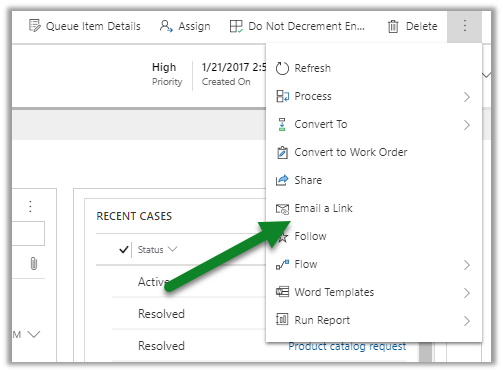
First, to get the URL, open the record, click on Email a link
Copy the URL from the mail editor
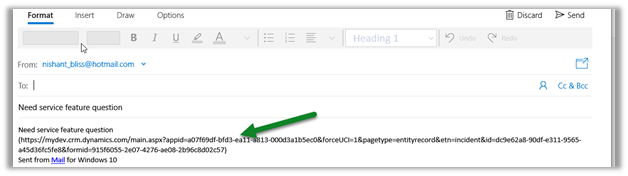
Or get the Record URL using our favorite tool for Dynamics 365 / CRM

https://github.com/rajyraman/Levelup-for-Dynamics-CRM

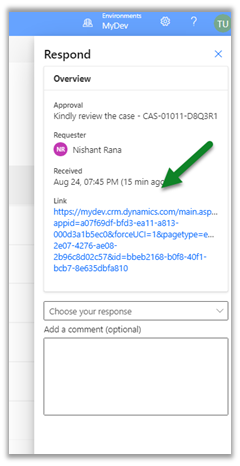
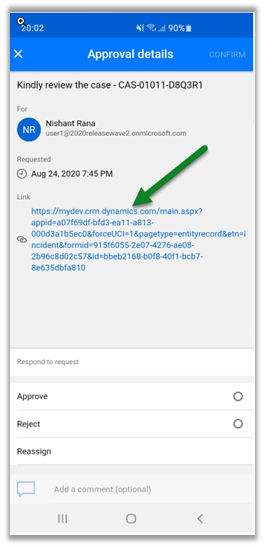
Paste the URL and specify the id (guid)  part as shown below.

Link within Email

Inside Approval Center
Within the app
Another option could be to create a custom field in the entity to hold the URL and use the same for the Item link.

Check our the below posts for more details à

https://diyd365.com/2019/11/27/populating-item-link-in-approvals-power-automate-ms-flow/

https://www.d365geek.co.uk/single-post/2018/11/05/Microsoft-Flow-Vs-Dynamics-365-Workflows—Part-1

https://learningrefresh.home.blog/2019/04/08/create-first-microsoft-flow/

https://powerusers.microsoft.com/t5/Building-Flows/Dynamics-365-Get-URL-dynamically-in-flow/td-p/153813

http://linnzawwin.blogspot.com/2020/01/power-automate-find-out-how-to-include.html

Hope it helps..

Advertisements

Solved – Your subscription is no longer active. Please contact your admin to activate your subscription while accessing Outlook Office 365


While trying to access Outlook Office 365 one of the users was getting the below error.

https://outlook.office.com/

Exchange online licenses were assigned to the user, and also the other users were not facing this issue.

As suggested in one of the forums, we tried re-assigning the license.

https://admin.microsoft.com/AdminPortal/Home#/subscriptions

i.e. Unassign and reassign the license to the user.

We kept getting the issue (even after trying in different browsers and also in in-private browsing).

We tried the same after 1 hour or so and the user was able to access the outlook office 365, seems like the change takes time to propagate.

So the key is to make sure the licenses are active and appropriately assigned and followed by a little bit of patience.

Hope it helps..
Advertisements

Configure Customer Service Analytics and Insights in Dynamics 365 Customer Service Hub (Preview)


With the recent updates, the Analytics and Insights that were earlier only available inside Customer Service Insights and Customer Service Analytics for Dynamics 365 in Power BI are now accessible from within the Customer Service Hub.

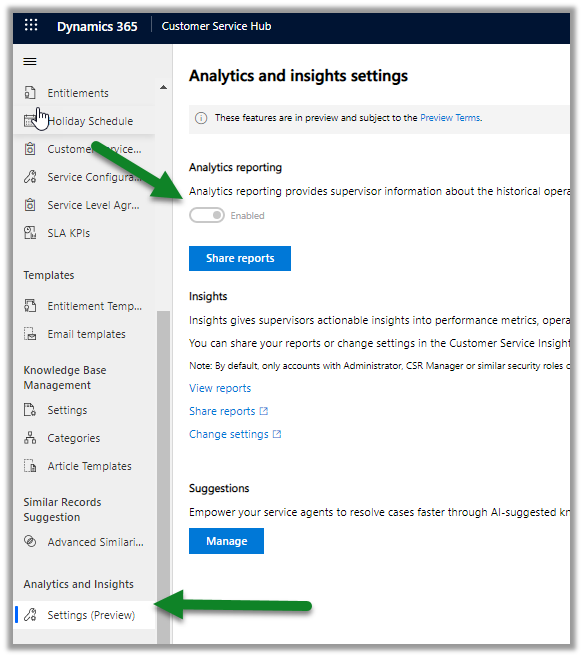
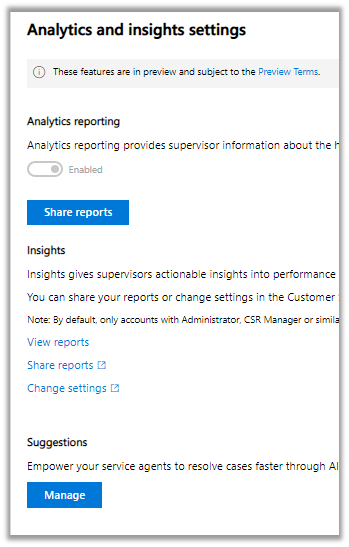
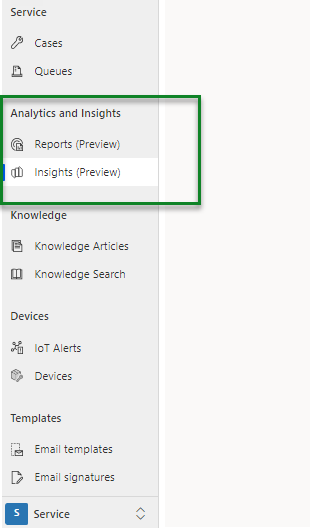
Navigate to the Service ManagementAnalytics and Insights – Settings (preview) section inside Customer Service Hub to enable it.

Toggle the Enabled option to enable Analytics reporting.

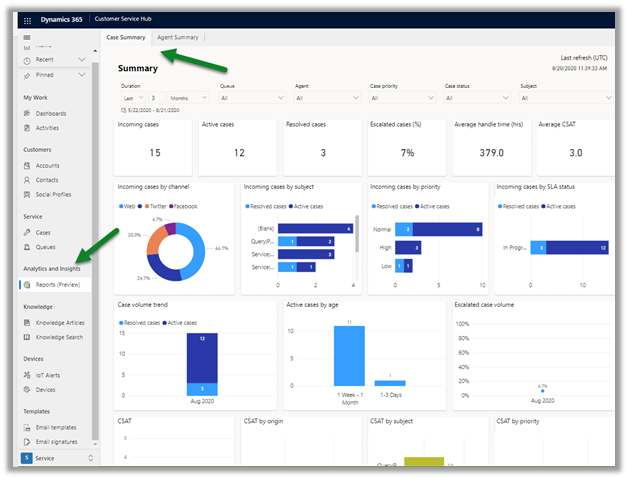
The reports can be viewed from Reports (preview) – Service Area

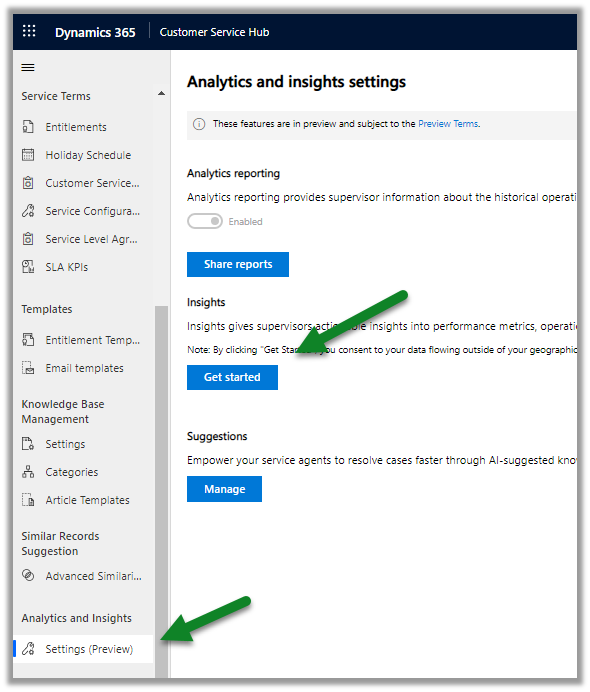
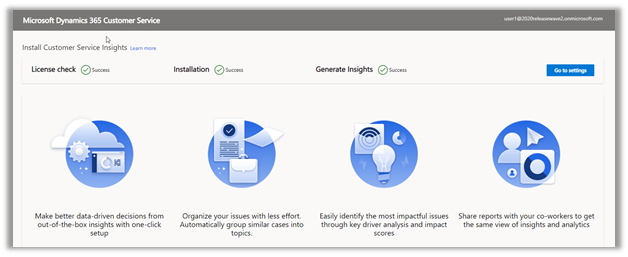
To enable Insights, click on Get Started.

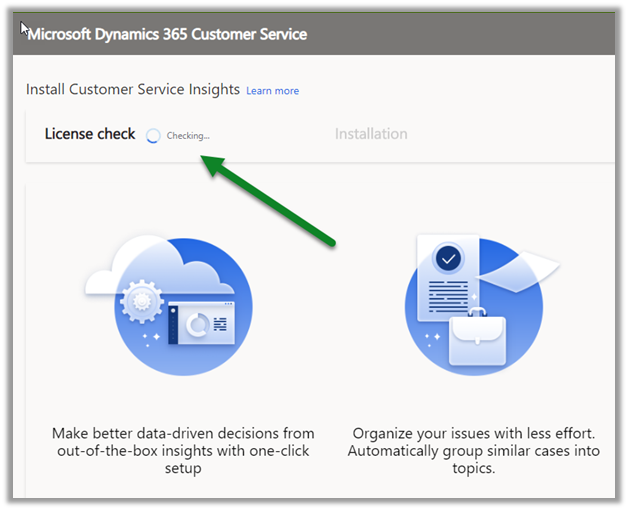
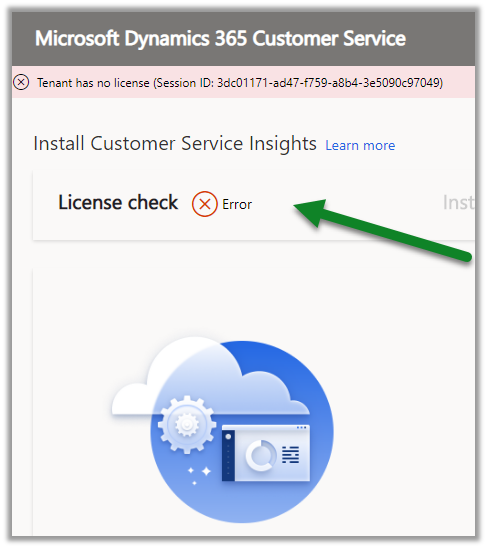
It will perform a check for the license before setting things up.

We’d get the below error if the license is missing.

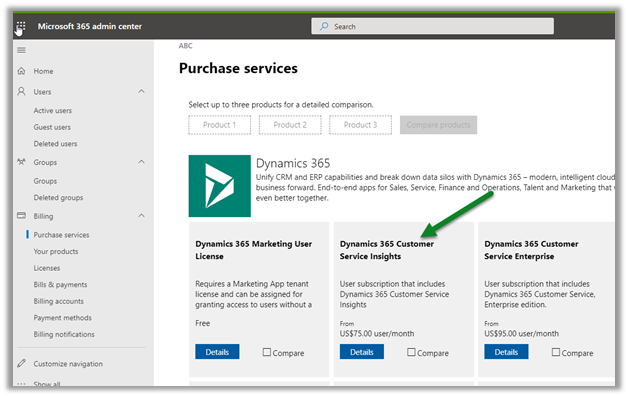
To get the license, log in to the admin portal.

https://admin.microsoft.com/

For Purchase Services, select Dynamics 365 Customer Service Insights.

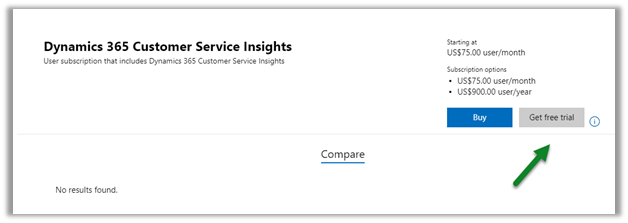
Enable the trial.

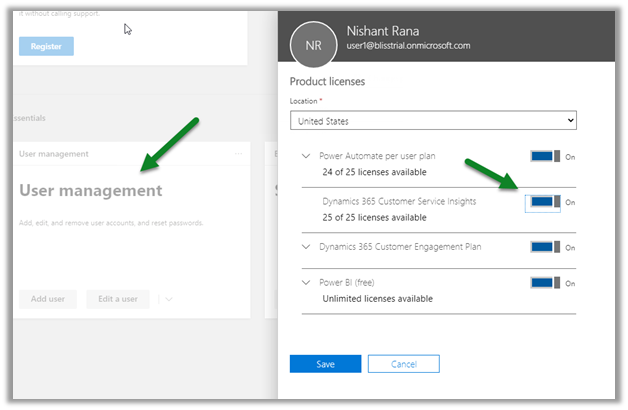
Assign the license to the user.

This time the configuration will be successful.

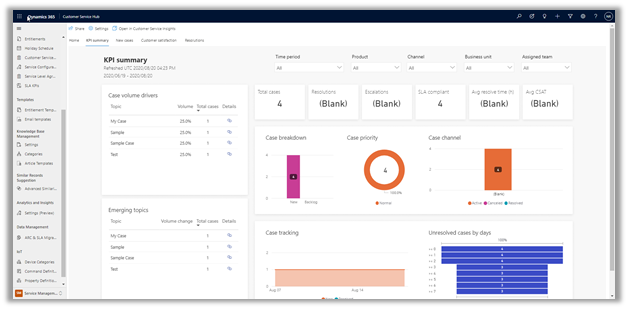
Clicking on View reports will open the reports.

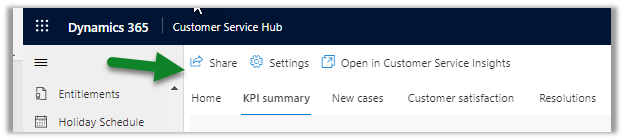
We have the option to share, configure it, and to open it inside the Customer Service Insights app.

  • Both the reports and insights are accessible from Service Area the Customer Service Hub

AS

Get all the details here

https://docs.microsoft.com/en-gb/dynamics365/customer-service/introduction-customer-service-analytics

Hope it helps..
Modern email template experience in Dynamics 365 – 2020 Release Wave 2


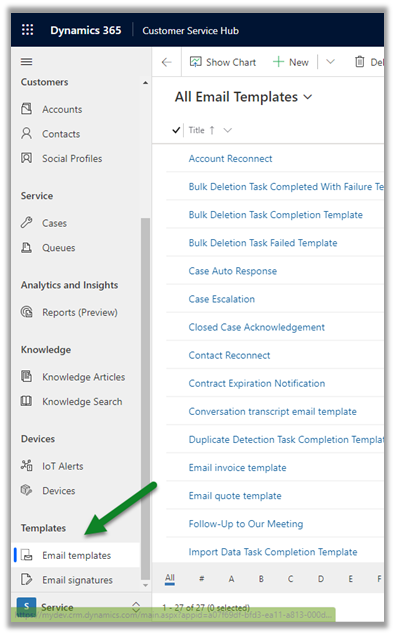
With 2020 Release Wave 2, we can now author the email template from within the Customer Service Hub app. (along with the classic Settings – Templates – Email Templates section)

Other blog posts on 2020 Release Wave 2

Navigate to Service Area – Templates

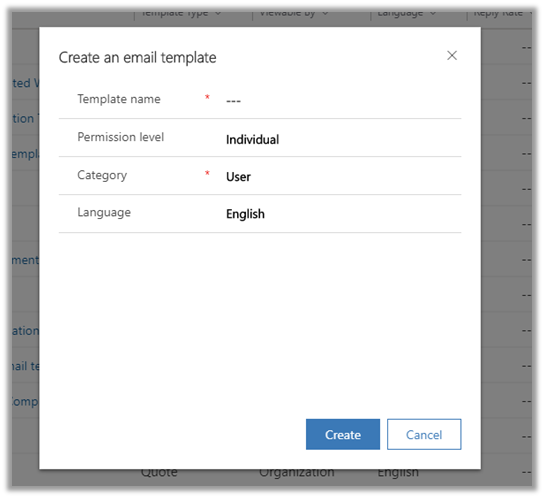
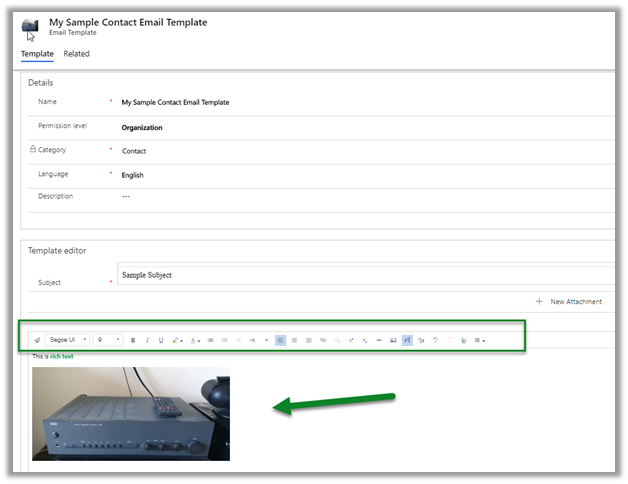
Clicking on New brings the below window, where we can specify Template Name, Permission Level, Category (entity), and Language.

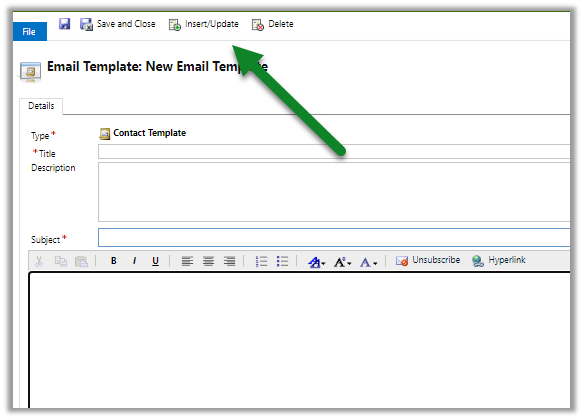
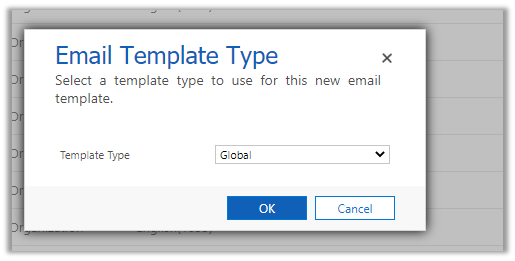
The classic experience – (it had only template type field – which included value Global and entities)

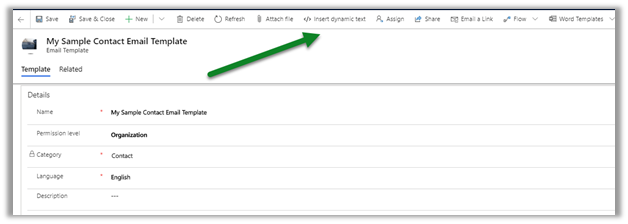
  • The new Email Template editor brings a rich text experience. ( with the option of working with image inline)

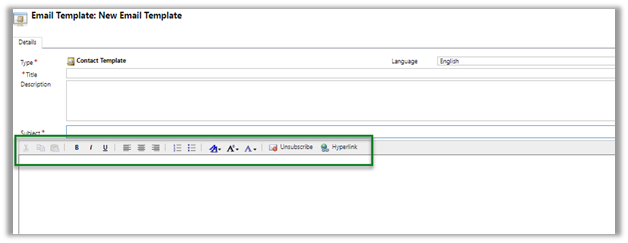
The classic experience –

  • The new Email Template also brings the new modern and familiar toolbar.

legacy experience –

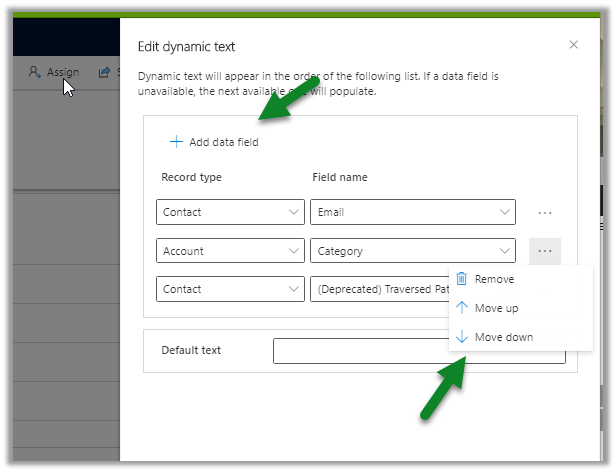
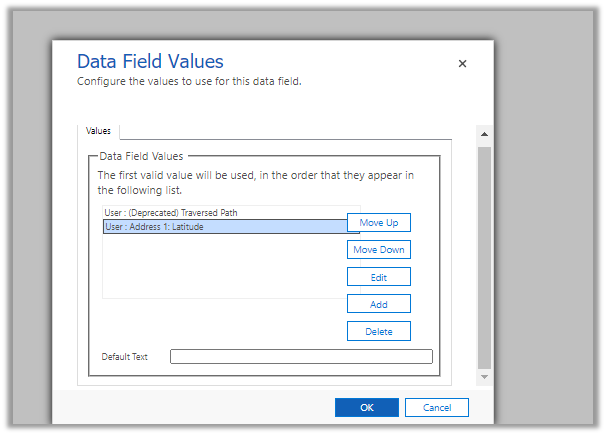
  • The new Insert / Edit dynamics text screen

Classic one –

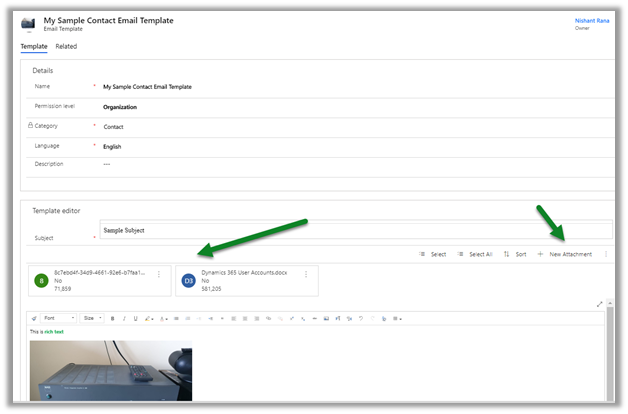
  • We can also add attachments to the email template.

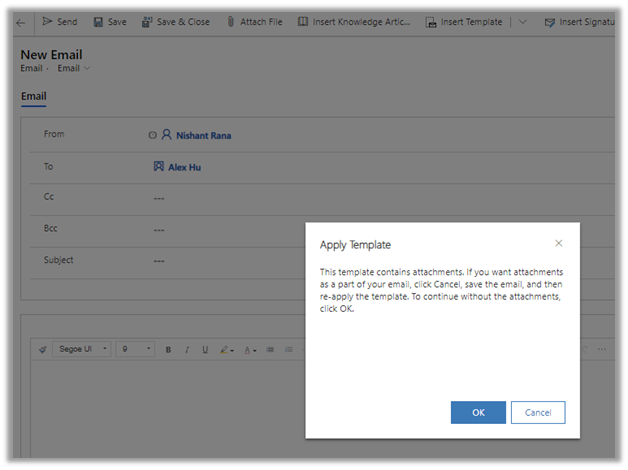
Now if we create a new email and try to apply the above template, we will be presented with the below message, which asks us to save the record first and then inserts the template, if we want the attachments to be part of it.

After saving the record, we can now insert the email template which also adds the attachments.

Dynamics 365 2020 release wave 2 –https://docs.microsoft.com/en-us/dynamics365-release-plan/2020wave2/

Hope it helps..
Advertisements

Send a Power App Push Notification using Flow to open a record in Canvas App | Power Automate


priyeshwagh777's avatarD365 Demystified

Let’s say most of your users are using custom Canvas Power Apps to follow their business tasks and rely on Canvas Apps for their actions inside Dynamics 365.
There could be scenarios where you want to notify them conditionally of important items that need their attention.

Scenario

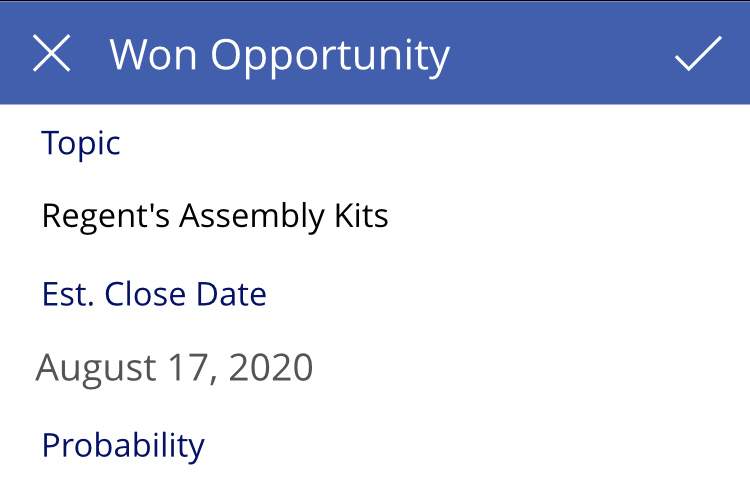
Let’s say you have a few users whom you want to tell them that an Opportunity was Won. It could be a team or a single User.

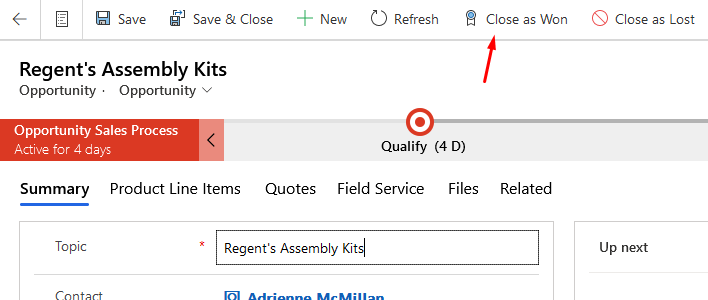
Here’s what my scenario is – A PowerApp Notification is sent to designated User(s) using Flow. When an Opportunity is Won

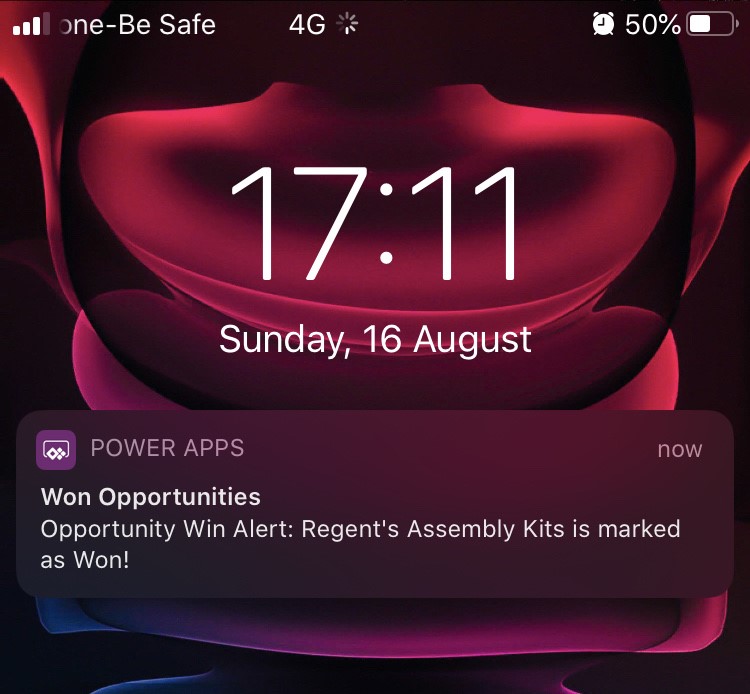
A Power App Notification is received

And when user clicks he Notification, Canvas Power will open and show that record.

But of course, your implementation/applications for this can be limitless!! This is just my example!

Flow

Here’s what the Flow looks like –

  1. I’m triggering the Flow on Update of the Opportunity. You can use…

View original post 738 more words

Custom entity support for PDF document generation in Dynamics 365 – 2020 Release Wave 2


With 2020 Release wave 1 we had PDF generation capability added to Lead, Contact, Opportunity, Quote, Order and Invoice entity.

https://nishantrana.me/2020/02/13/save-and-email-pdf-options-added-to-dynamics-365-sales-2020-release-wave-1-plan/

This has been extended to the custom entities with new capabilities added in 2020 Release Wave 2

Other blog posts on 2020 Release Wave 2

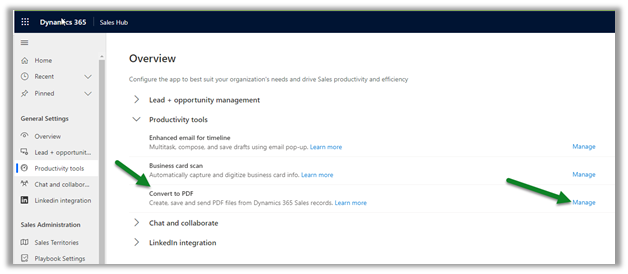
In Sales Hub, navigate to App SettingsProductivity Tools – Convert to PDF and select Manage


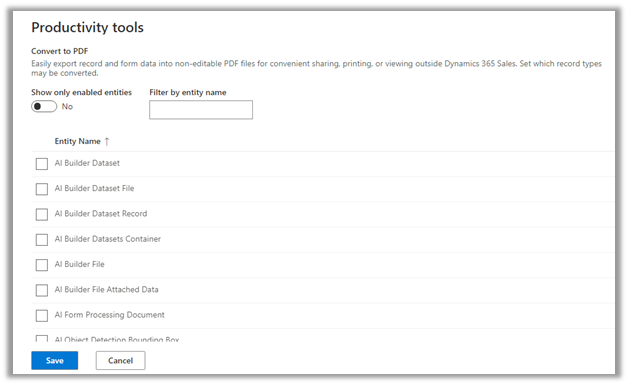
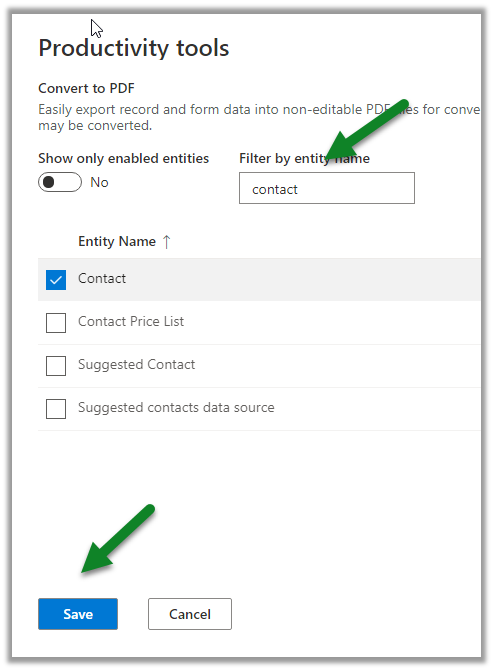
We can Search / Select the entities to enable it.


Let us enable it for the Contact entity

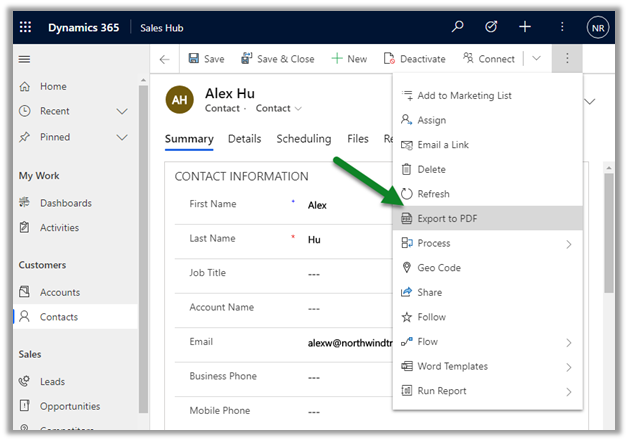
We can see the “Export to PDF” command added after enabling the Convert to PDF option in the contact entity.

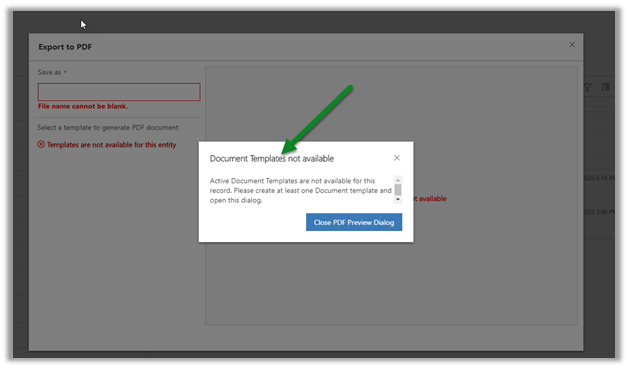
Clicking on it we are presented with below options if we do not have any active document template available for that entity.

Let us enable PDF generation on the Account entity (as it has the document template available out of the box) and try the same.

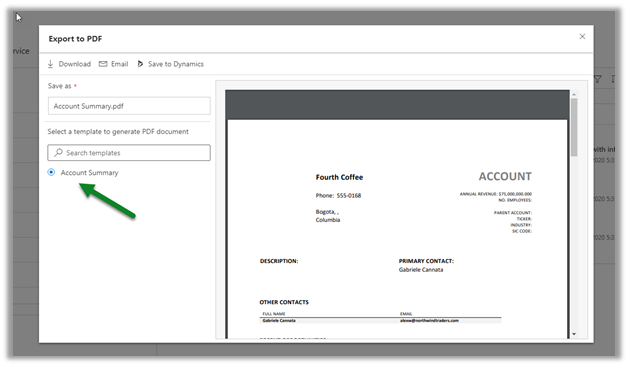
After enabling it for Account entity, clicking on Export to PDF, gives us option to  preview the PDF document based on the template selected

Download option  will download a copy of the pdf.

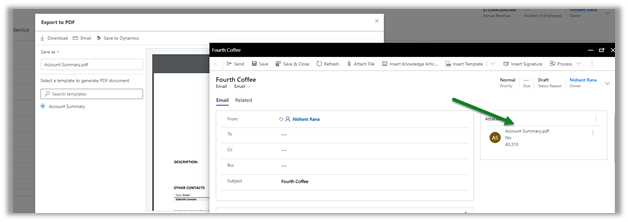
The Email option will open the compose email window with the PDF attached.

Save to Dynamics will save it in the timelines as note’s attachment for that record.

This definitely was one of the most requested feature and thanks to Microsoft for adding it in the new release.

Dynamics 365 2020 release wave 2 –https://docs.microsoft.com/en-us/dynamics365-release-plan/2020wave2/

Hope it helps..