Manage Parent Child Cases in CRM


anilambadan's avatarcrmcooking

In Microsoft Dynamics CRM you can manage multiple cases efficiently using parent and child cases. If you want to records same issue for multiple customers, you can open a primary case called parent case and then create a secondary case called child case.

Please consider the following scenario. Multiple customers are calling about to report ‘No water supply’ in an area/postcode related to burst pipeline. Instead of creating a new case for each customer , you can create a master case to record the pipe burst incident and then create child cases when customers call in about to report ‘water supply’ issue in the same area.

Before creating the parent child cases, We can set Parent and Child case settings like the attributes to be copied from parent case to child case and case closure preferences.

Setting–>Service Management–>Parent and Child case Settings

Case Settings

Using Case Settings screen, we will be able…

View original post 273 more words

Improved duplicate detection and merge experience in Dynamics 365 for Sales– 2020 Release Wave 2


2020 Release Wave 2 brings improvement in duplicate detection and merge capabilities.

Check other posts on Release 2020 Wave 2

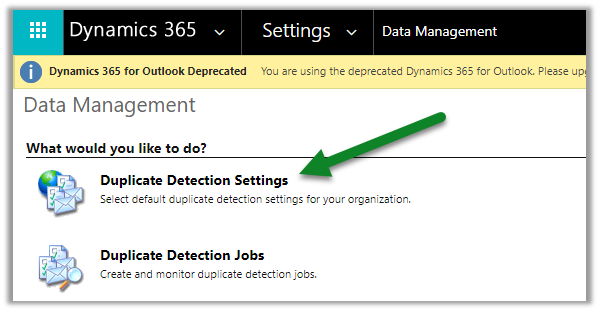
To enable it, navigate to – Settings > Data Management > Duplicate Detection Settings

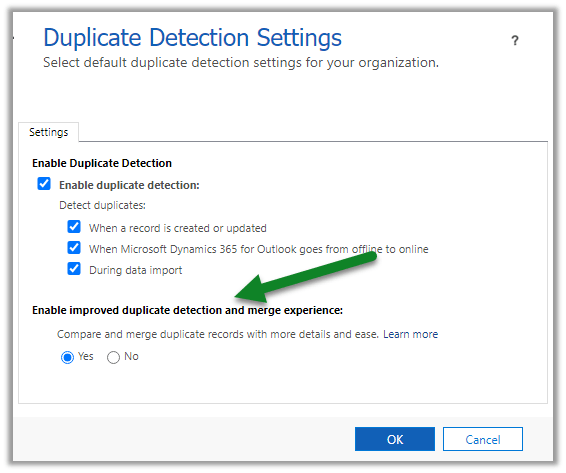
Enable it –

With this enabled, the user can see why a record is being flagged as duplicate, it also allows users to merge the record using the improved Merge dialog box while the record is being added, updated, or quailed as in case of lead.

On creating a duplicate contact record with the same last name and first name, the dialog box opens up.

We can select any of the matched records and click on the Merge button to merge it.

We can see the different options within the merge dialog box.

Selecting the appropriate options, and clicking on Ok merges the record.

Hope it helps ..

Advertisements

D365 CE: Show/Hide and Enable/Disable same field placed in multiple tabs using JavaScript


Ajit Patra's avatarAjit Patra

We often put the same fields in different tabs based on business requirements.

To Hide/Show such fields we need to use below script:

var formContext = executionContext.getFormContext();
formContext.getAttribute("fieldName").controls.forEach(
function (control, i) {
     control.setVisible(false/true);
});

Similarly, to Enable/Disable such fields we need to use below script:

formContext.getAttribute("fieldName").controls.forEach(
function (control, i) {
        control.setDisabled(false/true);
    });

Without using the loop the script only works for the first occurrence of the field.

Hope it helps !!

View original post