Hide “Page-“ from title of SharePoint Page


To hide the “Page -“text from the page title
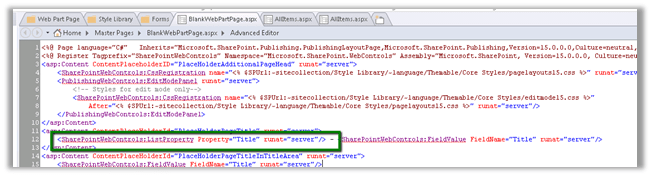
Open the BlankWebPartPage.aspx in the page designer and remove the tag highlighted in green.
http://stackoverflow.com/questions/13303764/page-layouts-not-available-in-sharepoint-designer

However, sometimes the Page Layouts link is missing. This is a common scenario:

•you have a subsite in a site collection

•the publishing feature is activated in the subsite, but not in the site collection

•you want to edit/add page layouts on the site collection level, to be used within your subsite

•when you open the site collection in SharePoint Designer, you can’t see Page Layouts in the Site Objects panel You now have 2 options: you can either activate the publishing feature in the site collection (and the Page Layouts link comes back), or you can use the All Files link and browse to the master pages and page layouts library (_catalogs > masterpage.) Either option will do, unless you really don’t want the publishing feature in the site collection


Hiding new item, edit, view selector from List View Web Part in SharePoint 2013


We had a requirement to hide the new item button, edit button etc. from a List View Web Part.


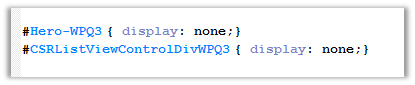
The way we achieved it was using a Content Editor Web Part and pointing it to Jscript File with the following CSS,

By finding the following id(s) and setting display as none.

List View with hidden controls.

Cannot retrieve the URL specified in the Content Link property. For more assistance, contact your site administrator error in SharePoint.


We were getting this error in one of our pages in SharePoint.

Just verify the Content Link it might not be pointing to correct url in the Content Editor Web Part.

Hope it helps..

Check if a user is a SharePoint Administrator in JavaScript – SharePoint 2013.


Hi,

Had a requirement to check if user is a SharePoint Admin or not and accordingly hide few elements in the page. We used the below code in our custom master page

Sample Code


var currentUser;

function IsUserAdmin() {
clientContext = SP.ClientContext.get_current();
spWeb = clientContext.get_web();
currentUser = spWeb.get_currentUser();
clientContext.load(currentUser);
clientContext.executeQueryAsync(Function.createDelegate(this, this.onQuerySucceeded), Function.createDelegate(this, this.onQueryFailed));
}

function onQuerySucceeded(sender, args) {

var isUserAdmin = currentUser.get_isSiteAdmin();
if (isUserAdmin) {

alert('Current User is Administrator');

} else {

alert('Current User is not an Administrator');
}
}

function onQueryFailed(sender, args) {

alert('Request failed. ' + args.get_message() +
'\n' + args.get_stackTrace());
}

ExecuteOrDelayUntilScriptLoaded(GetCount, "sp.js");

Hope it helps ..

Sample PowerShell script to create web application and a site collection in SharePoint 2013


Just sharing a sample script that we are using to create a web application and a site collection of type publishing in it.


# SharePoint cmdlets
Add-PsSnapin Microsoft.SharePoint.PowerShell</pre>
# Set variables
$WebAppName = "MyAppPool"
$WebAppHostHeader = "servername"
$WebAppPort = "portnumber"
$url = "http://servername"
$WebAppAppPool = "MyAppPool"
# This User has to be a Sharepoint Manager Account
$WebAppAppPoolAccount = "domain\username"
$AuthenticationMethod = "NTLM"
$ap = New-SPAuthenticationProvider -UseWindowsIntegratedAuthentication -DisableKerberos

# Create a new Sharepoint WebApplication
New-SPWebApplication -Name $WebAppName -Port $WebAppPort -HostHeader $WebAppHostHeader -URL $url -ApplicationPool $WebAppAppPool -ApplicationPoolAccount (Get-SPManagedAccount $WebAppAppPoolAccount) -AuthenticationMethod $AuthenticationMethod -AuthenticationProvider $ap

# Set variables
$SiteCollectionName = "MySiteCollection"
$SiteCollectionURL = "http://servername:portnumber/"
$SiteCollectionTemplate = "BDR#0"
$SiteCollectionLanguage = 1033
$SiteCollectionOwner = "LSS\lssspadmin"

# Create a new Sharepoint Site Collection
New-SPSite -URL $SiteCollectionURL -OwnerAlias $SiteCollectionOwner -Language $SiteCollectionLanguage -Template $SiteCollectionTemplate -Name $SiteCollectionName

Hope it helps ..

Use TryGetList to check if a list exist in SharePoint (SharePoint Object Model)


Hi,

We were getting the following error that “list doesn’t exist in the site” because the user was not having read permission on that list.

The code we were using was

SPList myList= spWeb.Lists[“mylist”];

A better approach would be

SPList myList = spWeb.Lists.TryGetList(“myList”);

If(myList != null )

// …

Bye ..