LookUp for Site Definition in SharePoint.


Suppose we have created a site definition for an existing Site having two lists and one of the lists uses a lookup column that points to the other list.

Now if we are creating site using that site definition we will find our lookup column missing in the list.

If we check the schema.xml for our list, we will find our lookup field to be commented.

LookUp

To get it working ,  we need to define the field in the following manner

Original

<Field Type="Lookup" DisplayName="myLookUp" Required="FALSE" List="{72424dd2-9030-408a-97c9-8482d9d81204}" ShowField="Title" UnlimitedLengthInDocumentLibrary="FALSE" ID="{f50277a0-4da5-46d3-8e60-284c729a3eb8}" SourceID="{07e7832d-45df-4f69-b5bb-e31c5107c5ca}" StaticName="myLookUp" Name="myLookUp" ColName="int1" RowOrdinal="0" />

It should be modified to

<Field Type="Lookup"
DisplayName="myLookUp"
Required="FALSE"
 List="Lists/SecondList"
ShowField="Title"
ID="{f50277a0-4da5-46d3-8e60-284c729a3eb8}"
StaticName="myLookUp" Name="myLookUp" ></Field>

SecondList :- The name of the other list.

Check this wonderful post

http://www.mtelligent.com/journal/2007/10/14/adding-back-lookup-columns-in-the-provisioning-handler.html


Bye…

Invalid data has been used to update the list item. The field you are trying to update may be read only.


I got this error while updating an splistitem. It was coming while trying to update “Person or Group” type column.

This is the correct way to update the column of type “Person or Group”.

itemApprovalAssignment["Title"] = txtTitle.Text.Trim();
                    itemApprovalAssignment["Assign_x0020_To"] = oweb.EnsureUser(peAssignTo.CommaSeparatedAccounts);

i.e. to use EnsureUser method.

Bye..

Access is denied. (Exception from HRESULT: 0x80070005 (E_ACCESSDENIED))


I was getting the above error while deploying the Site Definition in SharePoint. The unique thing about this error was that after some time it used to get resolved itself.

Then while searching for it i found the following solution for it which is to Stop the Indexing Service.

And it really worked.

Bye..

Resource (.resx) files in Custom Content Type


These are the steps we need to follow

Suppose this the custom content type

<?xml version=”1.0″ encoding=”utf-8″?>
<Elements Id=”555705e7-e69f-4670-a972-c7bab158f935″ xmlns=”http://schemas.microsoft.com/sharepoint/”>
<ContentType ID=”0x010100923d6eee64764f08baa6903fb9095a6c”
Name=”GContentType”
Group=”Development”
Description=”Developing Content Type”
Version=”0″>
<FieldRefs>
<FieldRef ID=”{38ae2eb9-fca6-448b-9c8d-47abfeb7fbb5}” Name=”GContentTypeField” />
</FieldRefs>
</ContentType>
<Field ID=”{38ae2eb9-fca6-448b-9c8d-47abfeb7fbb5}”
Type=”Text”
Name=”GContentTypeField”
DisplayName=”$Resources:GED,Mission”
StaticName=”GContentTypeField”
Hidden=”FALSE”
Required=”FALSE”
Sealed=”FALSE” />
</Elements>

Here GED would be the name of resource files and mission is the Key Name.

Resource

GED.resx file needs to be deployed to ..12\Resources directory.

And in the feature.xml set

DefaultResourceFile=”GED”

http://innersharepoint.blogspot.com/2009/10/how-to-locolize-site-columns-using.html

http://blogs.msdn.com/b/joshuag/archive/2009/03/07/using-resource-files-resx-when-developing-sharepoint-solutions.aspx

Bye..

InfoPath forms and SQL Server Reporting Services


Hi,

I recently worked on a report project having InfoPath form in SharePoint’s InfoPath library as it’s Data Source.

For understanding purpose let’s start with a very simple InfoPath form having two text boxes in it named txtFirstName and txtLastName.
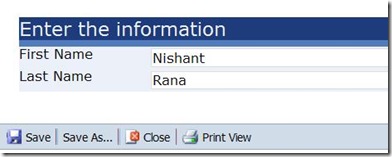
Form

Let’s first define a Data Source for our report.

Name:- InfoPathDataSource

Type:- XML

Connection String : (Suppose the url for our InfoPath library is following

http://nrana-1710-vm1:2575/Sample/Forms/AllItems.aspx and the name of the InfoPath form is PersonalInfo.

So in this case our connection string would be

http://nrana-1710-vm1:2575/Sample/PersonalInfo.xml

Now let’s create a new DataSet having InfoPathDataSource as its data source.

Name :- InfoPathDataSet

Data source :- InfoPathDataSource

Command Type :- Text

Query String :-  ( For defining query string we need to first open up the PersonalInfo.xml file. Paste the following url in IE http://nrana-1710-vm1:2575/Sample/PersonalInfo.xml and download and open the xml file.

Suppose this is the content of the PersonalInfo.xml file

<?xml version="1.0" encoding="utf-8"?>
<?mso-infoPathSolution
name="urn:schemas-microsoft-com:office:infopath:Sample:-myXSD-2010-05-26T09-16-03"
solutionVersion="1.0.0.10"
productVersion="12.0.0.0"
PIVersion="1.0.0.0"
href="
http://nrana-1710-vm1:2575/Sample/Forms/template.xsn"?>
<?mso-application
progid="InfoPath.Document"
versionProgid="InfoPath.Document.2"?>

<my:myFields xmlns:my="http://schemas.microsoft.com/office/infopath/2003/myXSD/2010-05-26T09:16:03" xml:lang="en-US">
    <my:txtFirstName>Nishant </my:txtFirstName>
    <my:txtLastName>Rana</my:txtLastName>
</my:myFields>

The  Query String to retrieve First and Last name value would be

<Query xmlns:xsi="http://www.w3.org/2001/XMLSchema-instance"
xmlns:my="http://schemas.microsoft.com/office/infopath/2003/myXSD/2010-05-26T09:16:03"
xmlns:xd="http://schemas.microsoft.com/office/infopath/2003" xml:lang="en-us">
    <ElementPath>
        my:myFields           
    {
        my:txtFirstName(String),
        my:txtLastName(String)       
    }
    </ElementPath>
</Query>

We also define a parameter in our data set to which we would pass the url to the infopath form i.e.

http://nrana-1710-vm1:2575/Sample/PersonalInfo.xml

That’s it, now if we run the query we can get values for first name and last name.

In case if your InfoPath xml form is looks like this

<my:myFields xmlns:my="http://schemas.microsoft.com/office/infopath/2003/myXSD/2010-05-12T05:10:51" xml:lang="en-US">
    <my:group1>
        <my:group2>
            <my:field1>2</my:field1>
            <my:field2>nishu</my:field2>………….

Than the Element Path of Query String would be like

<ElementPath>
        my:myFields/my:group1/my:group2          
    {
        my:field1(String),
        my:field2(String)       
    }
    </ElementPath>

Bye…

The query cannot be run for the following DataObject: InfoPath cannot run the specified query. Access is denied


Hi,

we got the above error while using a Web Service as a data connection.

This is the step we followed to resolve it

Go to Tools–>Form Options–>Select “Security and Trust ” and set it to “Full Trust”.

Bye..