Hi,
We were receiving the above error while trying to use the “Alert Me” feature.
The reason was because email was not specified for the user. We can check it over here.
Click on Welcome User Name –> My Settings on the top right corner
There we can see “work e-mail“ as blank.
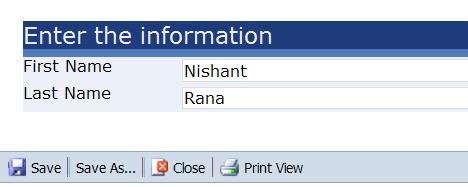
And if we click on “Edit Item” to edit that information, we can only see the account name and an option for attaching file. So that information cannot be edited over here and why so?
The reason for this is following, i found this in one of the forums for SharePoint
“There are actually 2 user profiles – one is a WSS profile and one is a MOSS profile. The WSS profile you access from Welcome user > My Settings page. The MOSS profiles are created when users are imported into the system from AD or LDAP. They are access from People Search or from a link off of your MySite.
The reason there are 2 is that you can install WSS without MOSS and they wanted a basic user profile. If you installed WSS without MOSS, you would see the profile (again, accessed through Welcome user > My Settings page) with about 3 properties.
If you install MOSS, do an import, and go to the WSS profile, you’ll see a bunch of properties added that MOSS adds. We now depricate the WSS profile. If you want to add property values to your profile, you need to go to your MOSS profile from your MySite (MySite > Details). You’ll be on the editprofile.aspx page. Add your properties. We then sync your properties to the WSS user list. You will see the values show up on the WSS profile after the sync happens.”
So as per the description we need to add the work email to our user profile first and then we need to sync that MOSS’s user profile to our WSS profile.
For this we will first open the Shared Services site,
than select User Profile and Properties—> Select View User Profile –> Select a particular user and edit it’s profile.
We will specify the value for Work e-mail property over there.
Followed by Save and Close.
Now we need to sync it back to WSS profile
For this we need to use the following command
Stsadm -o sync -synctiming m:5
It means that the schedule for the Profile Sync job to run is every five minutes. The default value is 1 hour.
Then run this command line:
Stsadm -o sync -sweeptiming m:1
- -o -synctiming changes the Profile Sync job
- -o -sweeptiming changes the Quick Profile Sync job
At times it might not work so we need to follow this step as well
stsadm -o sync -listolddatabases <n>
stsadm -o sync -deleteolddatabases <n>
The listolddatabases <n>option will list the databases that have not been successfully syncronized the last <n> days, and the deleteolddatabases <n>option will delete the syncronization information from the databases that are not successfully syncronized the last <n> days.
If this also doesn’t help than we need to do the server reboot. That would definitely work. At least that worked in my case 🙂
This article has got all the information http://sharepointnotes.wordpress.com/2008/05/05/syncing-wss-and-moss-user-profile-properties-with-active-directory/
Bye..




 Nishant Rana's Weblog