
TypeScript is an open-source programming language developed and maintained by Microsoft.
TypeScript adds Type support to JavaScript, which makes sure type checking is done resulting in fewer bugs, adds autocomplete supports in the TypeScript editor, supports Object Orientation and structuring and packing of the code, etc.
The code written in TypeScript transpiles to JavaScript by TSC i.e. TypeScript Compiler.
The easiest way to install TSC is to install it as a Node.js package using NPM i.e. Node Package Manager at the command line.
Download and install Node.js first if it is not already installed.

Make sure to include Node.js runtime and npm package manager.
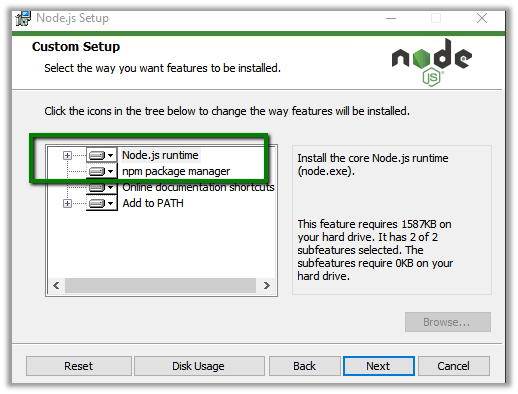
Now to install TSC, open the terminal and type the below command
npm install -g typescript
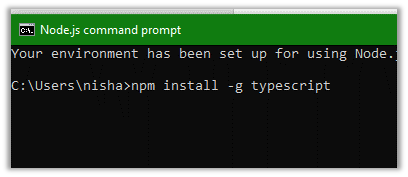
g makes sure that it is installed globally and not just in the directory from which we are running the command.
There are different editors available for TypeScript

Let us see how to configure TypeScript for Visual Studio Code.
Download link for Visual Studio Code (if not already installed)
https://code.visualstudio.com/
Open Visual Studio Code and select the working folder or
in Node.js command prompt, create the directory and open the visual studio code from there
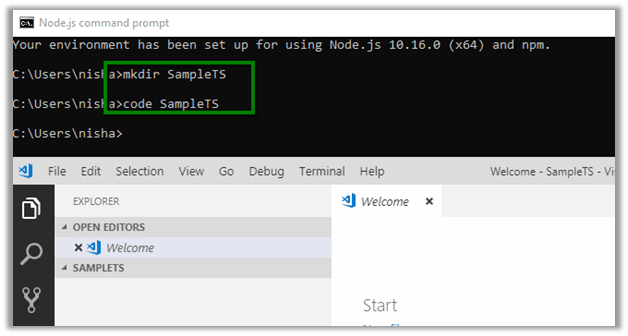
From file explorer in Visual Studio Code, create the new .ts file
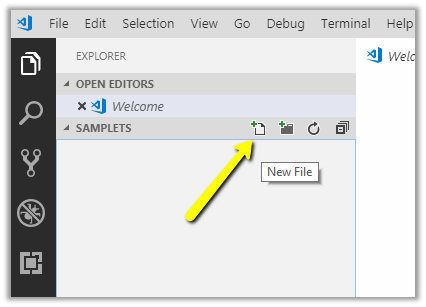
Create the typescript file with the extension .ts and add the JavaScript code
To compile the TypeScript code, open the integrated Terminal in Visual Studio Code and type
tsc <<FileName.js>>
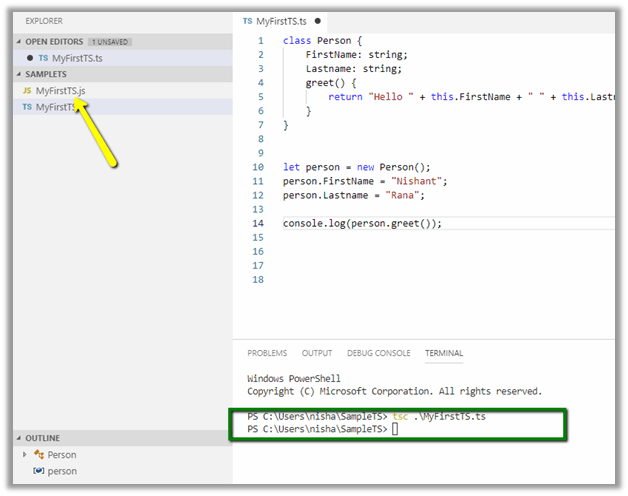
This creates a new corresponding JavaScript file for the TypeScript file.

To run it use the node command
node <<filename>>

We can also modify the TypeScript compiler’s default behavior by adding tsconfig.json.
Here we have added tsconfig.json file in the project with the following code
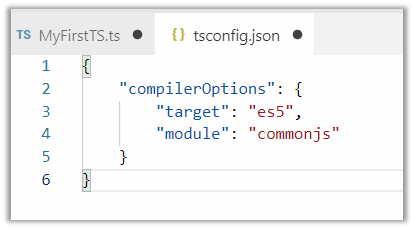
Check below link for different compilerOptions
https://www.typescriptlang.org/docs/handbook/compiler-options.html
To configure the build, execute Run Build Task…
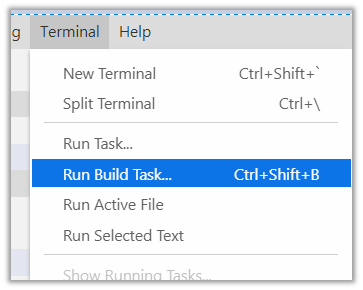
As we have created the tsconfig.json file earlier, we will be presented with the following option

Select tsc: build to run the build task.
If tsc: watch is selected the compiler will watch for the changes in TypeScript files and runs the transpiler whenever the changes are saved.
To set the build or watch task as default, select Configure Default Build Task from the Terminal menu.

On selecting tsc: build task, tasks.json file is added inside .vscode
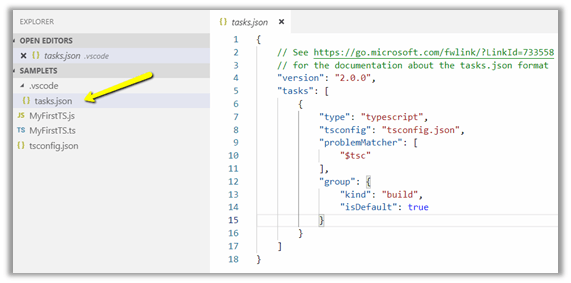
This sets build task as default, so now when we run the Run Build Task, we are not prompted to select a task.
This completes the basic environment setup for using TypeScript with Visual Studio Code.
Hope it helps..
Discover more from Nishant Rana's Weblog
Subscribe to get the latest posts sent to your email.
Share It -


 Nishant Rana's Weblog